


Compression instructions below
Go Ad-Free with ezyZip Pro!
Convert and compress images across 200+ formats with no file size limits and no ads. ezyZip Pro includes a downloadable Image Converter app with advanced optimization.
Video tutorial
Watch a 60-second walkthrough
Video instructions showing to reduce the size of image files by percentage. This example shows how to reduce a jpeg file by 50%.
How do I reduce RW2 size by 10%?
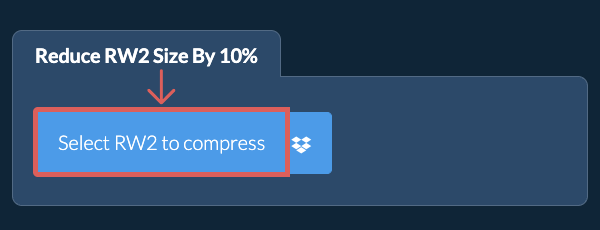
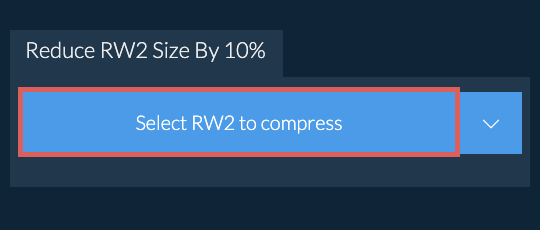
- Select image filesClick on "Select RW2 to compress" to select the files you wish to reduce in size
- (Optional) Set compression levelIt will list out the files you selected. You can adjust the level of reduction (default is 10%) and resolution by clicking on the value and selecting a new value from the dropdown.
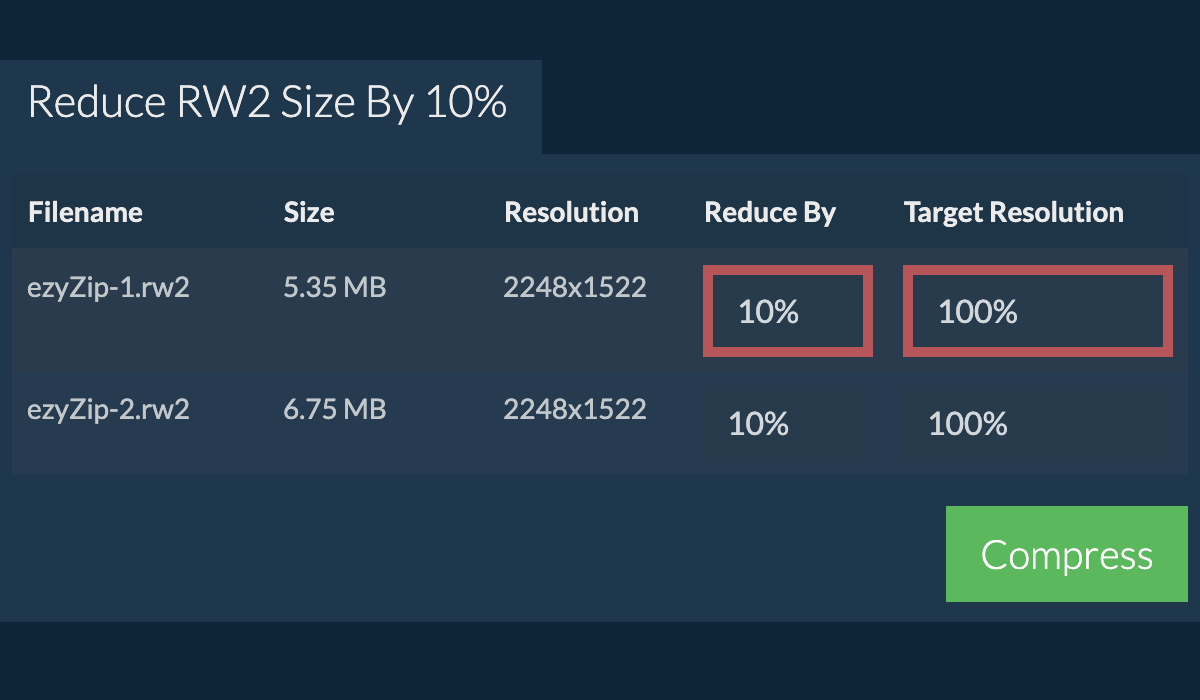
- Compress imagesClick on the green "Compress" button at the bottom to start the compression process.
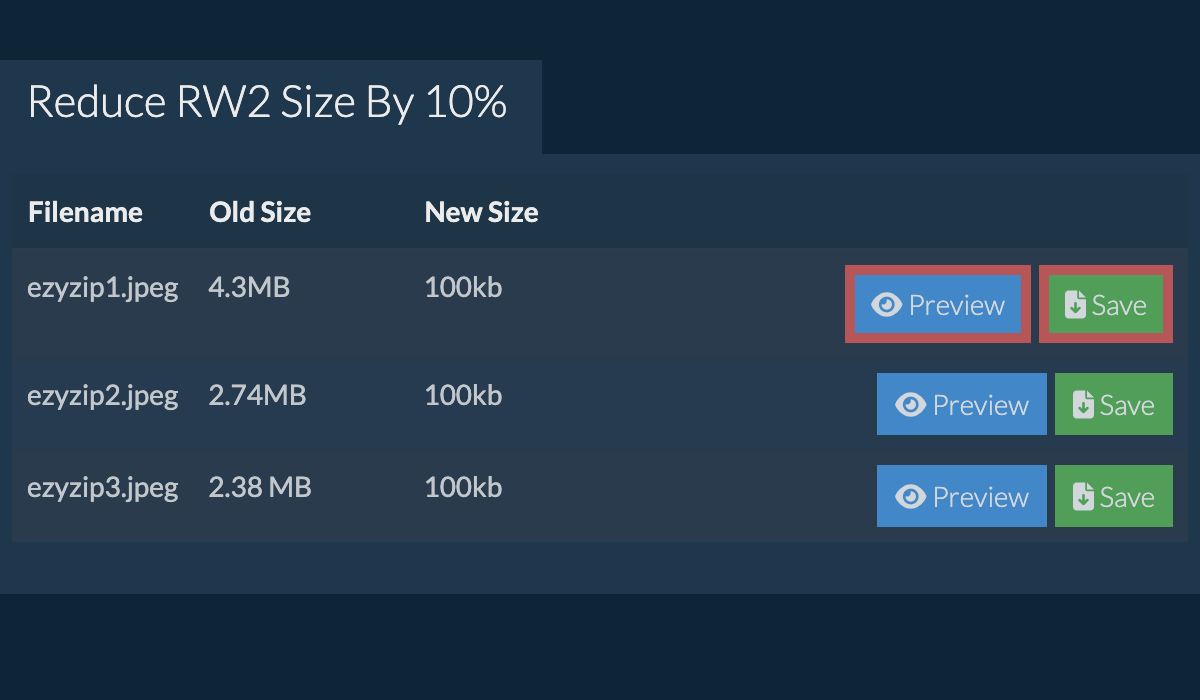
- Save compressed imagesOnce all files have been compressed, you will be presented with files again. Click on "Preview" to see the new images in browser. If you are happy with it, then click on "Save" to save the compressed files to your computer.
More how-to guides
- Select Dropbox sourceClick on the Dropbox logo () in the file selector button.
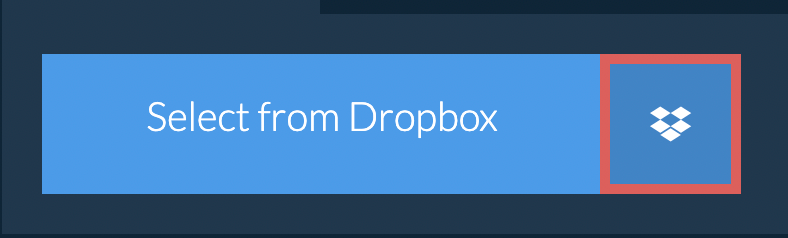
- Choose image filesThe Dropbox file chooser will appear. You will need to authorise access to ezyZip the first time.
- Compress imagesOnce you have selected the file(s), they will appear in the listing. Follow the instructions above to compress the files.
- Save to DropboxTo save the resulting RW2 file to Dropbox, click on "Dropbox" dropdown under the "Save RW2 File" button. This will require authorisation the first time you run it.
The file will be stored in /Apps/ezyZip folder.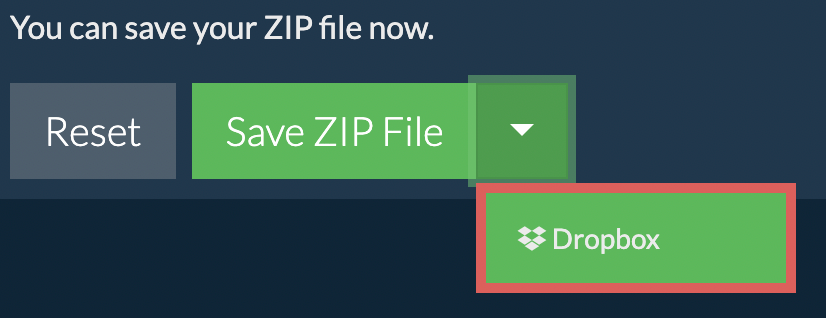
Frequently asked questions
COMPRESS_IMAGES_BY_PERCENTAGE.will-quality-suffer-answer
ezyZip is an online tool that supports any OS that can run a modern browser. We have tested it to work with Windows, MacOS, Linux (e.g. Ubuntu, Mint, Debian), Android, ChromeOS (Chromebook), iOS (iPhone, iPad & iPod Touch).
We are continuously updating the system, so ensure you are using the latest version of one of the popular browsers or their variants. (e.g. Chrome, Firefox, Safari, Opera).
Please let us know via the feedback form if you have any issues.
We are continuously updating the system, so ensure you are using the latest version of one of the popular browsers or their variants. (e.g. Chrome, Firefox, Safari, Opera).
Please let us know via the feedback form if you have any issues.
ezyZip is a set of utilities for dealing with compressed files. It is a free online utility to compress your files to a smaller size, including this tool to reduce RW2 files by 10%. No need to install any additional software. It supports a myriad of other image compression options too.
ezyZip processes files directly in your browser. Unlike most online tools, your files are not uploaded to our servers, which means faster processing and better privacy. Take a look at the feature comparison below and we think youll agree that ezyZip is the better choice for your file conversion needs.
| Feature | ezyZip | Other Online Tools |
|---|---|---|
| No Software Installation | Works Directly in Browser | Works Directly in Browser |
| Processing Location | Your Browser (No Upload) | Their Servers (Upload Required) |
| Privacy & Security | 100% Private (Files Never Leave Your Device) | Files Uploaded, Accessible by Others |
| Processing Speed | Fast (No Upload/Download Time) | Slow (Upload + Process + Download) |
| Registration Required | Never | Often Required for Large Files |
| Works Offline | Yes (After Page Load) | No |
| Image Format Support | 100+ Image Formats | Limited (JPEG, PNG, GIF only) |
| Compression Quality | Smart Quality Optimization | Basic Compression |
| Batch Processing | Process Multiple Images | One at a Time |
| Cost | 100% Free | Free with Limitations / Paid Tiers |
| Established | Since 2009 (15+ Years) | Recent (May Disappear) |
Why client-side RW2 percentage-based compression is faster
ezyZip's WebAssembly engine calculates optimal compression parameters in real-time to achieve percentage-based size reduction for RW2 images. Here is why local processing is faster:
- Adaptive QuantizationAlgorithms run locally in WASM linear memory, iterating rapidly to match your target percentage without server communication latency. The encoder automatically adjusts quality parameters to achieve your specified reduction — whether that's 25%, 50%, or 90% smaller.
- Batch ProcessingEntire photo libraries can be processed through dedicated Web Workers. Each image receives individually optimized compression parameters to hit the target percentage, since the same quality setting produces different size reductions on different images.
- Memory-Efficient OutputThe Origin Private File System stages compressed outputs for efficient batch downloading. Processed images queue on disk rather than in browser memory, so even hundreds of high-resolution images can be compressed in a single batch.
- Visual Quality OptimizationThe percentage-based algorithm prioritizes perceptual quality, reducing file size while preserving visual detail in areas the human eye notices most — faces, text, and sharp edges receive higher quality than smooth gradients.