


Compression instructions below
Go Ad-Free with ezyZip Pro!
Convert and compress images across 200+ formats with no file size limits and no ads. ezyZip Pro includes a downloadable Image Converter app with advanced optimization.
Video tutorial
Watch a 60-second walkthrough
Video instructions showing to reduce the size of tiff files. This example shows how to reduce to 100kb but same applies to other sizes.
How do I compress TIFF file to 40kb?
Step by step instructions showing how to compress TIFF to 40kb online using ezyZip.
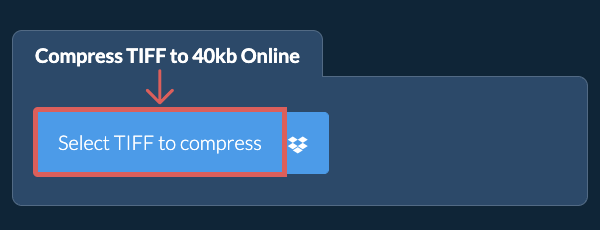
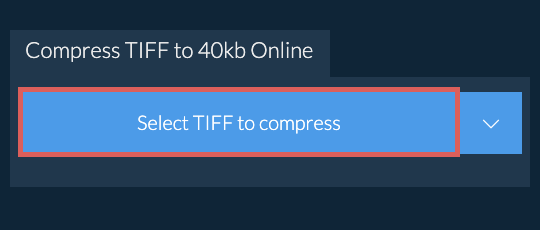
- Select image filesClick on "Select TIFF to compress" to select the files you wish to reduce in size
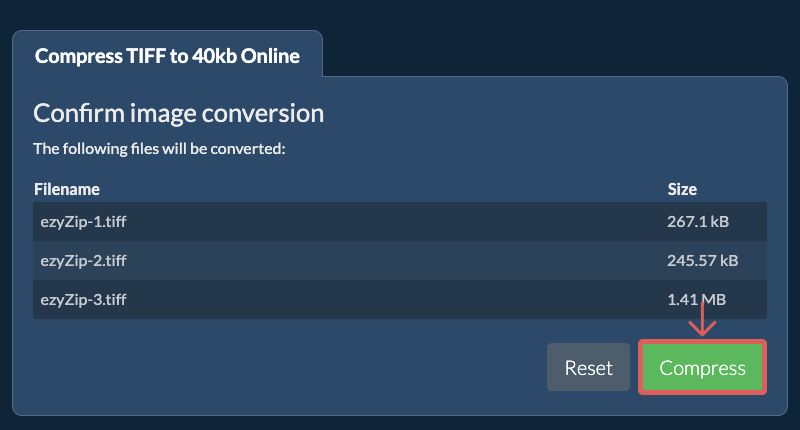
- (Optional) Set compression levelIt will list out the files you selected. You can adjust the max size (default is 40kb) and resolution by clicking on the value and selecting a new value from the dropdown.

- Compress imagesClick on the green "Compress" button at the bottom to start the compression process.
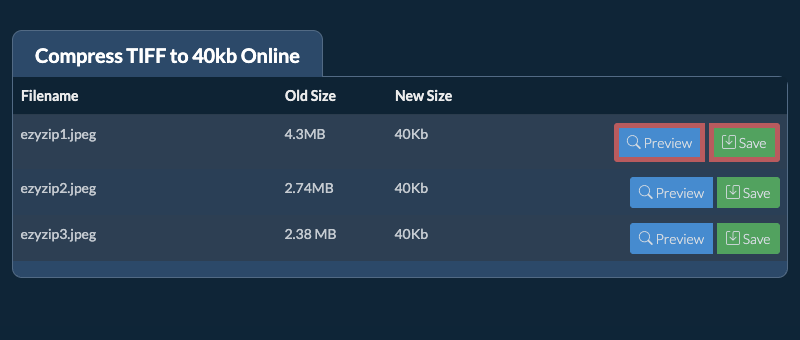
- Save compressed imagesOnce all files have been compressed, you will be presented with files again. Click on "Preview" to see the new images in browser. If you are happy with it, then click on "Save" to save the compressed files to your computer.
More how-to guides
- Select from DropboxClick the down arrow (▾) next to the file selection button, then choose "Select from Dropbox".
- Pick your imagesA small ezyZip window opens. Click "Continue to Dropbox", sign in to Dropbox if asked, then pick what you want to compress.
- Compress the imagesezyZip downloads your selection into your browser. Then follow the instructions above.
- Save to DropboxWhen your file is ready, click the down arrow (▾) next to the save button and choose "Dropbox". The first time, Dropbox asks you to allow ezyZip access.
Files are saved in the /Apps/ezyZip folder.
- Select from Google DriveClick the down arrow (▾) next to the file selection button, then choose "Select from Google Drive".
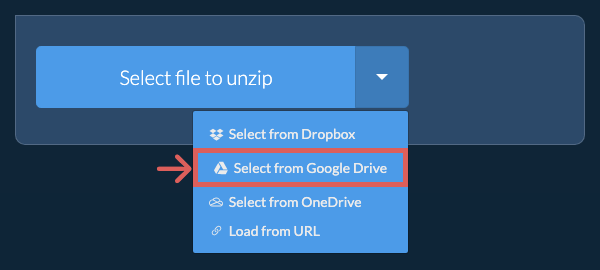
- Sign in and pick imagesA Google Drive window opens. Sign in to Google if asked, allow ezyZip to access the files you choose, then pick what you want to compress.
- Compress the imagesezyZip downloads your selection into your browser. Then follow the instructions above.
- Save to Google DriveWhen your file is ready, click the down arrow (▾) next to the save button and choose "Google Drive". Sign in to Google if asked.
Files are saved in the My Drive/ezyZip folder.
- Select from OneDriveClick the down arrow (▾) next to the file selection button, then choose "Select from OneDrive".
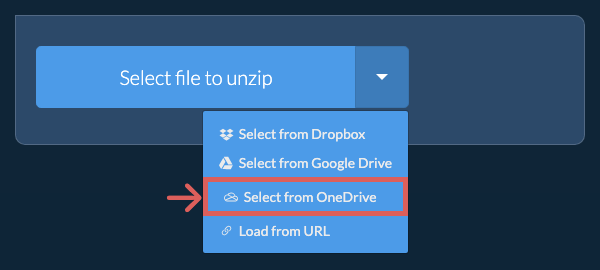
- Sign in and pick imagesA OneDrive window opens. Sign in with your personal Microsoft account if asked and allow ezyZip access, then pick what you want to compress.
- Compress the imagesezyZip downloads your selection into your browser. Then follow the instructions above.
- Save to OneDriveWhen your file is ready, click the down arrow (▾) next to the save button and choose "OneDrive". Sign in with your Microsoft account if asked.
Files are saved in the Apps/ezyZip folder.
Frequently asked questions
It depends on the original image. If the original image is large and you are also maintaining existing resolution, then invariably the quality will suffer. If you reduce the resolution, then the quality will suffer less. You can use the preview functionality to check the quality of the image before saving it.
ezyZip is an online tool that supports any OS that can run a modern browser. We have tested it to work with Windows, MacOS, Linux (e.g. Ubuntu, Mint, Debian), Android, ChromeOS (Chromebook), iOS (iPhone, iPad & iPod Touch).
We are continuously updating the system, so ensure you are using the latest version of one of the popular browsers or their variants. (e.g. Chrome, Firefox, Safari, Opera).
Please let us know via the feedback form if you have any issues.
We are continuously updating the system, so ensure you are using the latest version of one of the popular browsers or their variants. (e.g. Chrome, Firefox, Safari, Opera).
Please let us know via the feedback form if you have any issues.
ezyZip is a set of utilities for dealing with compressed files. It is a free online utility to compress your files to a smaller size, including this TIFF to 40kb file size reducer. No need to install any additional software. It supports a myriad of other image compression options too.
ezyZip processes files directly in your browser. Unlike most online tools, your files are not uploaded to our servers, which means faster processing and better privacy. Take a look at the feature comparison below and we think you'll agree that ezyZip is the better choice for your file conversion needs.
| Feature | ezyZip | Other Online Tools |
|---|---|---|
| No Software Installation | Works Directly in Browser | Works Directly in Browser |
| Processing Location | Your Browser (No Upload) | Their Servers (Upload Required) |
| Privacy & Security | 100% Private (Files Never Leave Your Device) | Files Uploaded, Accessible by Others |
| Processing Speed | Fast (No Upload/Download Time) | Slow (Upload + Process + Download) |
| Registration Required | Never | Often Required for Large Files |
| Works Offline | Yes (After Page Load) | No |
| Image Format Support | 100+ Image Formats | Limited (JPEG, PNG, GIF only) |
| Compression Quality | Smart Quality Optimization | Basic Compression |
| Batch Processing | Process Multiple Images | One at a Time |
| Cost | 100% Free | Free with Limitations / Paid Tiers |
| Established | Since 2009 (15+ Years) | Recent (May Disappear) |
Why client-side TIFF compression to target size is faster
ezyZip achieves precise target file sizes for TIFF images using an iterative algorithm running entirely in your browser. Here is why local target-size compression is faster:
- Rapid Local IterationsThe WebAssembly encoder adjusts parameters, checks output size, and re-adjusts in milliseconds — a feedback loop that would require separate server round-trips with upload-based tools. The binary search algorithm typically converges to your exact target size within 5–8 iterations, all completed in under a second.
- Single File ReadThe source image is read once through the File API and processed entirely within WASM heap memory, eliminating redundant data transfers. Pixel data stays decoded in the WASM heap across iterations, so only the encoding step repeats — not the decode.
- Precise Size ControlSpecify your exact target in KB or MB and the algorithm hits it within a tight tolerance. This is essential for meeting strict file size requirements for email attachments, website uploads, or social media profile images.
- Batch Target SizingApply the same target size across an entire batch of images, with the iterative algorithm running independently per image to achieve optimal quality at the specified size for each one.