

Conversion instructions below
Go Ad-Free with ezyZip Pro!
Convert and compress images across 200+ formats with no file size limits and no ads. ezyZip Pro includes a downloadable Image Converter app with advanced optimization.
Video tutorial
Watch a 60-second walkthrough
This video guide will show you how to easily convert images between different formats in this step-by-step tutorial. We demonstrate converting from jfif to png, but you can apply these same techniques to cr2 images. Perfect for photographers, designers, or anyone who needs to change file types for their projects.
How do I convert CR2 to PDF?
Step by step instructions showing how to convert CR2 to PDF image online using ezyZip.
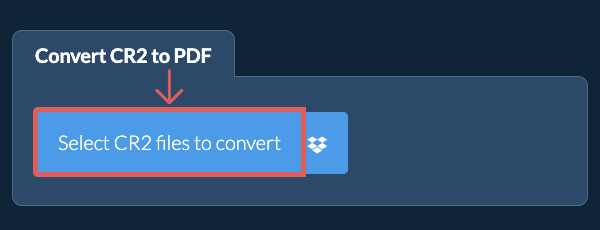
- Select files to convertClick on "Select CR2 files to convert" to select the files you wish to convert
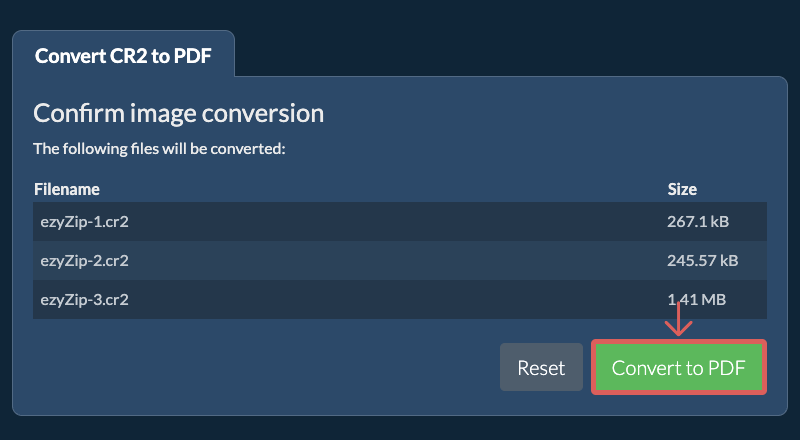
- Convert your fileClick on the green "Convert to PDF" button at the bottom to start the conversion process.
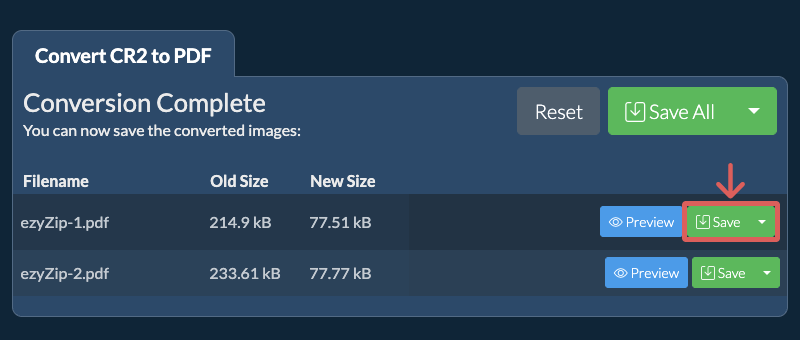
- Save the converted fileOnce all files have been converted, you will be presented with files again. Click on "Preview" to see the new images in browser. If you are happy with it, then click on "Save" to save the converted files to your computer.
More how-to guides
- Select from DropboxClick the down arrow (▾) next to the CR2 file selection button, then choose "Select from Dropbox".
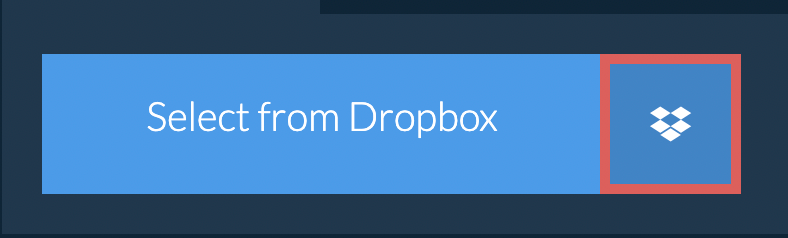
- Pick your filesA small ezyZip window opens. Click "Continue to Dropbox", sign in to Dropbox if asked, then pick what you want to convert.
- Follow the instructionsezyZip downloads the CR2 file(s) into your browser. Then follow the instructions above.
- Save to DropboxWhen your file is ready, click the down arrow (▾) next to the save button and choose "Dropbox". The first time, Dropbox asks you to allow ezyZip access.
Files are saved in the /Apps/ezyZip folder.
- Select from Google DriveClick the down arrow (▾) next to the CR2 file selection button, then choose "Select from Google Drive".
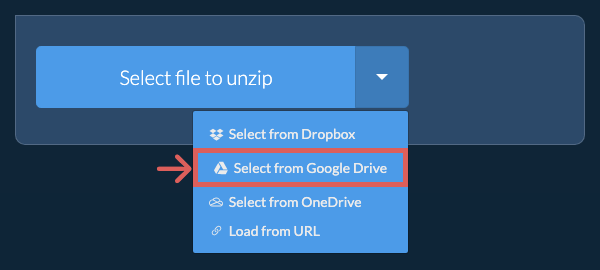
- Sign in and pick filesA Google Drive window opens. Sign in to Google if asked, allow ezyZip to access the files you choose, then pick what you want to convert.
- Follow the instructionsezyZip downloads the CR2 file(s) into your browser. Then follow the instructions above.
- Save to Google DriveWhen your file is ready, click the down arrow (▾) next to the save button and choose "Google Drive". Sign in to Google if asked.
Files are saved in the My Drive/ezyZip folder.
- Select from OneDriveClick the down arrow (▾) next to the CR2 file selection button, then choose "Select from OneDrive".
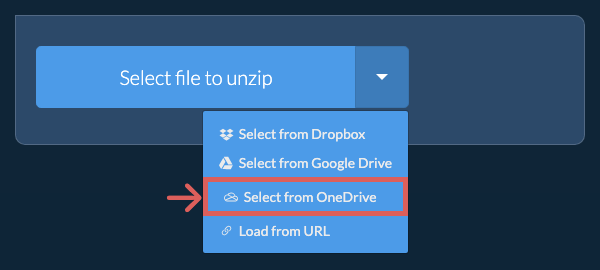
- Sign in and pick filesA OneDrive window opens. Sign in with your personal Microsoft account if asked and allow ezyZip access, then pick what you want to convert.
- Follow the instructionsezyZip downloads the CR2 file(s) into your browser. Then follow the instructions above.
- Save to OneDriveWhen your file is ready, click the down arrow (▾) next to the save button and choose "OneDrive". Sign in with your Microsoft account if asked.
Files are saved in the Apps/ezyZip folder.
Frequently asked questions
It depends on the original image. If the original image is large and you are also trying to reduce file size significantly, then invariably the quality will suffer. If you reduce the resolution, then the quality will suffer less. You can use the preview functionality to check the quality of the image before saving it.
ezyZip is an online tool that supports any OS that can run a modern browser. We have tested it to work with Windows, MacOS, Linux (e.g. Ubuntu, Mint, Debian), Android, ChromeOS (Chromebook), iOS (iPhone, iPad & iPod Touch).
We are continuously updating the system, so ensure you are using the latest version of one of the popular browsers or their variants. (e.g. Chrome, Firefox, Safari, Opera).
Please let us know via the feedback form if you have any issues.
We are continuously updating the system, so ensure you are using the latest version of one of the popular browsers or their variants. (e.g. Chrome, Firefox, Safari, Opera).
Please let us know via the feedback form if you have any issues.
ezyZip is a set of utilities for compressing and converting files, including this CR2 to PDF converter. No need to install any additional software. It supports a myriad of other image conversion options too.
ezyZip processes files directly in your browser. Unlike most online tools, your files are not uploaded to our servers, which means faster processing and better privacy. Take a look at the feature comparison below and we think you'll agree that ezyZip is the better choice for your file conversion needs.
| Feature | ezyZip | Other Online Tools |
|---|---|---|
| No Software Installation | Works Directly in Browser | Works Directly in Browser |
| Processing Location | Your Browser (No Upload) | Their Servers (Upload Required) |
| Privacy & Security | 100% Private (Files Never Leave Your Device) | Files Uploaded, Accessible by Others |
| Processing Speed | Fast (No Upload/Download Time) | Slow (Upload + Process + Download) |
| Registration Required | Never | Often Required for Large Files |
| Works Offline | Yes (After Page Load) | No |
| Image Format Support | 100+ Image Formats | Limited (JPEG, PNG, GIF only) |
| Compression Quality | Smart Quality Optimization | Basic Compression |
| Batch Processing | Process Multiple Images | One at a Time |
| Cost | 100% Free | Free with Limitations / Paid Tiers |
| Established | Since 2009 (15+ Years) | Recent (May Disappear) |
Why client-side CR2 to PDF image conversion is faster and more private
ezyZip converts CR2 to PDF images using a WebAssembly-compiled engine that performs pixel-accurate format conversion. Here is why local image conversion is superior:
- Color Space AccuracyProper color space transformations, alpha channel integrity, and color profile handling are maintained through direct memory operations in the WASM heap. ICC profiles are read from the source format and mapped correctly to the target, preserving color accuracy across the conversion.
- Batch ConversionDedicated Web Workers handle batch conversion with per-image progress tracking. Convert entire folders of images between formats in a single operation, with individual status for each file so you can spot any issues immediately.
- Metadata PreservationEXIF data, GPS coordinates, camera settings, and custom metadata fields are mapped from source to target format with maximum fidelity. Where the target format supports the metadata field, it is preserved exactly.
- Format IntelligenceThe engine understands the capabilities of each image format — transparency, animation, bit depth, compression type — and automatically selects the best encoding parameters. Converting a 32-bit PNG with alpha to JPEG, for example, applies proper alpha compositing against a configurable background color.