

Conversion instructions below
Go Ad-Free with ezyZip Pro!
No ads. No file size limits. ezyZip Pro includes downloadable desktop apps for archives, media, and images.
How do I convert flac to 32bit?
- Choose your file. To select the flac file, you have two options:
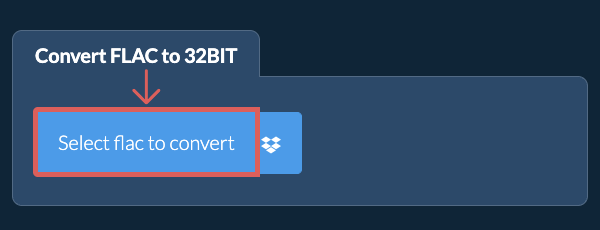
- Click "Select flac file to compress" to open the file chooser
- Drag and drop the flac file directly onto ezyZip
Click "Select flac file to compress" to open the file chooser
- Convert the bit depth.Select the target bit depth 32bit and click "Convert to 32bit". It will start the bit depth conversion process which will take some time to complete.
- Save the converted file.Click on "Save FLAC File" to save the converted FLAC file to your selected destination folder.
- Select from DropboxClick the down arrow (▾) next to the FLAC file selection button, then choose "Select from Dropbox".
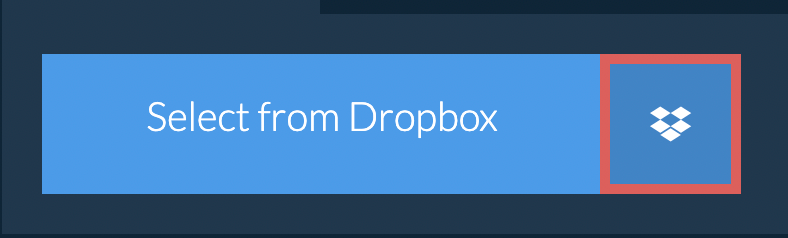
- Pick your filesA small ezyZip window opens. Click "Continue to Dropbox", sign in to Dropbox if asked, then pick what you want to convert.
- Follow the instructionsezyZip downloads the FLAC file(s) into your browser. Then follow the instructions above.
- Save to DropboxWhen your file is ready, click the down arrow (▾) next to the save button and choose "Dropbox". The first time, Dropbox asks you to allow ezyZip access.
Files are saved in the /Apps/ezyZip folder.
- Select from Google DriveClick the down arrow (▾) next to the FLAC file selection button, then choose "Select from Google Drive".
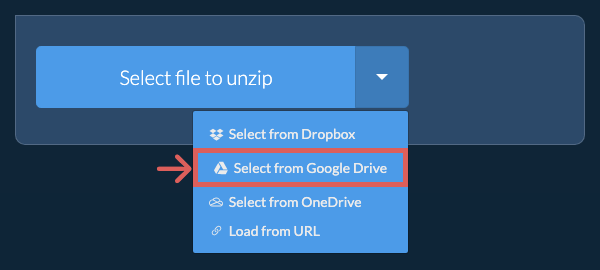
- Sign in and pick filesA Google Drive window opens. Sign in to Google if asked, allow ezyZip to access the files you choose, then pick what you want to convert.
- Follow the instructionsezyZip downloads the FLAC file(s) into your browser. Then follow the instructions above.
- Save to Google DriveWhen your file is ready, click the down arrow (▾) next to the save button and choose "Google Drive". Sign in to Google if asked.
Files are saved in the My Drive/ezyZip folder.
- Select from OneDriveClick the down arrow (▾) next to the FLAC file selection button, then choose "Select from OneDrive".
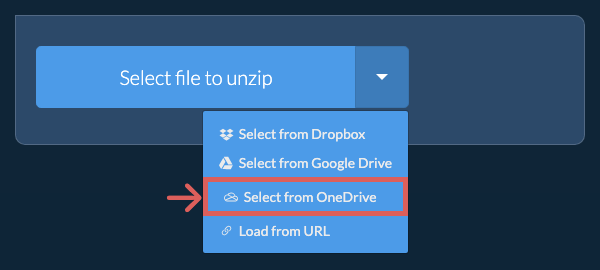
- Sign in and pick filesA OneDrive window opens. Sign in with your personal Microsoft account if asked and allow ezyZip access, then pick what you want to convert.
- Follow the instructionsezyZip downloads the FLAC file(s) into your browser. Then follow the instructions above.
- Save to OneDriveWhen your file is ready, click the down arrow (▾) next to the save button and choose "OneDrive". Sign in with your Microsoft account if asked.
Files are saved in the Apps/ezyZip folder.
Frequently asked questions
We are continuously updating the system, so ensure you are using the latest version of one of the popular browsers or their variants. (e.g. Chrome, Firefox, Safari, Opera).
Please let us know via the feedback form if you have any issues.
ezyZip is a free online flac to 32bit bit depth converter that runs in your browser. No need to install any additional conversion software. It supports a myriad of other media types and bit depths.
Unlike other online media conversion utilities, ezyZip does not require uploading files to a server. Use it as many times as you want, completely free. It runs locally as a browser app, thus making it much quicker than other online conversion tools. This also ensures your privacy will be protected as no file data will leave your browser.
ezyZip processes files directly in your browser. Unlike most online tools, your files are not uploaded to our servers, which means faster processing and better privacy. Take a look at the feature comparison below and we think you'll agree that ezyZip is the better choice for your file conversion needs.
| Feature | ezyZip | Other Online Tools |
|---|---|---|
| No Software Installation | Works Directly in Browser | Works Directly in Browser |
| Processing Location | Your Browser (No Upload) | Their Servers (Upload Required) |
| Privacy & Security | 100% Private (Files Never Leave Your Device) | Files Uploaded, Accessible by Others |
| Processing Speed | Fast (No Upload/Download Time) | Slow (Upload + Process + Download) |
| Registration Required | Never | Often Required for Large Files |
| Works Offline | Yes (After Page Load) | No |
| Media Format Support | 200+ Audio/Video Formats | Limited (MP4, MP3 only) |
| Output Quality | Clean Output, No Watermarks | Watermarks Added |
| File Size & Usage Limits | 1GB Files, Unlimited Usage | 100-200MB, Daily Limits |
| Cost | 100% Free | Free with Limitations / Paid Tiers |
| Established | Since 2009 (15+ Years) | Recent (May Disappear) |
Why client-side FLAC bit depth conversion is faster and more private
ezyZip converts FLAC audio bit depth using WebAssembly-compiled processing with professional-grade dithering algorithms. Here is why local processing is superior:
- Bit-Accurate ConversionProper dithering algorithms run locally in WASM linear memory, with sample manipulation happening directly in allocated memory space. When reducing bit depth, triangular probability density function (TPDF) dithering is applied to minimize quantization distortion.
- Full Depth RangeConvert between 8-bit, 16-bit, 24-bit, and 32-bit float depths with professional-grade quality, all within your browser. Each depth conversion properly handles the integer-to-float and float-to-integer scaling factors used in professional audio workflows.
- Responsive PerformanceThe entire conversion runs in a dedicated Web Worker, keeping your browser interface fully responsive. Progress indicators show per-sample advancement so you can track exactly how far through the file the conversion has progressed.
- Lossless UpconversionIncreasing bit depth (e.g., 16-bit to 24-bit) is performed losslessly with proper sample scaling, preserving the full dynamic range of your original recording while expanding headroom for further processing or mastering.