

Compression instructions below
Go Ad-Free with ezyZip Pro!
Convert and compress media at native speed with no file size limits and no ads. ezyZip Pro includes a desktop Media Converter app supporting 140+ audio and video formats.
Watch a 60-second walkthrough
How do I convert mpeg to a specific resolution?
- Choose your file. To select the mpeg file, you have two options:
- Click "Select mpeg file to compress" to open the file chooser

- Drag and drop the mpeg file directly onto ezyZip
Click "Select mpeg file to compress" to open the file chooser - Downscale the resolution.Click "Convert to a specific resolution". It will start the downscaling process which will take some time to complete.

- Save the result.Click on "Save MPEG File" to save the downscaled MPEG file to your selected destination folder.
- Select from DropboxClick the down arrow (▾) next to the file selection button, then choose "Select from Dropbox".
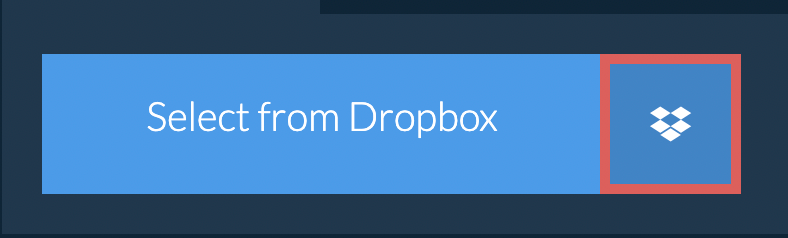
- Pick your filesA small ezyZip window opens. Click "Continue to Dropbox", sign in to Dropbox if asked, then pick what you want to compress.
- Compress your filesezyZip downloads your selection into your browser. Then follow the instructions above.
- Save to DropboxWhen your file is ready, click the down arrow (▾) next to the save button and choose "Dropbox". The first time, Dropbox asks you to allow ezyZip access.
Files are saved in the /Apps/ezyZip folder.
- Select from Google DriveClick the down arrow (▾) next to the file selection button, then choose "Select from Google Drive".
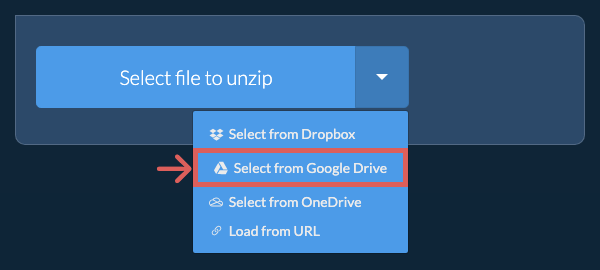
- Sign in and pick filesA Google Drive window opens. Sign in to Google if asked, allow ezyZip to access the files you choose, then pick what you want to compress.
- Compress your filesezyZip downloads your selection into your browser. Then follow the instructions above.
- Save to Google DriveWhen your file is ready, click the down arrow (▾) next to the save button and choose "Google Drive". Sign in to Google if asked.
Files are saved in the My Drive/ezyZip folder.
Frequently asked questions
We are continuously updating the system, so ensure you are using the latest version of one of the popular browsers or their variants. (e.g. Chrome, Firefox, Safari, Opera).
Please let us know via the feedback form if you have any issues.
ezyZip is a free online mpeg to a specific resolution resolution downscaler that runs in your browser. No need to install any additional compression software. It supports a myriad of other media types and resolutions.
Unlike other online video compression utilities, ezyZip does not add watermarks or require uploading files to a server. Use it as many times as you want, completely free. It runs locally as a browser app, making it much quicker than other online conversion tools. This also ensures your privacy will be protected as no file data will leave your browser.
ezyZip processes files directly in your browser. Unlike most online tools, your files are not uploaded to our servers, which means faster processing and better privacy. Take a look at the feature comparison below and we think you'll agree that ezyZip is the better choice for your file conversion needs.
| Feature | ezyZip | Other Online Tools |
|---|---|---|
| No Software Installation | Works Directly in Browser | Works Directly in Browser |
| Processing Location | Your Browser (No Upload) | Their Servers (Upload Required) |
| Privacy & Security | 100% Private (Files Never Leave Your Device) | Files Uploaded, Accessible by Others |
| Processing Speed | Fast (No Upload/Download Time) | Slow (Upload + Process + Download) |
| Registration Required | Never | Often Required for Large Files |
| Works Offline | Yes (After Page Load) | No |
| Media Format Support | 200+ Audio/Video Formats | Limited (MP4, MP3 only) |
| Output Quality | Clean Output, No Watermarks | Watermarks Added |
| File Size & Usage Limits | 1GB Files, Unlimited Usage | 100-200MB, Daily Limits |
| Cost | 100% Free | Free with Limitations / Paid Tiers |
| Established | Since 2009 (15+ Years) | Recent (May Disappear) |
Why client-side MPEG resolution scaling is faster and more private
ezyZip scales MPEG video resolution using WebAssembly-compiled filter pipelines executing locally in your browser. Here is why local resolution scaling is superior:
- Combined ProcessingResolution downscaling is combined with bitrate optimization in a single WASM processing pass, avoiding multiple encoding steps. Scaling from 4K to 1080p while re-encoding happens in one pipeline rather than requiring a separate resize step followed by compression.
- High-Quality Scaling FiltersThe engine uses Lanczos and bicubic resampling algorithms for resolution scaling, producing sharper and more detailed results than the simple bilinear filters used by many online tools.
- Multi-Threaded PerformanceMulti-threaded WebAssembly processing via SharedArrayBuffer keeps encoding fast for high-resolution source files. The frame processing pipeline distributes work across available CPU cores for maximum throughput.
- Responsive InterfaceThe entire operation runs in a dedicated Web Worker, keeping your browser responsive during processing. Real-time progress shows frame count, elapsed time, and estimated completion so you can plan accordingly.