

Conversion instructions below
Go Ad-Free with ezyZip Pro!
Convert and compress media at native speed with no file size limits and no ads. ezyZip Pro includes a desktop Media Converter app supporting 140+ audio and video formats.
Watch a 60-second walkthrough
How to convert mpeg to wmv file?
- Choose your file. To select the MPEG file, you have two options:
- Click "Select MPEG file to convert" to open the file chooser
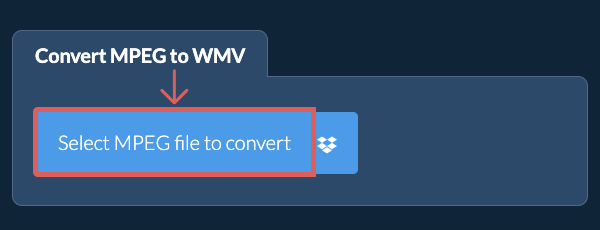
- Drag and drop the MPEG file directly onto ezyZip
Click "Select MPEG file to convert" to open the file chooser
- Convert the file.Click "Convert to WMV". It will start the conversion process which will take some time to complete.
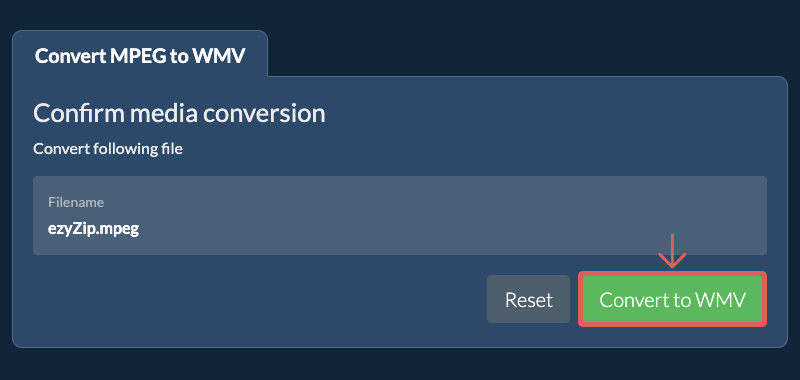
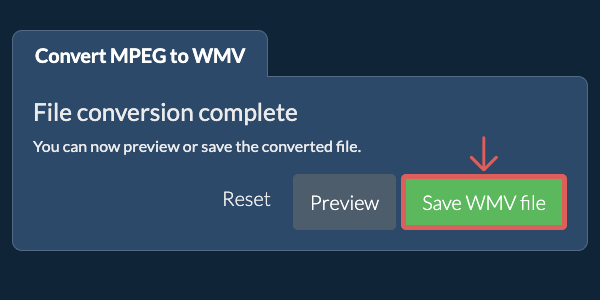
- Save the converted file.Click on "Save WMV File" to save the converted WMV file to your selected destination folder.
- Select from DropboxClick the down arrow (▾) next to the MPEG file selection button, then choose "Select from Dropbox".
- Pick your filesA small ezyZip window opens. Click "Continue to Dropbox", sign in to Dropbox if asked, then pick what you want to convert.
- Follow the instructionsezyZip downloads the MPEG file(s) into your browser. Then follow the instructions above.
- Save to DropboxWhen your file is ready, click the down arrow (▾) next to the save button and choose "Dropbox". The first time, Dropbox asks you to allow ezyZip access.
Files are saved in the /Apps/ezyZip folder.
- Select from Google DriveClick the down arrow (▾) next to the MPEG file selection button, then choose "Select from Google Drive".
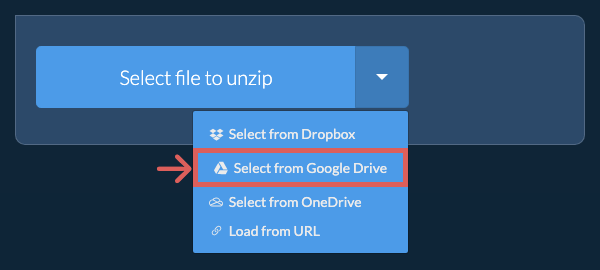
- Sign in and pick filesA Google Drive window opens. Sign in to Google if asked, allow ezyZip to access the files you choose, then pick what you want to convert.
- Follow the instructionsezyZip downloads the MPEG file(s) into your browser. Then follow the instructions above.
- Save to Google DriveWhen your file is ready, click the down arrow (▾) next to the save button and choose "Google Drive". Sign in to Google if asked.
Files are saved in the My Drive/ezyZip folder.
Frequently asked questions
We are continuously updating the system, so ensure you are using the latest version of one of the popular browsers or their variants. (e.g. Chrome, Firefox, Safari, Opera).
Please let us know via the feedback form if you have any issues.
ezyZip is a free online MPEG to WMV converter that runs in your browser. No need to install any additional converter software. It supports a myriad of other media conversions too.
Unlike other online media conversion utilities, ezyZip does not add watermarks or require uploading files to a server. Use it as many times as you want, completely free. It runs locally as a browser app, making it much quicker than other online conversion tools. This also ensures your privacy will be protected as no file data will leave your browser.
ezyZip processes files directly in your browser. Unlike most online tools, your files are not uploaded to our servers, which means faster processing and better privacy. Take a look at the feature comparison below and we think you'll agree that ezyZip is the better choice for your file conversion needs.
| Feature | ezyZip | Other Online Tools |
|---|---|---|
| No Software Installation | Works Directly in Browser | Works Directly in Browser |
| Processing Location | Your Browser (No Upload) | Their Servers (Upload Required) |
| Privacy & Security | 100% Private (Files Never Leave Your Device) | Files Uploaded, Accessible by Others |
| Processing Speed | Fast (No Upload/Download Time) | Slow (Upload + Process + Download) |
| Registration Required | Never | Often Required for Large Files |
| Works Offline | Yes (After Page Load) | No |
| Media Format Support | 200+ Audio/Video Formats | Limited (MP4, MP3 only) |
| Output Quality | Clean Output, No Watermarks | Watermarks Added |
| File Size & Usage Limits | 1GB Files, Unlimited Usage | 100-200MB, Daily Limits |
| Cost | 100% Free | Free with Limitations / Paid Tiers |
| Established | Since 2009 (15+ Years) | Recent (May Disappear) |
Why client-side MPEG to WMV media conversion is faster and more private
ezyZip converts MPEG to WMV using a WebAssembly-compiled media engine that performs single-pass transcoding. Here is why local conversion is superior:
- 200+ Format CombinationsA comprehensive codec library compiled to WebAssembly supports over 200 audio and video format combinations. Whether you need MOV to MP4, FLAC to MP3, or WebM to AVI, the engine selects the optimal codec pipeline automatically.
- Direct Filesystem MountingSource files are mounted directly from disk into the WASM virtual filesystem, avoiding memory duplication. This zero-copy approach means your browser's memory footprint stays low even when converting large video files.
- Stream Copy ModeWhen the source codec is compatible with the target container, the engine can remux without re-encoding — completing in seconds what a full transcode would take minutes to process. The engine automatically detects when stream copy is possible.
- CPU-Bound SpeedConversion speed is limited only by your local CPU, not by server queue depth or network bandwidth. Multi-threaded encoding via SharedArrayBuffer distributes the workload across available cores for maximum throughput.