

Instructions below
Go Ad-Free with ezyZip Pro!
Compress files of any size with no file size limits and no ads. ezyZip Pro includes a desktop Archive Creator app with password protection and multi-volume splitting.
Watch a 60-second walkthrough
How do I zip my files?
Below are step by step instructions for zipping files using ezyZip.
- Select files to archive To add files to your zip archive, you have two options:
- Click "Select files to archive" to open the file chooser
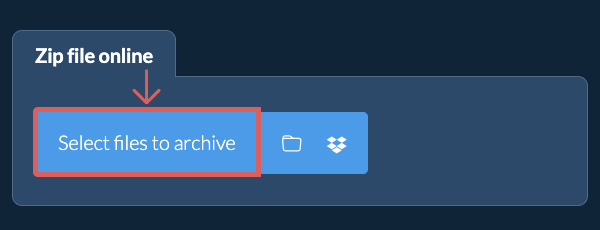
- Drag and drop files and folders directly onto ezyZip
- (Optional) Set compression level(Optional) Set the desired compression level by clicking the down arrow next to "Zip Files".
- Click Zip FilesClick "Zip Files". It will start compressing the files.
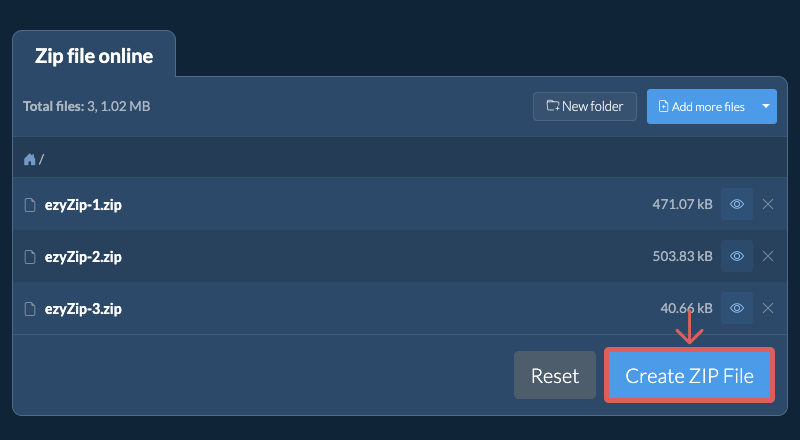
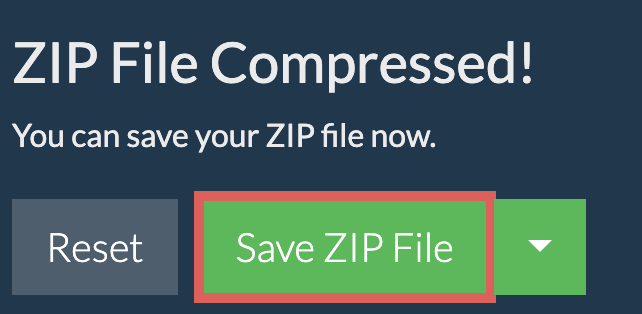
- Save your archiveClick "Save ZIP File" to save the archive to selected destination folder.
You can add new subfolders once you have created the initial ZIP archive (with or without files).
- Click the New folder buttonClick on 'New folder' in top right corner.

- Name your folderGive your new folder a name and press enter or click the green tick.

- Folder addedIt will add the folder to the contents of the ZIP archive.

- Select from DropboxClick the down arrow (▾) next to the file selection button, then choose "Select from Dropbox".
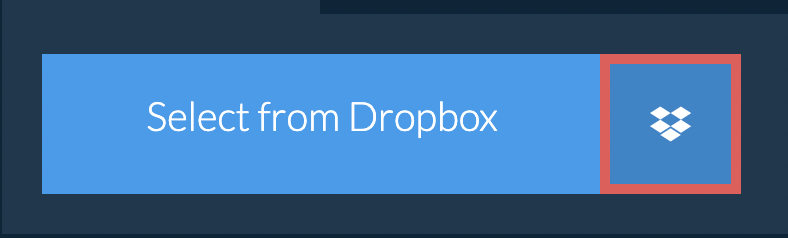
- Pick your filesA small ezyZip window opens. Click "Continue to Dropbox", sign in to Dropbox if asked, then pick what you want to compress.
- Compress your filesezyZip downloads your selection into your browser. Then follow the instructions above.
- Save to DropboxWhen "Ready to Create ZIP File" appears, click the down arrow (▾) next to "Create ZIP" and choose "Dropbox". (In Firefox and Safari, use the down arrow next to "Save ZIP File".) The first time, Dropbox asks you to allow ezyZip access.
The file is saved in the /Apps/ezyZip folder.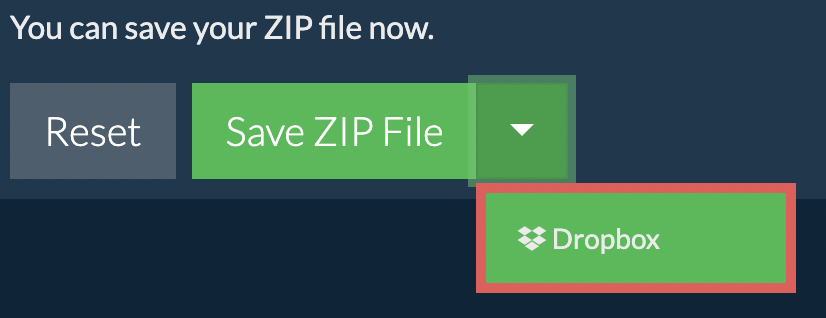
- Select from Google DriveClick the down arrow (▾) next to the file selection button, then choose "Select from Google Drive".
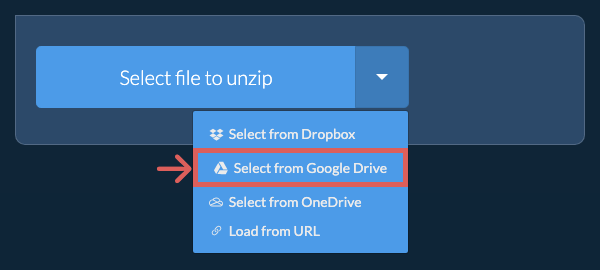
- Sign in and pick filesA Google Drive window opens. Sign in to Google if asked, allow ezyZip to access the files you choose, then pick what you want to compress.
- Compress your filesezyZip downloads your selection into your browser. Then follow the instructions above.
- Save to Google DriveWhen "Ready to Create ZIP File" appears, click the down arrow (▾) next to "Create ZIP" and choose "Google Drive". (In Firefox and Safari, use the down arrow next to "Save ZIP File".) Sign in to Google if asked.
The file is saved in the My Drive/ezyZip folder.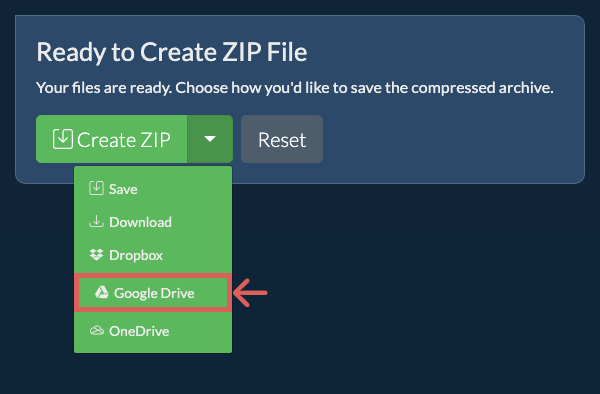
- Select from OneDriveClick the down arrow (▾) next to the file selection button, then choose "Select from OneDrive".
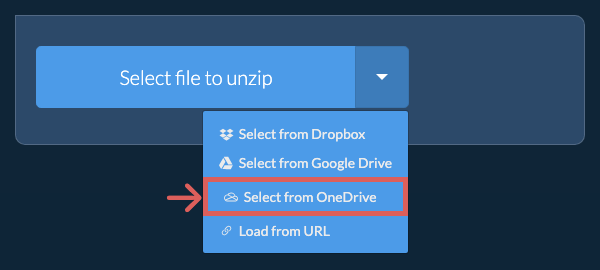
- Sign in and pick filesA OneDrive window opens. Sign in with your personal Microsoft account if asked and allow ezyZip access, then pick what you want to compress.
- Compress your filesezyZip downloads your selection into your browser. Then follow the instructions above.
- Save to OneDriveWhen "Ready to Create ZIP File" appears, click the down arrow (▾) next to "Create ZIP" and choose "OneDrive". (In Firefox and Safari, use the down arrow next to "Save ZIP File".) Sign in with your Microsoft account if asked.
The file is saved in the Apps/ezyZip folder.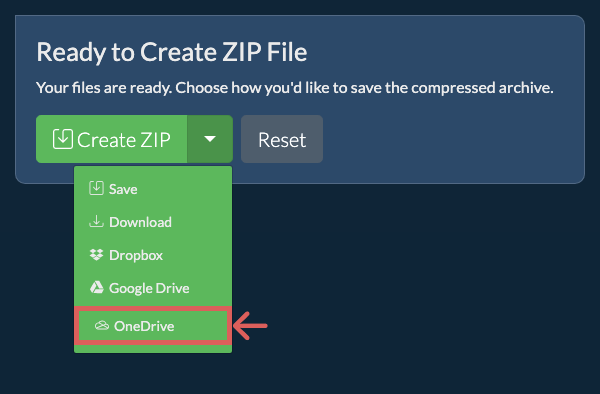
Frequently asked questions
ZIP compression shrinks files that contain lots of repeated data, such as documents, spreadsheets, text files and uncompressed images or audio (BMP, TIFF, WAV). These often get much smaller.
Photos (JPG, PNG, HEIC), videos (MP4, MOV), music (MP3, AAC), most PDFs and Office files (DOCX, XLSX, PPTX) are already compressed. Zipping them saves little or nothing, so a ZIP of photos or songs can end up almost the same size as the original files.
To make those files smaller:
- Reduce photo sizes with the image compressor.
- Shrink videos and audio with the video and audio compressor. These lower the quality a little in exchange for a much smaller file.
- To fit an email or upload limit, split the ZIP into smaller parts.
- For documents and other compressible files, choose a higher compression level for a little extra saving.
We are continuously updating the system, so ensure you are using the latest version of one of the popular browsers or their variants. (e.g. Chrome, Firefox, Safari, Opera).
Please let us know via the feedback form if you have any issues.
Just think of it as a directory that may contain files and more sub-directories once it is opened by a zip utility program. It compresses the data using a lossless algorithm meaning there is no file quality degradation like in some compression formats (e.g. mp3, jpeg). The compression algorithm can vary however the most common is DEFLATE. The standard is constantly evolving with new algorithm and encryption options are added at regular intervals.
ezyZip offers various options to manipulate zip files including zipping individual files, create a zipped folder, extracting zip files or converting zip files.
Need help zipping files with native tools? Check out guides for Windows, MacOS and Linux.
ezyZip is a free zip and unzip online file compression tool that lets you zip files into an archive. It also supports unzip, allowing you to uncompress archived zip, zipx, rar, tar, tar.gz, 7z, and various other archive formats.
Unlike other zip and unzip online utilities, ezyZip does not require you to upload or download files to a server. There are no usage limits, allowing you to create large compressed files. It runs locally as a browser app, thus making it much quicker than other similar zip and unzip online tools. This also helps protect your privacy, because your files are processed in your browser and are not uploaded.
You don't need to register or create an account, so you can start using it straight away.
ezyZip processes files directly in your browser. Unlike most online tools, your files are not uploaded to our servers, which means faster processing and better privacy. Take a look at the feature comparison below and we think you'll agree that ezyZip is the better choice for your file conversion needs.
| Feature | ezyZip | Other Online Tools |
|---|---|---|
| No Software Installation | Works Directly in Browser | Works Directly in Browser |
| Processing Location | Your Browser (No Upload) | Their Servers (Upload Required) |
| Privacy & Security | Files Stay on Your Device | Files Uploaded, Accessible by Others |
| Processing Speed | Fast (No Upload/Download Time) | Slow (Upload + Process + Download) |
| Registration Required | Never | Often Required for Large Files |
| Works Offline | Yes (After Page Load) | No |
| Supported Formats | 350+ Archive Formats | Limited Format Support |
| Cost | 100% Free | Free with Limitations / Paid Tiers |
| Established | Since 2009 (15+ Years) | Recent (May Disappear) |
Why client-side ZIP creation is faster than server-based tools
ezyZip creates ZIP files using a WebAssembly-powered engine running directly in your browser. Here is why local processing beats cloud-based archivers:
- Direct Disk StreamingCompressed output streams to your disk through the File System Access API using FileSystemWritableFileStream, bypassing memory buffering entirely. This write-through architecture means your available RAM does not limit the archive size you can create.
- Parallel CompressionWeb Workers handle compression in parallel threads, keeping the browser responsive even with large file sets. You can monitor real-time progress for each file while the engine works through your selection.
- No Upload/Download LatencyServer-based tools must receive your upload, compress in a shared queue, and send the result back — local processing skips all three stages. The speed difference is most dramatic for large file collections where upload alone could take longer than the entire local operation.
- Configurable CompressionAdjust compression level, method, and archive settings before creation. The engine supports multiple compression algorithms per format, letting you choose between faster creation or smaller file sizes depending on your priority.
No. ezyZip is free to use without registering: there's no sign-up form, no account to create and nothing to log in to. Open any tool and start straight away.
If you load files from Dropbox, Google Drive or OneDrive, that service asks you to sign in to it, not to ezyZip. Only ezyZip Pro, the paid ad-free version, uses an account.