


Conversion instructions below

Go Ad-Free with ezyZip Pro!
No ads. No file size limits. ezyZip Pro includes downloadable desktop apps for archives, media, and images.
Video tutorial
Watch a 60-second walkthrough
Video tutorial showing how to convert documents online. This example shows docx to html conversion but same steps apply for rtf files.
How to convert RTF to HTML file?
Here are the steps to convert RTF to HTML using ezyZip.
- Select files to convert To select the RTF file, you have two options:
- Click "Select RTF file to convert" to open the file chooser
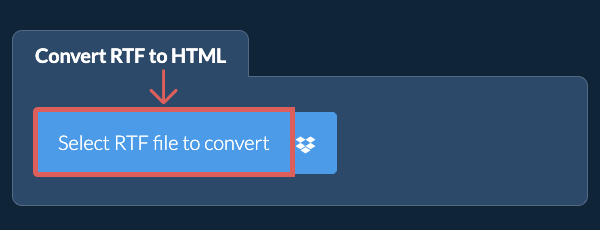
- Drag and drop the RTF file directly onto ezyZip
Click "Select RTF file to convert" to open the file chooser - Convert your fileClick "Convert to HTML". It will start the conversion process which will take some time to complete.
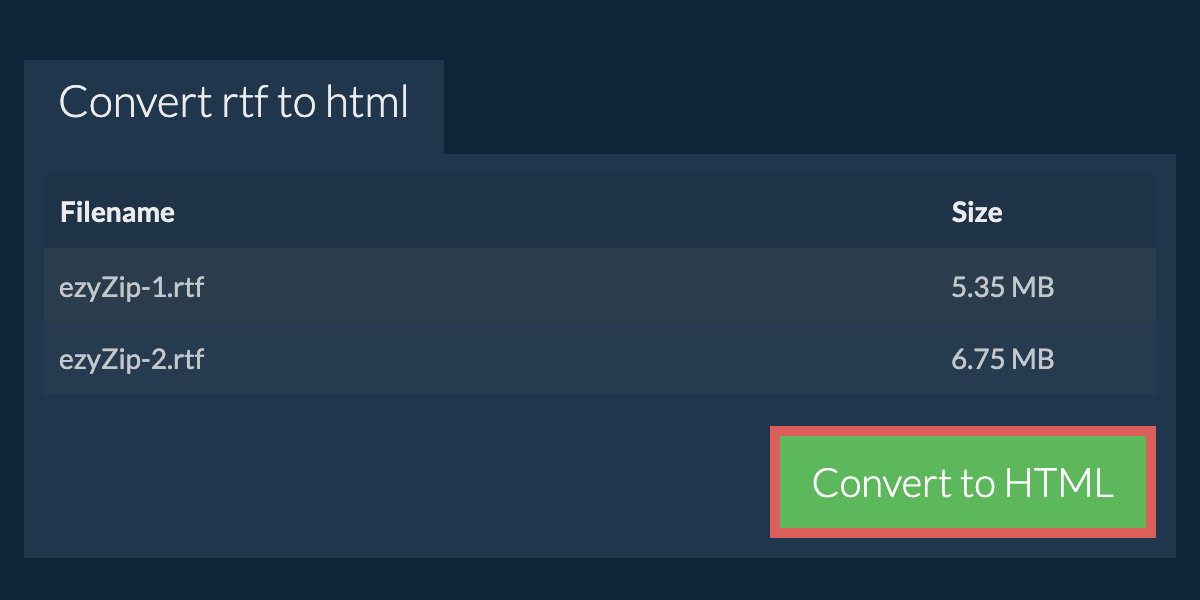
- Save the converted fileOnce all RTF files have been converted, you will be presented with the converted HTML files. Click on "Save" to save the converted files to your computer. For some file types, you can also click on "Preview" to view the converted document in your browser before saving.
More how-to guides
- Select from DropboxClick the down arrow (▾) next to the RTF file selection button, then choose "Select from Dropbox".

- Pick your filesA small ezyZip window opens. Click "Continue to Dropbox", sign in to Dropbox if asked, then pick what you want to convert.
- Follow the instructionsezyZip downloads the RTF file(s) into your browser. Then follow the instructions above.
- Save to DropboxWhen your file is ready, click the down arrow (▾) next to the save button and choose "Dropbox". The first time, Dropbox asks you to allow ezyZip access.
Files are saved in the /Apps/ezyZip folder.
- Select from Google DriveClick the down arrow (▾) next to the RTF file selection button, then choose "Select from Google Drive".
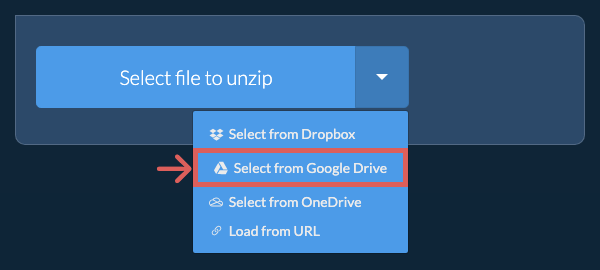
- Sign in and pick filesA Google Drive window opens. Sign in to Google if asked, allow ezyZip to access the files you choose, then pick what you want to convert.
- Follow the instructionsezyZip downloads the RTF file(s) into your browser. Then follow the instructions above.
- Save to Google DriveWhen your file is ready, click the down arrow (▾) next to the save button and choose "Google Drive". Sign in to Google if asked.
Files are saved in the My Drive/ezyZip folder.
- Select from OneDriveClick the down arrow (▾) next to the RTF file selection button, then choose "Select from OneDrive".
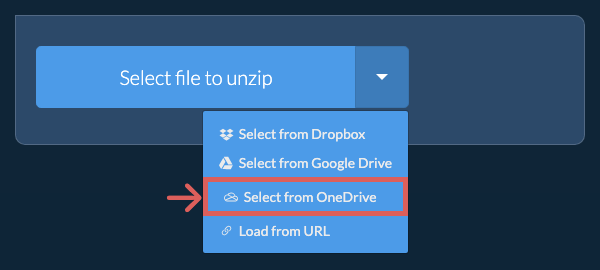
- Sign in and pick filesA OneDrive window opens. Sign in with your personal Microsoft account if asked and allow ezyZip access, then pick what you want to convert.
- Follow the instructionsezyZip downloads the RTF file(s) into your browser. Then follow the instructions above.
- Save to OneDriveWhen your file is ready, click the down arrow (▾) next to the save button and choose "OneDrive". Sign in with your Microsoft account if asked.
Files are saved in the Apps/ezyZip folder.
Frequently asked questions
ezyZip is an online tool that supports any OS that can run a modern browser. We have tested it to work with Windows, MacOS, Linux (e.g. Ubuntu, Mint, Debian), Android, ChromeOS (Chromebook), iOS (iPhone, iPad & iPod Touch).
We are continuously updating the system, so ensure you are using the latest version of one of the popular browsers or their variants. (e.g. Chrome, Firefox, Safari, Opera).
Please let us know via the feedback form if you have any issues.
We are continuously updating the system, so ensure you are using the latest version of one of the popular browsers or their variants. (e.g. Chrome, Firefox, Safari, Opera).
Please let us know via the feedback form if you have any issues.
Yes. ezyZip utilises the processing power of your own computer and browser to complete the task. No file data leaves your browser. Unsure? Turn off your WiFi when completing the uncompression. It will continue to work as no data is uploaded to the internet.
ezyZip is a free online RTF to HTML converter that runs in your browser. No need to install any additional converter software. It supports a myriad of other media conversions too.
Unlike other online media conversion utilities, ezyZip does not add watermarks or require uploading files to a server. Use it as many times as you want, completely free. It runs locally as a browser app, making it much quicker than other online conversion tools. This also ensures your privacy will be protected as no file data will leave your browser.