


Extraction instructions below
Go Ad-Free with ezyZip Pro!
No ads. No file size limits. ezyZip Pro includes downloadable desktop apps for archives, media, and images.
Watch a 60-second walkthrough
How to bulk extract multiple archive files at once?
- Select Files To select the archive files, you have two options:
- Click "Select archive files to open" to open the file chooser and select multiple files
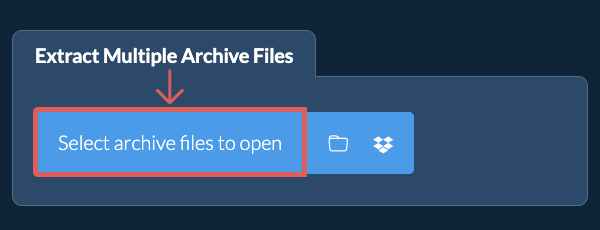
- Drag and drop multiple archive files directly onto ezyZip
Click "Select archive files to open" to open the file chooser and select multiple files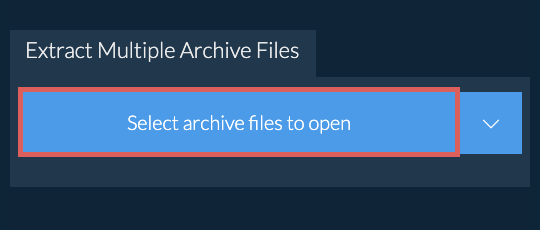
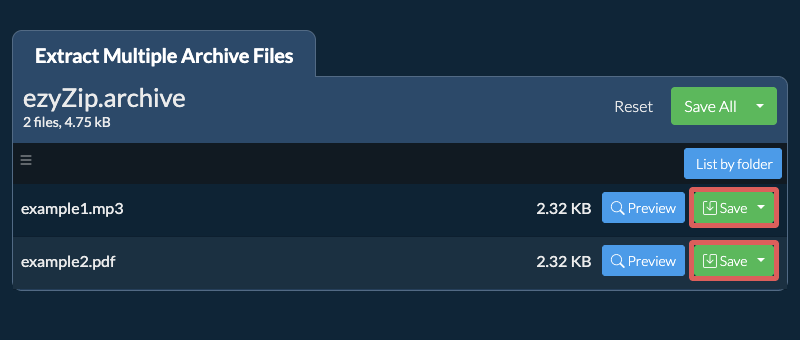
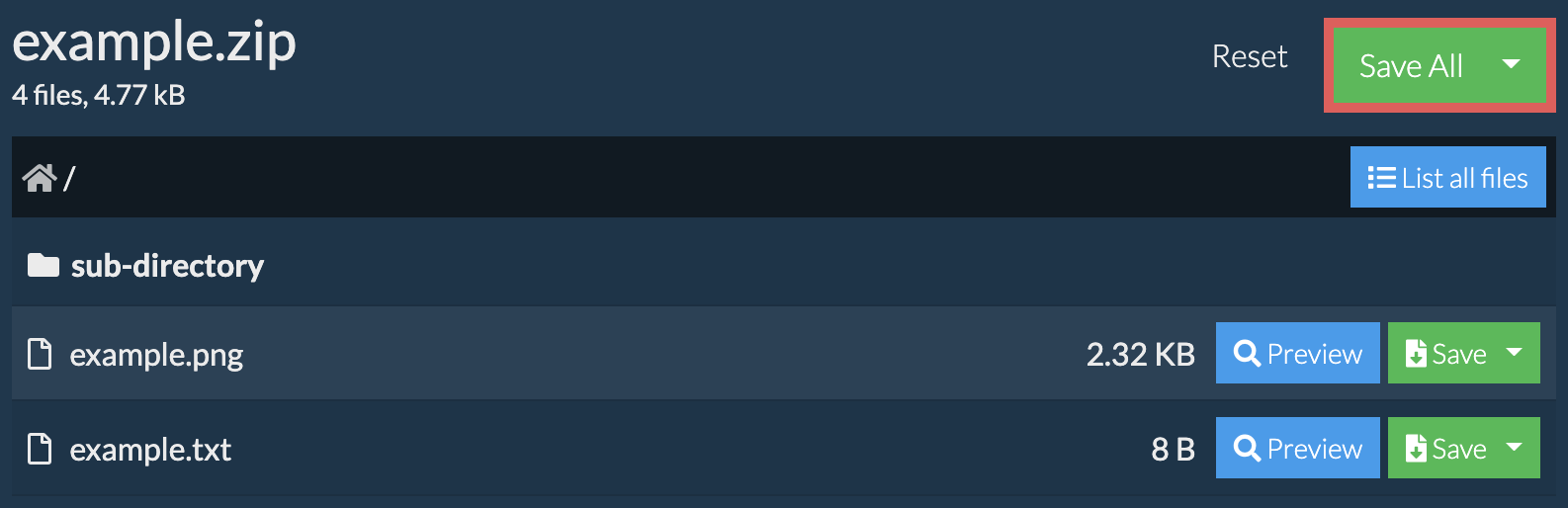
It will process all selected archives and display a combined file listing once complete. - Save FilesClick the green "Save" button on individual files, or use "Save All" to extract everything to your selected destination folder.
- Preview / ShareOPTIONAL: Click "Preview" to open files directly in the browser. Click "Share" to send via e-mail, messenger, or other services. These options are only available for some file types.
Some newer browsers allow the saving of multiple files & folders into a designated target folder in one go. If you wish to extract all files in the archive file and maintain existing folder structure, follow the steps the below:
- Open FileFollow the above instructions to open archive file
- Click Save AllClick on "Save All". If the button is disabled, it means your browser does not support this feature or it is not enabled.
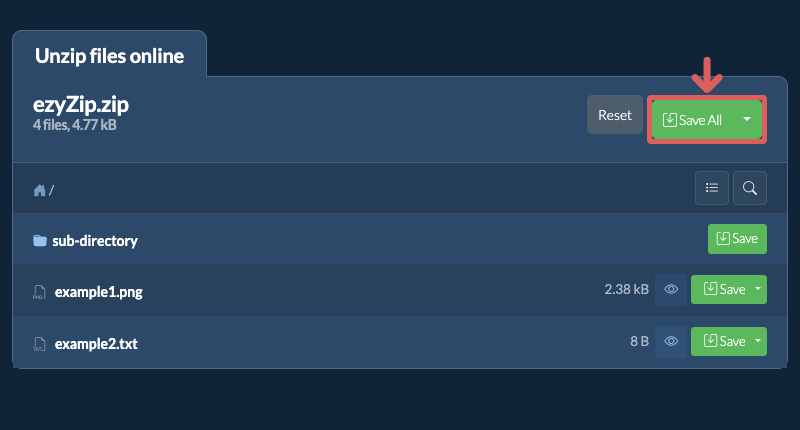
- Choose Destination FolderSelect an empty folder where you wish to extract the files. Please note: If you already have files with the same name, ezyZip WILL OVERWRITE THEM.
- Grant Folder AccessAfter you have selected the folder, the browser will ask for permission to access it. Click on "View files" followed by "Save changes".
- Files SavedIt will then commence saving files and subfolders into the target you specified
- Click Folder IconClick the folder icon on the file selector to select a folder containing archive files.
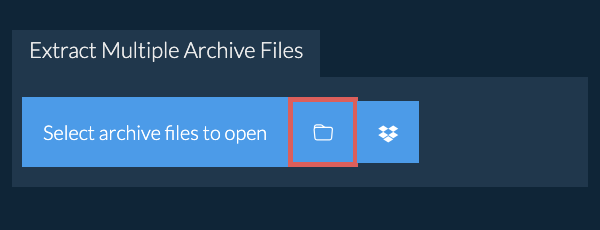
- Review Found ArchivesThe system will scan the folder recursively and automatically select all archive files found.
- Save All FilesOnce the archives are opened, click "Save All" to extract and save all the contents at once.
- Open Dropbox ChooserClick on the Dropbox logo () in the archive file selector button.
- Authorise AccessThe Dropbox file chooser will appear. You will need to authorise access to ezyZip the first time.
- Browse ContentsOnce you have selected the archive file, it will download it to your browser and show the contents.
- Save to DropboxTo save files to Dropbox, click on "Dropbox" dropdown under the "Save" or "Save All" buttons. You will need to authorise Dropbox for ezyZip the first time you do it.
Files will be saved in /Apps/ezyZip folder.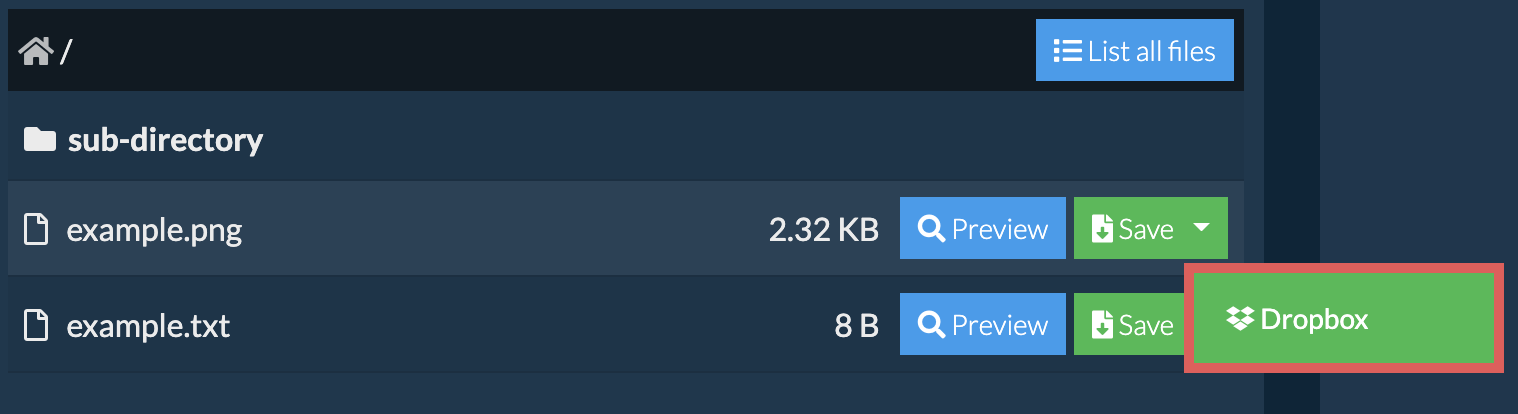
Frequently asked questions
We are continuously updating the system, so ensure you are using the latest version of one of the popular browsers or their variants. (e.g. Chrome, Firefox, Safari, Opera).
Please let us know via the feedback form if you have any issues.
ezyZip is a free online utility for opening and extracting archive files online in your browser. It supports a myriad of other file formats and conversions.
Unlike other online archive extraction utilities, ezyZip DOES NOT require you to upload or download files to a server. It runs locally as a browser app, thus making it much quicker than other online file extractors. This also ensures your privacy will be protected as no file data will leave your browser.
ezyZip processes files directly in your browser. Unlike most online tools, your files are not uploaded to our servers, which means faster processing and better privacy. Take a look at the feature comparison below and we think youll agree that ezyZip is the better choice for your file conversion needs.
| Feature | ezyZip | Other Online Tools |
|---|---|---|
| No Software Installation | Works Directly in Browser | Works Directly in Browser |
| Processing Location | Your Browser (No Upload) | Their Servers (Upload Required) |
| Privacy & Security | 100% Private (Files Never Leave Your Device) | Files Uploaded, Accessible by Others |
| Processing Speed | Fast (No Upload/Download Time) | Slow (Upload + Process + Download) |
| Registration Required | Never | Often Required for Large Files |
| Works Offline | Yes (After Page Load) | No |
| Cost | 100% Free | Free with Limitations / Paid Tiers |
| Established | Since 2009 (15+ Years) | Recent (May Disappear) |
Why client-side batch ARCHIVE extraction is faster and more private
ezyZip extracts multiple ARCHIVE archives using parallel WebAssembly engines. Here is why batch extraction is faster locally:
- Parallel ProcessingEach archive gets its own dedicated Web Worker running an independent decompression engine for true concurrent extraction. On multi-core devices, this means multiple archives decompress simultaneously rather than waiting in a serial queue.
- Collision-Free SessionsEach archive receives its own OPFS session directory with timestamped identifiers, preventing file collisions between concurrent extractions. Even archives containing identically named files are extracted cleanly into separate output directories.
- No Queue ThrottlingWithout shared server infrastructure, there are no queue wait times — extraction throughput scales directly with your device's processing power. Server-based tools typically throttle batch operations to protect their infrastructure, while local processing uses your full CPU capacity.
- Per-Archive ProgressThe system tracks progress per-file and per-archive, with automatic OPFS quota management and stale session cleanup. You can see exactly how far each archive has progressed and which files have already been extracted.