


Conversion instructions below
Go Ad-Free with ezyZip Pro!
No ads. No file size limits. ezyZip Pro includes downloadable desktop apps for archives, media, and images.
Watch a 60-second walkthrough
How to combine and merge multiple ZIP files into one?
Follow these simple steps to combine ZIP files into a single archive using ezyZip.
- Select files to merge To select the ZIP files to merge, you have two options:
- Click "Select ZIP files to merge" to open the file chooser and select multiple files
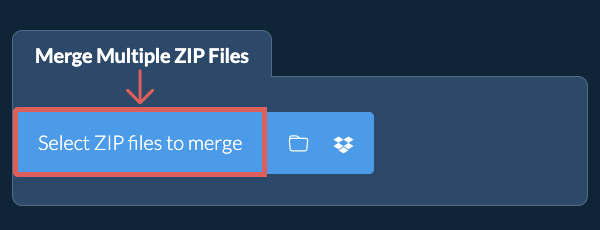
- Drag and drop ZIP files directly onto ezyZip
Click "Select ZIP files to merge" to open the file chooser and select multiple files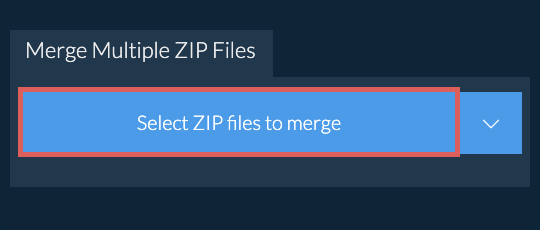
- Choose the compression level(Optional) Set the desired compression level by clicking the down arrow next to "Merge".
- Merge the archivesClick "Merge". ezyZip will extract all files from your selected archives and combine them into a single archive. If any file is password-protected, you will be prompted to enter the password.
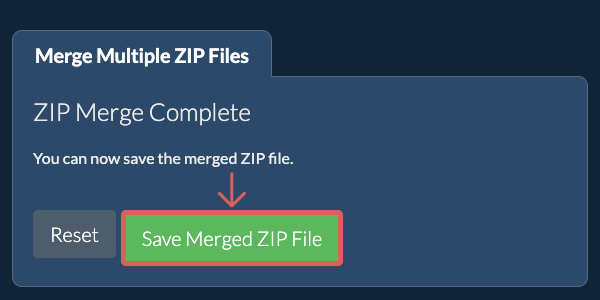
- Save the merged archiveOnce complete, click "Save Merged ZIP File" to download the combined archive to your device.
- Select from DropboxClick the down arrow (▾) next to the ZIP file selection button, then choose "Select from Dropbox".

- Pick your filesA small ezyZip window opens. Click "Continue to Dropbox", sign in to Dropbox if asked, then pick what you want to convert.
- Follow the instructionsezyZip downloads the ZIP file(s) into your browser. Then follow the instructions above.
- Save to DropboxWhen your file is ready, click the down arrow (▾) next to the save button and choose "Dropbox". The first time, Dropbox asks you to allow ezyZip access.
Files are saved in the /Apps/ezyZip folder.
- Select from Google DriveClick the down arrow (▾) next to the ZIP file selection button, then choose "Select from Google Drive".
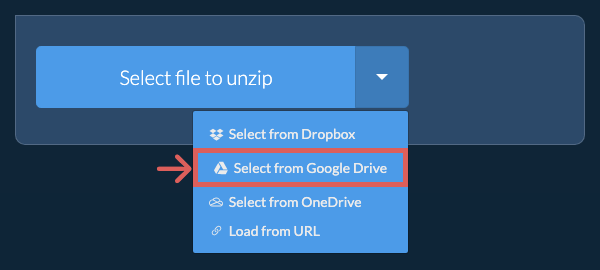
- Sign in and pick filesA Google Drive window opens. Sign in to Google if asked, allow ezyZip to access the files you choose, then pick what you want to convert.
- Follow the instructionsezyZip downloads the ZIP file(s) into your browser. Then follow the instructions above.
- Save to Google DriveWhen your file is ready, click the down arrow (▾) next to the save button and choose "Google Drive". Sign in to Google if asked.
Files are saved in the My Drive/ezyZip folder.
- Select from OneDriveClick the down arrow (▾) next to the ZIP file selection button, then choose "Select from OneDrive".
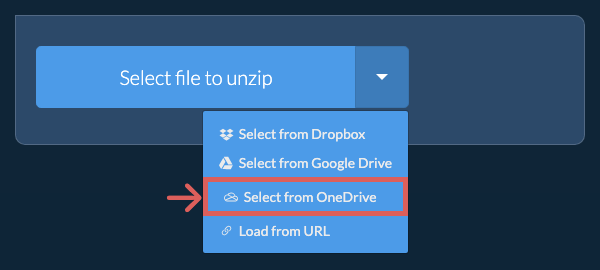
- Sign in and pick filesA OneDrive window opens. Sign in with your personal Microsoft account if asked and allow ezyZip access, then pick what you want to convert.
- Follow the instructionsezyZip downloads the ZIP file(s) into your browser. Then follow the instructions above.
- Save to OneDriveWhen your file is ready, click the down arrow (▾) next to the save button and choose "OneDrive". Sign in with your Microsoft account if asked.
Files are saved in the Apps/ezyZip folder.
Frequently asked questions
We are continuously updating the system, so ensure you are using the latest version of one of the popular browsers or their variants. (e.g. Chrome, Firefox, Safari, Opera).
Please let us know via the feedback form if you have any issues.
ezyZip is a free online ZIP to ZIP converter that runs in your browser. No need to install any additional converter software. It supports a myriad of other file conversion options too.
Unlike other online archive conversion utilities, ezyZip does not require uploading files to a server. Use it as many times as you want, completely free. It runs locally as a browser app, thus making it much quicker than other online conversion tools. This also ensures your privacy will be protected as no file data will leave your browser.
ezyZip processes files directly in your browser. Unlike most online tools, your files are not uploaded to our servers, which means faster processing and better privacy. Take a look at the feature comparison below and we think you'll agree that ezyZip is the better choice for your file conversion needs.
| Feature | ezyZip | Other Online Tools |
|---|---|---|
| No Software Installation | Works Directly in Browser | Works Directly in Browser |
| Processing Location | Your Browser (No Upload) | Their Servers (Upload Required) |
| Privacy & Security | 100% Private (Files Never Leave Your Device) | Files Uploaded, Accessible by Others |
| Processing Speed | Fast (No Upload/Download Time) | Slow (Upload + Process + Download) |
| Registration Required | Never | Often Required for Large Files |
| Works Offline | Yes (After Page Load) | No |
| Cost | 100% Free | Free with Limitations / Paid Tiers |
| Established | Since 2009 (15+ Years) | Recent (May Disappear) |
Why client-side ZIP archive merging is faster without uploads
ezyZip merges multiple archives entirely within your browser using format-specific WebAssembly decoders. Here is why local merging outperforms server-based tools:
- Parallel Source ExtractionWeb Workers handle parallel extraction of source archives, with each archive decoded by its format-specific WASM engine simultaneously. Archives in different formats — such as merging a ZIP and a 7z into a single TAR — are decoded by their respective specialized engines in parallel.
- Efficient StagingExtracted contents are staged through Origin Private File System or streamed via the File System Access API before re-compression into the target format. This two-stage approach ensures that even when merging many large archives, memory usage remains bounded.
- No Multi-Upload OverheadServer-based merging requires uploading every source archive individually, processing in a queue, and downloading the result — total time is dominated by network transfer. Merging five 500 MB archives locally takes a fraction of the time that uploading 2.5 GB would require.
- Conflict ResolutionWhen source archives contain files with identical names, the merge engine handles collisions gracefully, preserving directory structures and letting you control which version takes precedence.