


Extraction instructions below
Go Ad-Free with ezyZip Pro!
Extract archives of any size with no file size limits and no ads. ezyZip Pro includes a desktop Archive Extractor app supporting 250+ formats including RAR, 7Z, and multipart archives.
Watch a 60-second walkthrough
How to open and extract ACE file?
- Select File To select the ACE file, you have two options:
- Click "Select ACE file to open" to open the file chooser
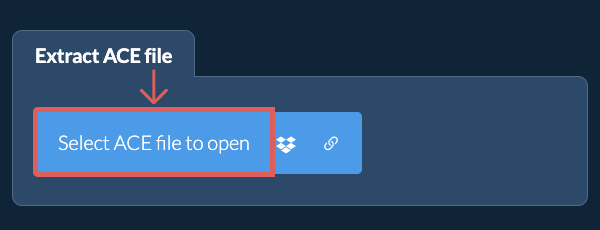
- Drag and drop the ACE file directly onto ezyZip
Click "Select ACE file to open" to open the file chooser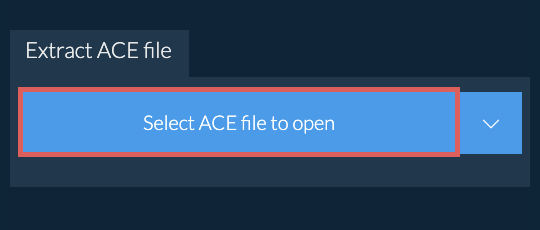
It will start the file extraction and list the contents of the ACE file once complete. - Save FilesClick the green "Save" button on the individual files to save to your selected destination folder.
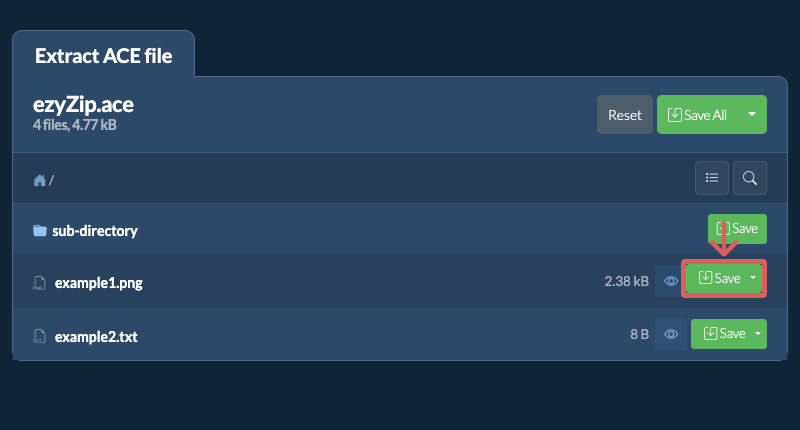
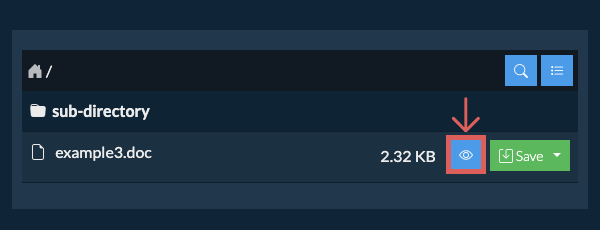
- Preview / ShareOPTIONAL: Click "Preview" to open directly in the browser. Click "Share" to send via e-mail, messenger, or other services. These options are only available for some file types.
Some newer browsers allow the saving of multiple files & folders into a designated target folder in one go. If you wish to extract all files in the ACE file and maintain existing folder structure, follow the steps the below:
- Open FileFollow the above instructions to open ACE file
- Click Save AllClick on "Save All". If the button is disabled, it means your browser does not support this feature or it is not enabled.
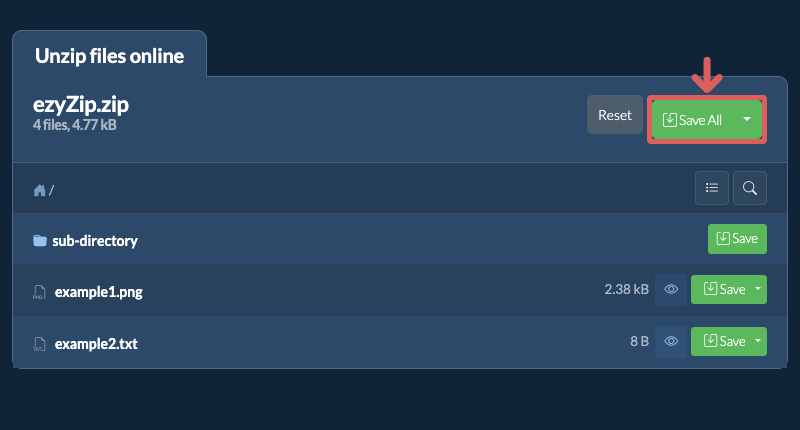
- Choose Destination FolderSelect an empty folder where you wish to extract the files. Please note: If you already have files with the same name, ezyZip WILL OVERWRITE THEM.
- Grant Folder AccessAfter you have selected the folder, the browser will ask for permission to access it. Click on "View files" followed by "Save changes".
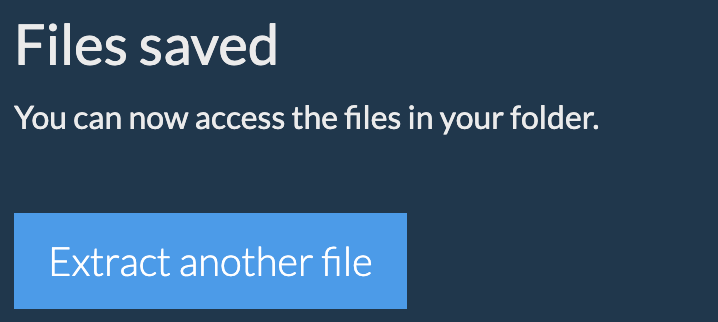
- Files SavedIt will then commence saving files and subfolders into the target you specified
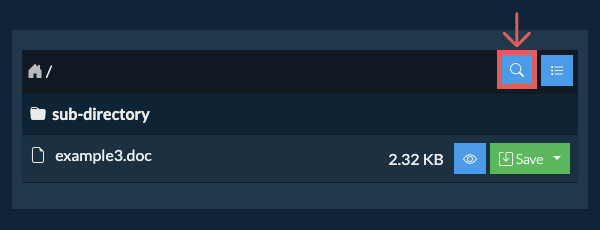
ezyZip lets you quickly find files inside a ACE archive without having to extract it first. This is especially handy for large archives with deep folder structures. Just use the built-in search to locate any file by name.
- Open SearchClick the blue search icon in the top right corner of the file listing to open the search bar.
- Enter Search TermType your search term into the input field. You need to enter at least 3 characters before results are shown.
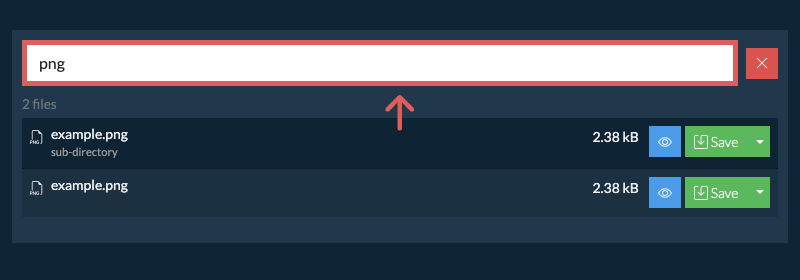
- Browse ResultsAll files that match your search term will be listed. From here, you can preview or save any file directly, or click the folder name shown beneath a file to jump straight to its location inside the archive.
If you want to see what's inside the ACE file without having to extract all the files first, follow the steps below:
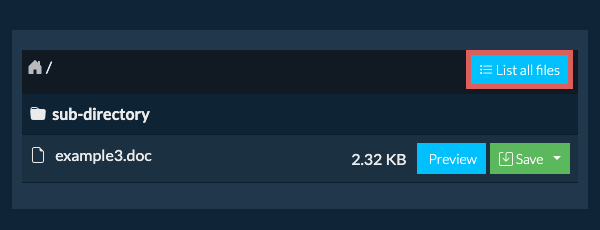
- Open FileOpen the ACE file, as per instructions above. It will initially list the contents of the ACE hierarchically, sorted by folders.
- Show Full ListingClick on "List all files" to see the entire list of files inside the archive.
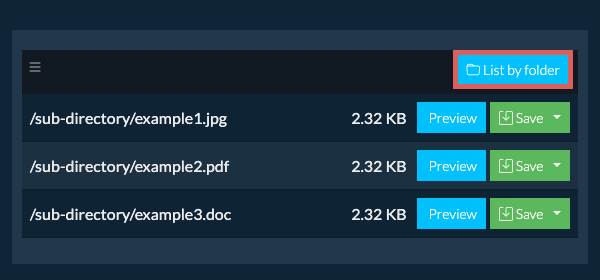
- Switch to Folder ViewClick on "List by folder" to go back to folder view.
To extract just a subfolder and all its contents:
- Open FileFollow the above instructions to open ACE file
- Navigate to SubfolderNavigate to the parent folder within the ACE file
- Save SubfolderClick the "Save" button on the row of the subfolder you want to extract
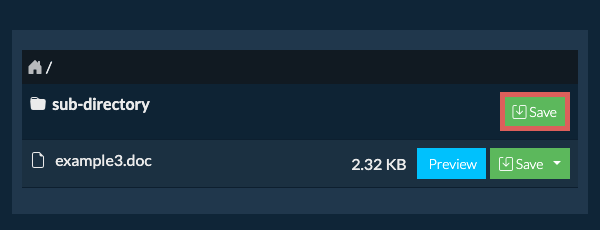
- Files SavedAll files and folders from that subfolder will be saved to your chosen destination.
Please note: This feature is currently only available on supported browsers like Chrome and Edge.
- Select from DropboxClick the down arrow (▾) next to the ACE file selection button, then choose "Select from Dropbox".

- Pick your file(s)A small ezyZip window opens. Click "Continue to Dropbox", sign in to Dropbox if asked, then pick your file(s).
- Browse the contentsezyZip downloads the ACE file(s) into your browser and lists the contents.
- Save to DropboxTo save a file, click the down arrow (▾) on its "Save" button and choose "Dropbox". To save all files, use the down arrow on the "Save All" button. The first time, Dropbox asks you to allow ezyZip access.
Files are saved in the /Apps/ezyZip folder.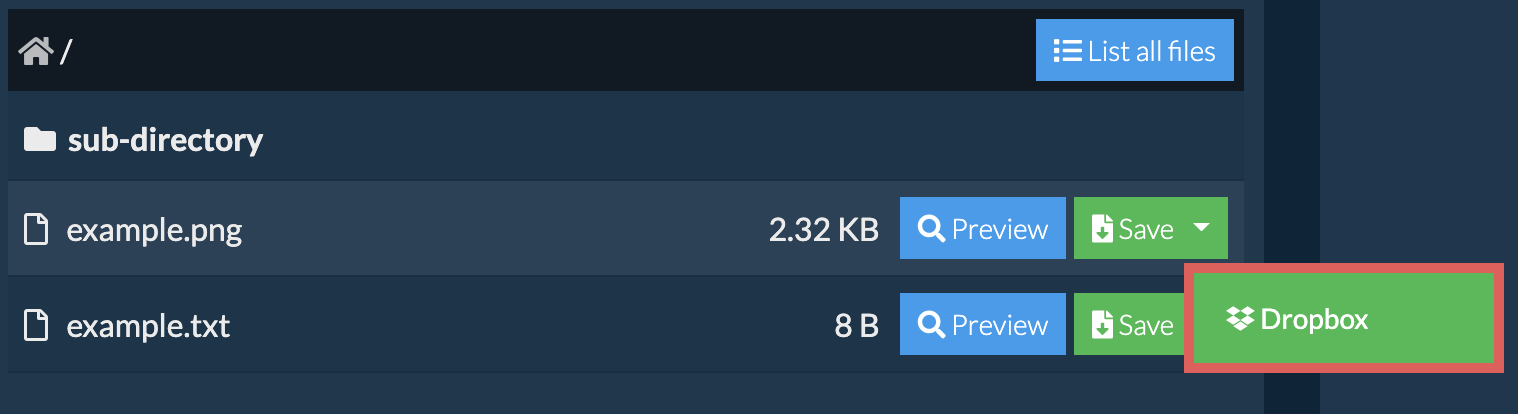
- Select from Google DriveClick the down arrow (▾) next to the ACE file selection button, then choose "Select from Google Drive".
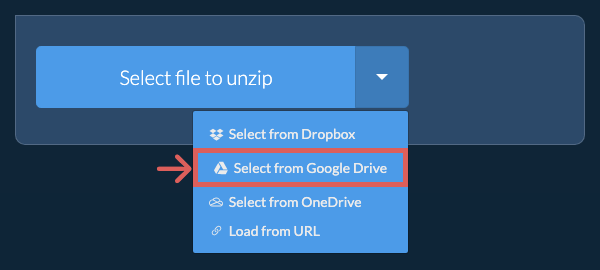
- Sign in and pick your file(s)A Google Drive window opens. Sign in to Google if asked, allow ezyZip to access the files you choose, then pick your file(s).
- Browse the contentsezyZip downloads the ACE file(s) into your browser and lists the contents.
- Save to Google DriveTo save a file, click the down arrow (▾) on its "Save" button and choose "Google Drive". To save all files, use the down arrow on the "Save All" button. Sign in to Google if asked.
Files are saved in the My Drive/ezyZip folder.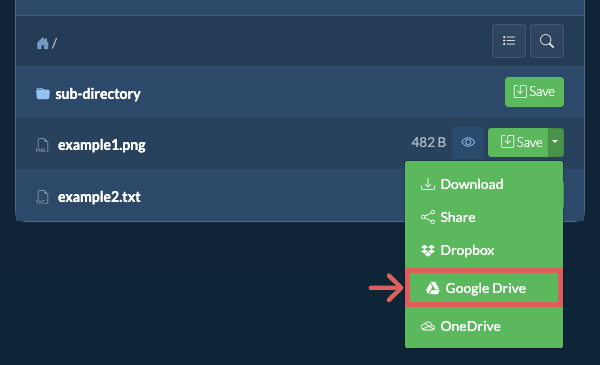
- Select from OneDriveClick the down arrow (▾) next to the ACE file selection button, then choose "Select from OneDrive".
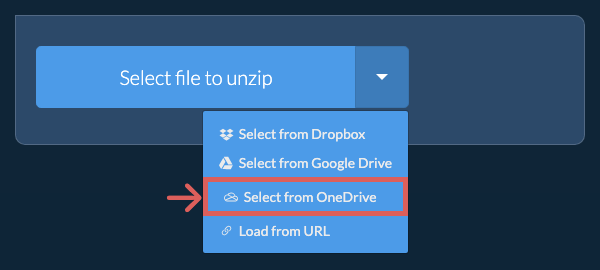
- Sign in and pick your file(s)A OneDrive window opens. Sign in with your personal Microsoft account if asked and allow ezyZip access, then pick your file(s).
- Browse the contentsezyZip downloads the ACE file(s) into your browser and lists the contents.
- Save to OneDriveTo save a file, click the down arrow (▾) on its "Save" button and choose "OneDrive". To save all files, use the down arrow on the "Save All" button. Sign in with your Microsoft account if asked.
Files are saved in the Apps/ezyZip folder.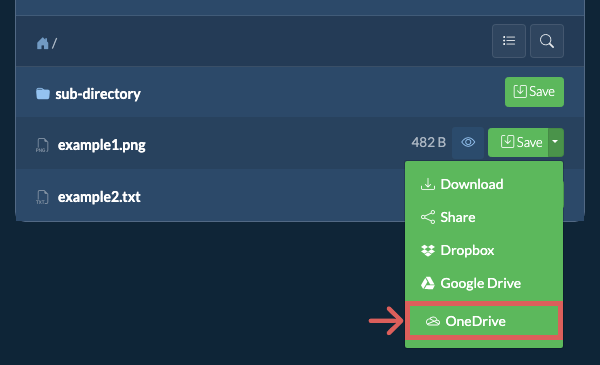
Yes. If the ACE is hosted online, you can extract it straight from the link without saving it to your computer first.
You'll need the free ezyZip Chrome or Firefox extension installed. It lets ezyZip download files from links on other websites.
Once the extension is installed, you have three ways to load a ACE from a link:
- Right-Click the LinkRight-click the link on any webpage and choose "Extract with ezyZip" from the menu.
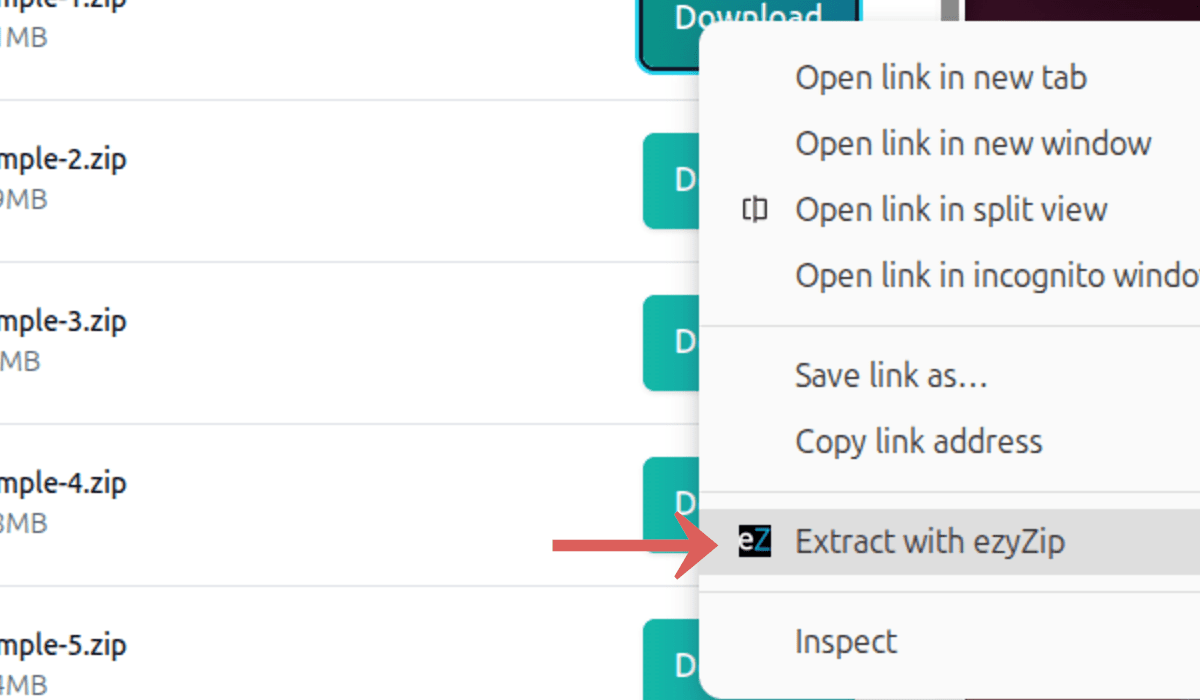
- Paste the LinkClick the down arrow (▾) next to the ACE file selection button and choose "Load from URL". Paste the link into the box that appears, then click "Load".

- Drag and DropDrag the link from another browser tab and drop it onto the file chooser.
ezyZip will fetch the ACE and extract its contents. Extraction runs entirely in your browser. No file data is sent to a server.
Frequently asked questions
We are continuously updating the system, so ensure you are using the latest version of one of the popular browsers or their variants. (e.g. Chrome, Firefox, Safari, Opera).
Please let us know via the feedback form if you have any issues.
You can extract ACE files using this tool to access their contents.
ezyZip processes files directly in your browser. Unlike most online tools, your files are not uploaded to our servers, which means faster processing and better privacy. Take a look at the feature comparison below and we think you'll agree that ezyZip is the better choice for your file conversion needs.
| Feature | ezyZip | Other Online Tools |
|---|---|---|
| No Software Installation | Works Directly in Browser | Works Directly in Browser |
| Processing Location | Your Browser (No Upload) | Their Servers (Upload Required) |
| Privacy & Security | 100% Private (Files Never Leave Your Device) | Files Uploaded, Accessible by Others |
| Processing Speed | Fast (No Upload/Download Time) | Slow (Upload + Process + Download) |
| Registration Required | Never | Often Required for Large Files |
| Works Offline | Yes (After Page Load) | No |
| File Size Limit | 2GB | 100MB - 200MB |
| Batch Operations | Save All Files to Folder | Download One by One |
| File Preview | Preview Before Download | No Preview Available |
| Supported Formats | 350+ Archive Formats | Limited Format Support |
| Cost | 100% Free | Free with Limitations / Paid Tiers |
| Established | Since 2009 (15+ Years) | Recent (May Disappear) |
Why client-side ACE extraction is faster than server-based tools
ezyZip processes ACE archives locally using client-side WebAssembly (WASM). Here is why our engine is superior to server-based extractors:
- No Upload/Download DelaysYour extraction speed is limited only by your local CPU and disk I/O, not your internet connection. A 2 GB archive that takes 20 minutes to upload on a typical connection extracts in seconds locally.
- Multi-Engine FailoverIf one decompression engine encounters a rare error, ezyZip automatically switches to an alternative extractor. This cascading approach supports over 350 archive formats and handles edge cases like non-standard headers or mixed-method compression.
- Large File SupportBy leveraging the File System Access API and Origin Private File System (OPFS), ezyZip streams data directly to your disk, avoiding the memory crashes common in other browser-based tools. Archives of virtually any size can be extracted without exhausting RAM.
- Dedicated Worker ThreadsExtraction runs in dedicated Web Workers on separate threads, keeping the browser interface fully responsive. You can monitor per-file progress, preview extracted files, and continue browsing while decompression runs in the background.
- Advanced Memory HandlingFor massive archives, our Memory64 WebAssembly build bypasses standard browser memory limits, allowing you to extract files that would crash other sites. This extended addressing mode supports archives well beyond the typical 4 GB WASM memory ceiling.