


Hello, fellow tech-jungle adventurer! 🐵 In the vast forest of files and data, our precious 7z files are like those shiny golden bananas. And just like any treasure, they need protection. Encryption is our trusty shield. Ready for the encryption expedition? Grab your explorer hat, and let’s swing into action!
Table of contents
- What is Encryption?
- Encrypting 7z Files Using ezyZip Archive Creator
- Encrypting 7z Files on Windows
- Encrypting 7z Files on Mac
- Encrypting 7z Files on Linux
Video guide showing how to add a password to 7z files.
What is Encryption?
Encryption is a method of converting data into a code to prevent unauthorized access. Imagine you’ve got a secret banana stash. Instead of just hiding it, you put it in a box with a complex lock. Only those with the right key (or password) can unlock and access the bananas. In the digital world, encryption is that lock, ensuring your files (or bananas 🍌) remain confidential and secure.
With that out of the way, let’s dive into how to encrypt those golden 7z files across various platforms!
How To Encrypt 7Z Files Using ezyZip Archive Creator
Want to lock down your 7Z files like a digital fortress? ezyZip Archive Creator makes encryption effortless—no extra software, no complications, just secure file handling! 🏆💾
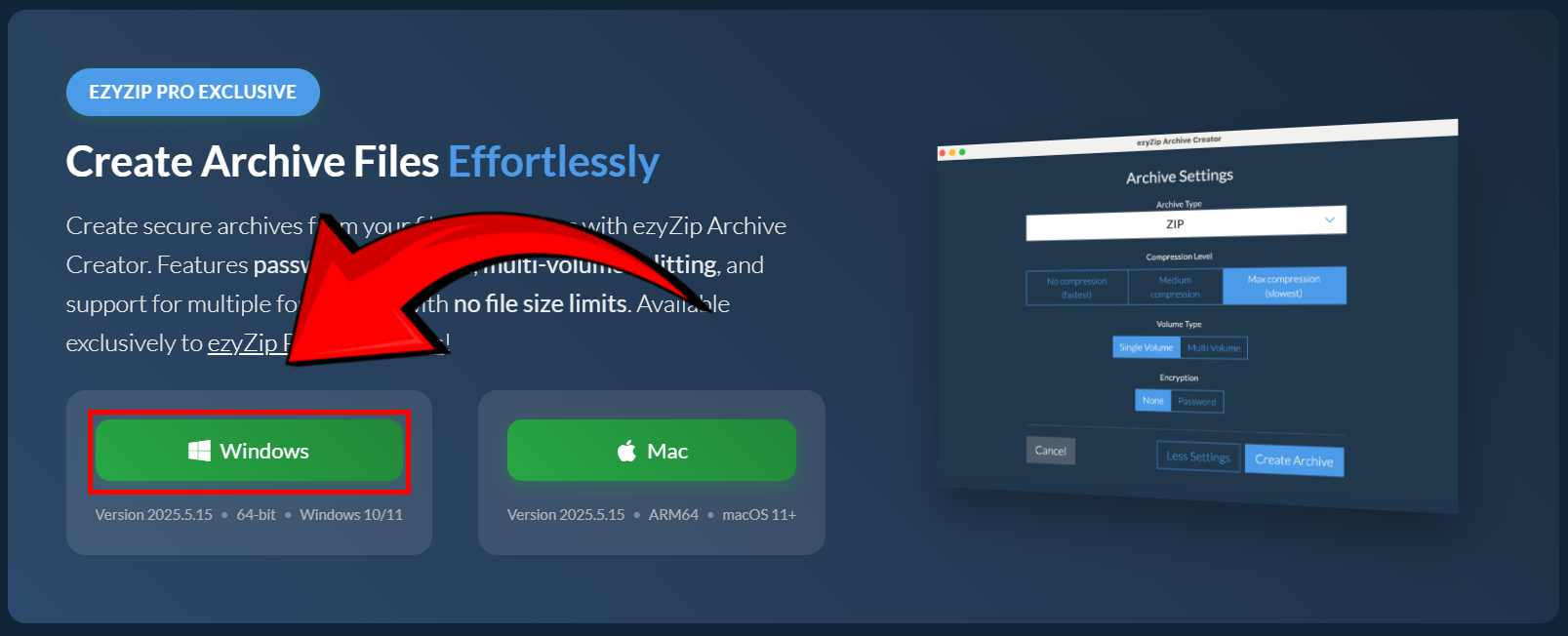
- Download & install ezyZip Archive Creator ezyZip Archive Creator – because even cyber guardians need the right tools to protect their digital treasures! 🔑
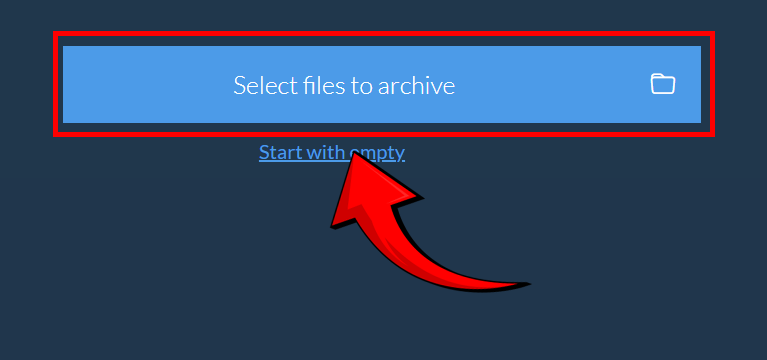
- Launch ezyZip & click “Select files to archive” – time to organize your valuables into one secure bundle! 🛡️
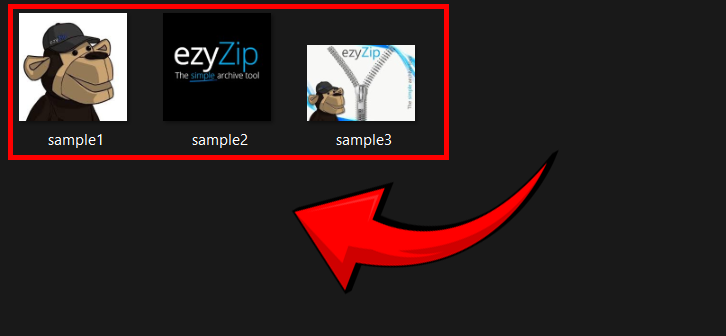
- Pick the files you want to compress – select carefully, like securing classified documents! 💾
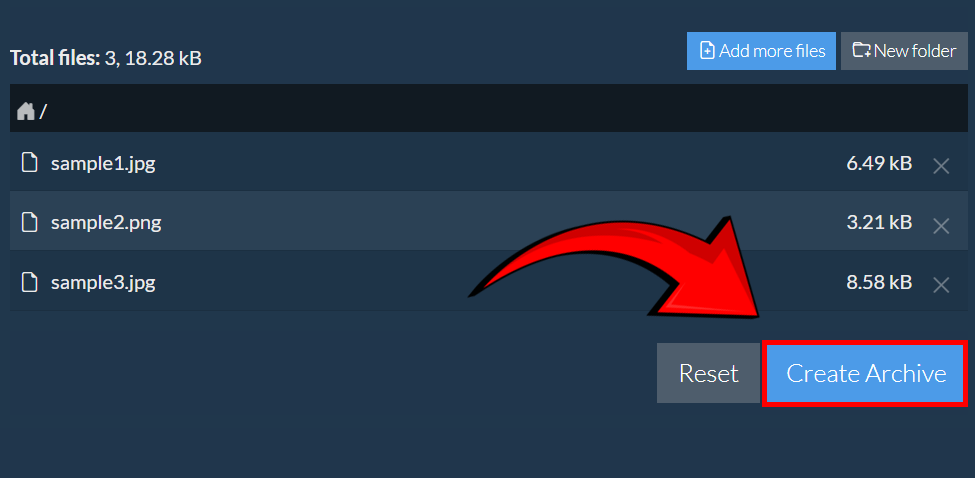
- Click “Create Archive” – time to seal your digital vault! 🔐
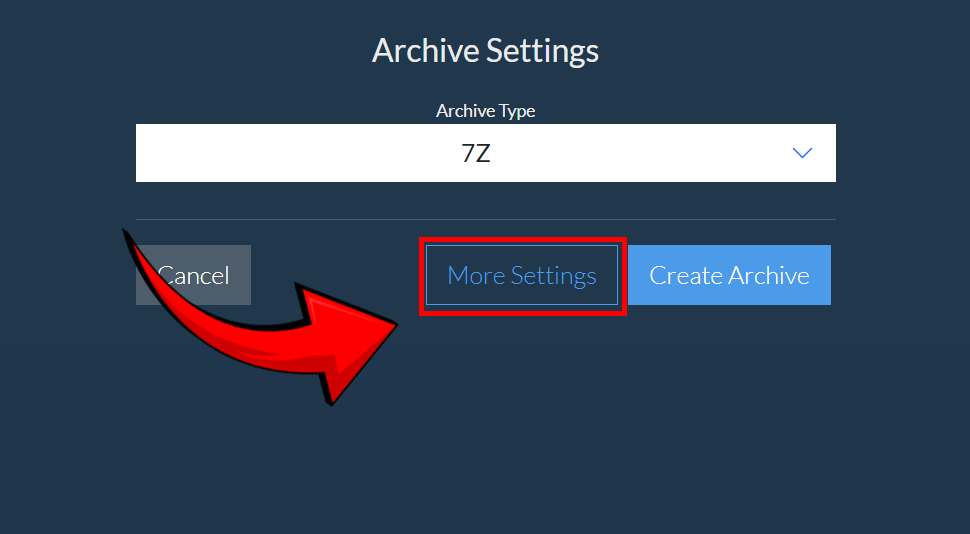
- Choose 7Z as your archive format and click “More Settings” – this is where we activate encryption magic! ✨
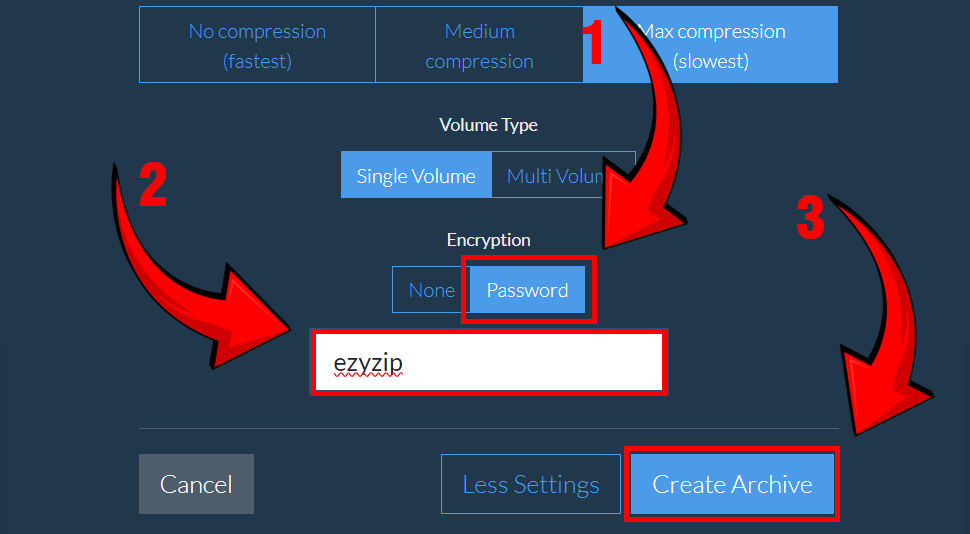
- Click “Password,” enter your chosen password, then click “Create Archive” again – lock it down like a digital safe! 🔏
- Save your 7Z file – store it securely like your most valuable digital asset! 🏆
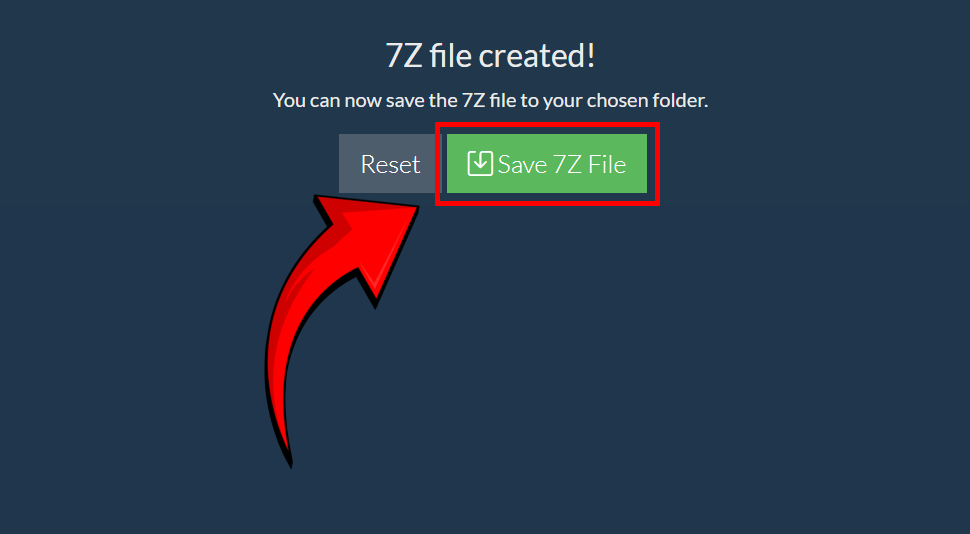
And just like that, your 7Z file is encrypted—safe, secure, and fully protected in the digital jungle! 🚀🔒
Encrypting 7z Files on Windows Using 7-Zip
Windows is like the familiar tree branch we often swing from. Let’s encrypt!
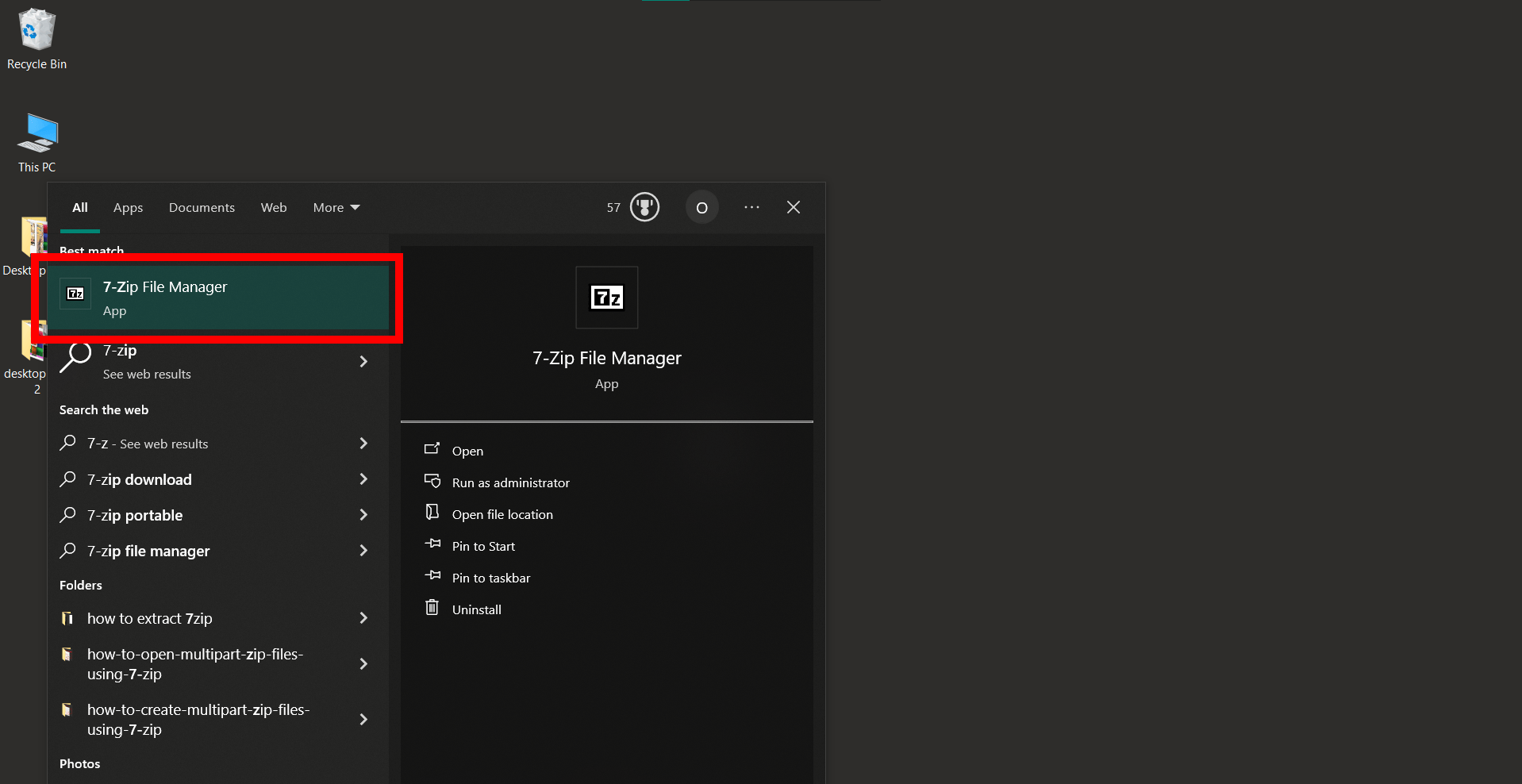
- Launch 7-Zip: Start up your 7-Zip application from the desktop or start menu.
- Select Items: Identify the files or folders you’re keen on encrypting.
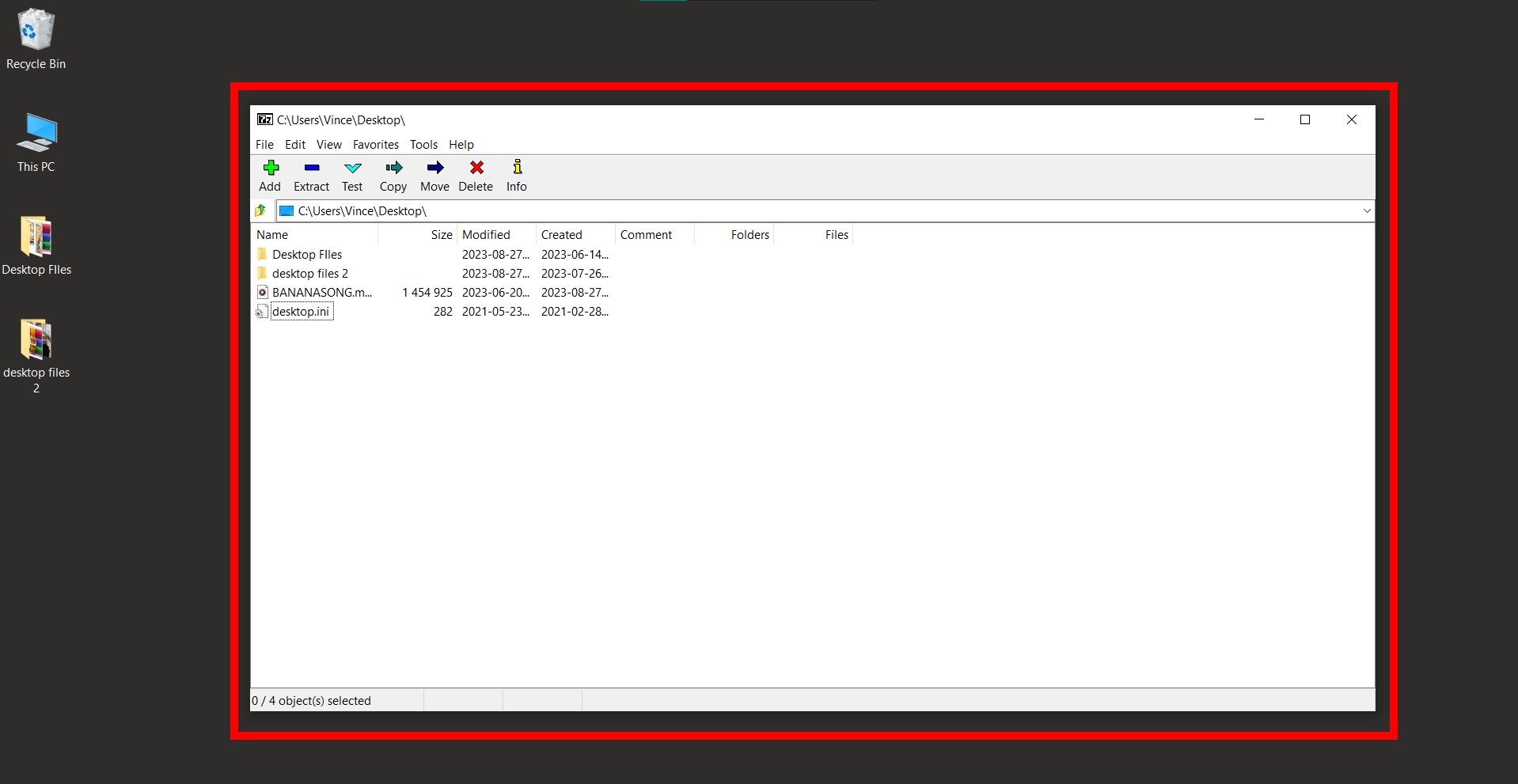
- Add to Archive: Right-click, hover over 7-Zip, and pick Add to archive.
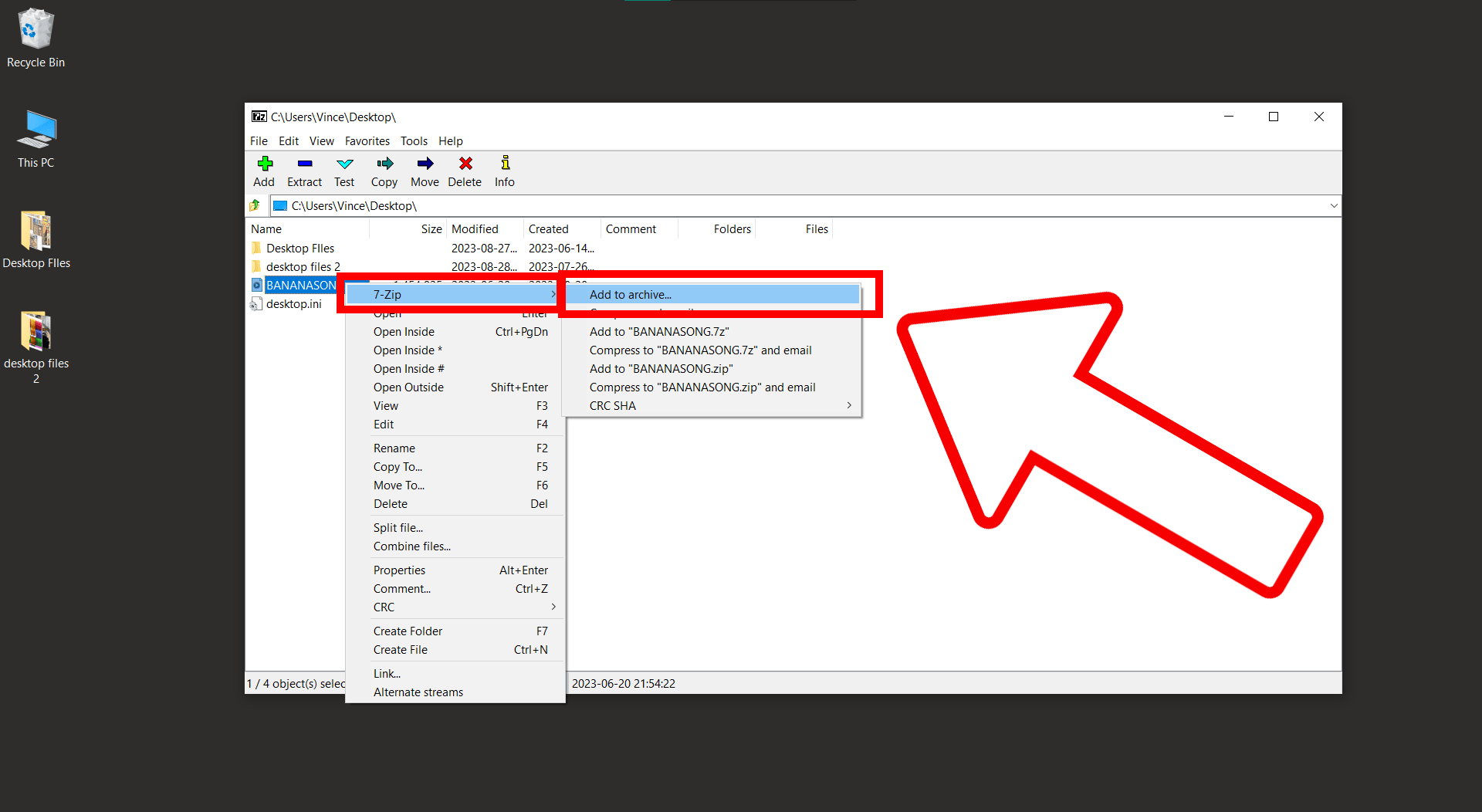
- Encryption Time: Under Encryption, type in a password and ensure AES-256 is selected.
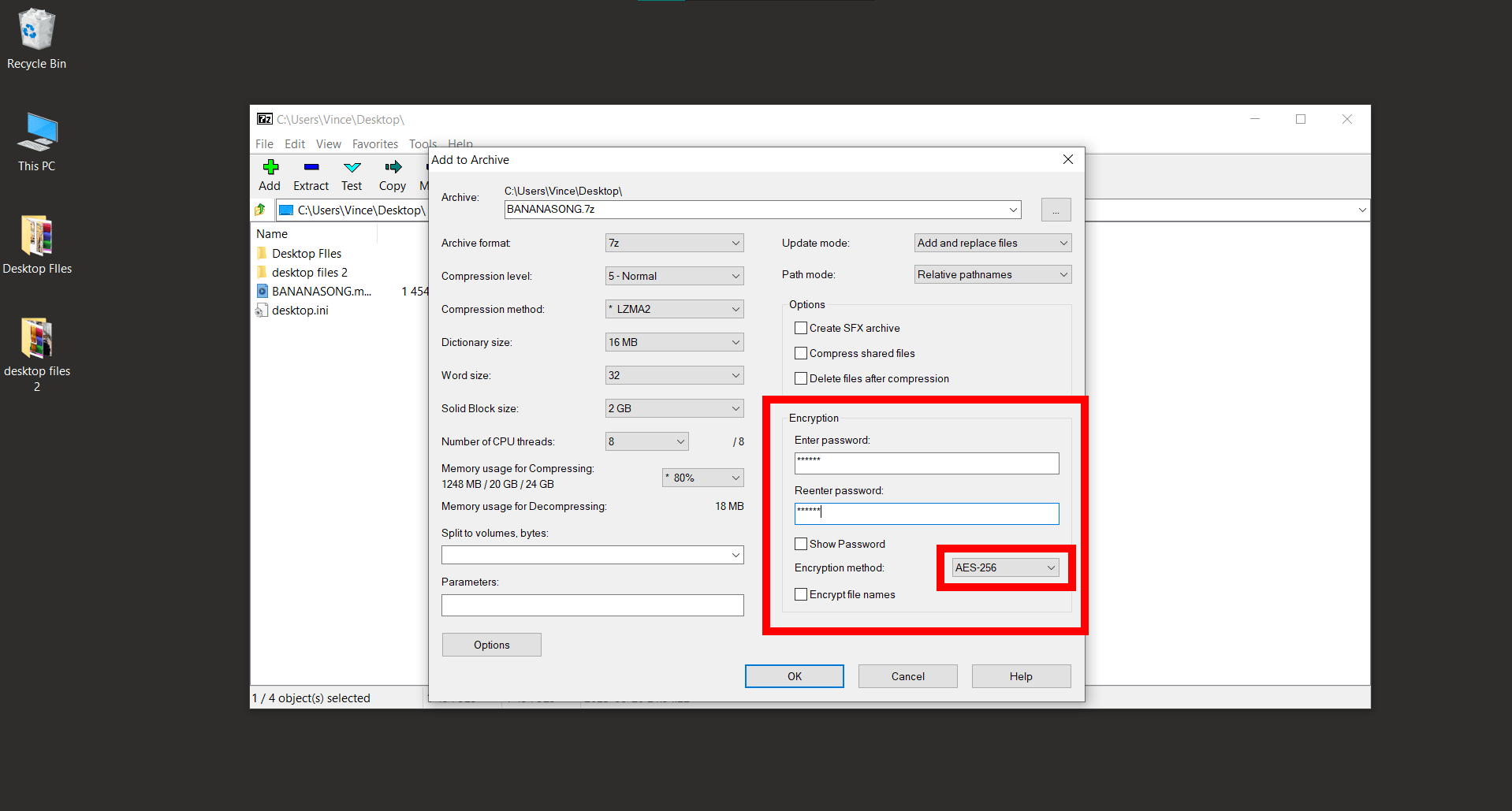
- Seal the Deal: Click OK and let 7-Zip work its magic.
Encrypting 7z Files on Mac Using Keka
For our Mac-using friends, Keka is like the trusty vine for a smooth swing.
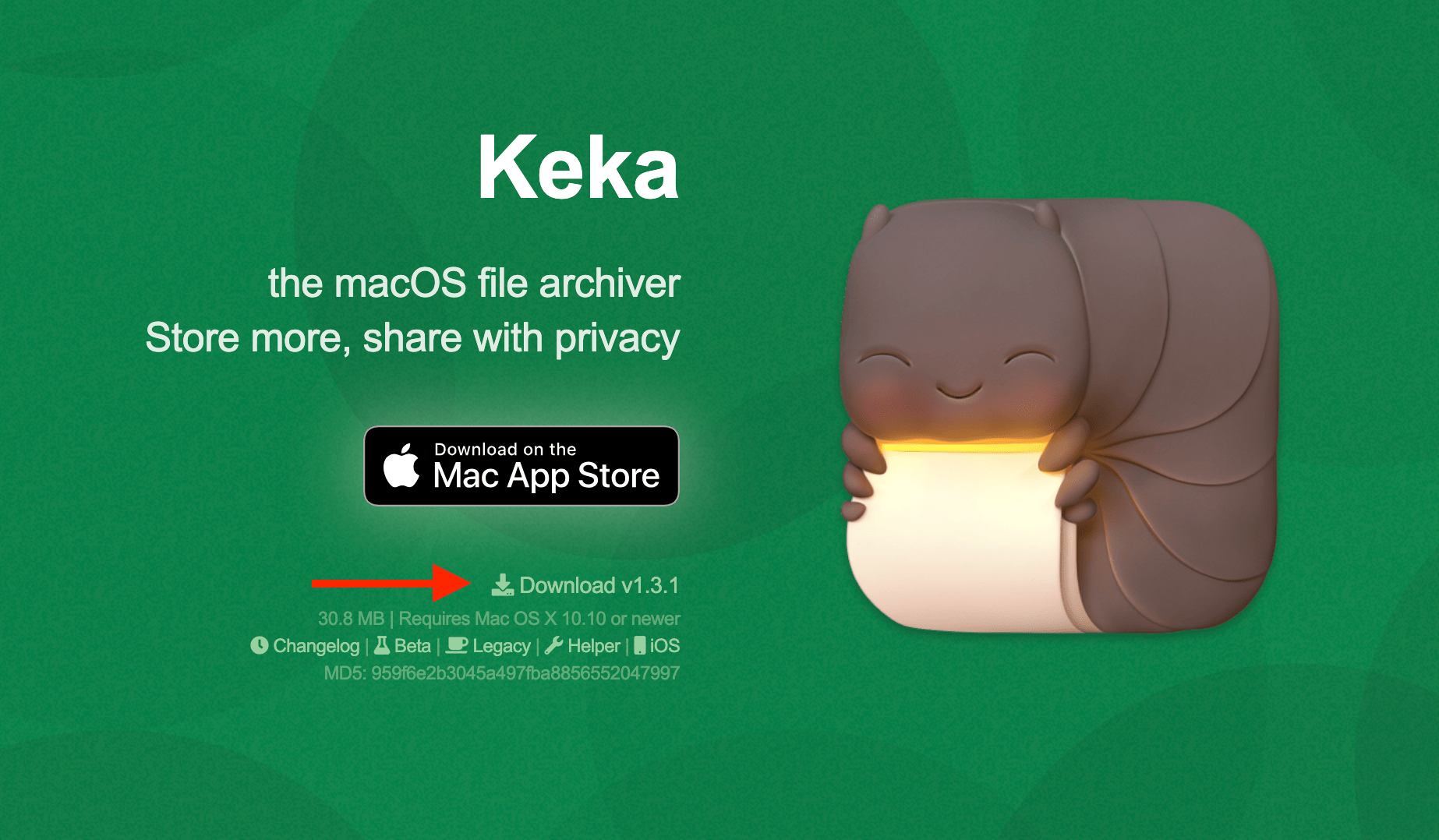
- Download Keka: Swing over to the Keka website and download the app. It’s as easy as finding a banana in a fruit market!
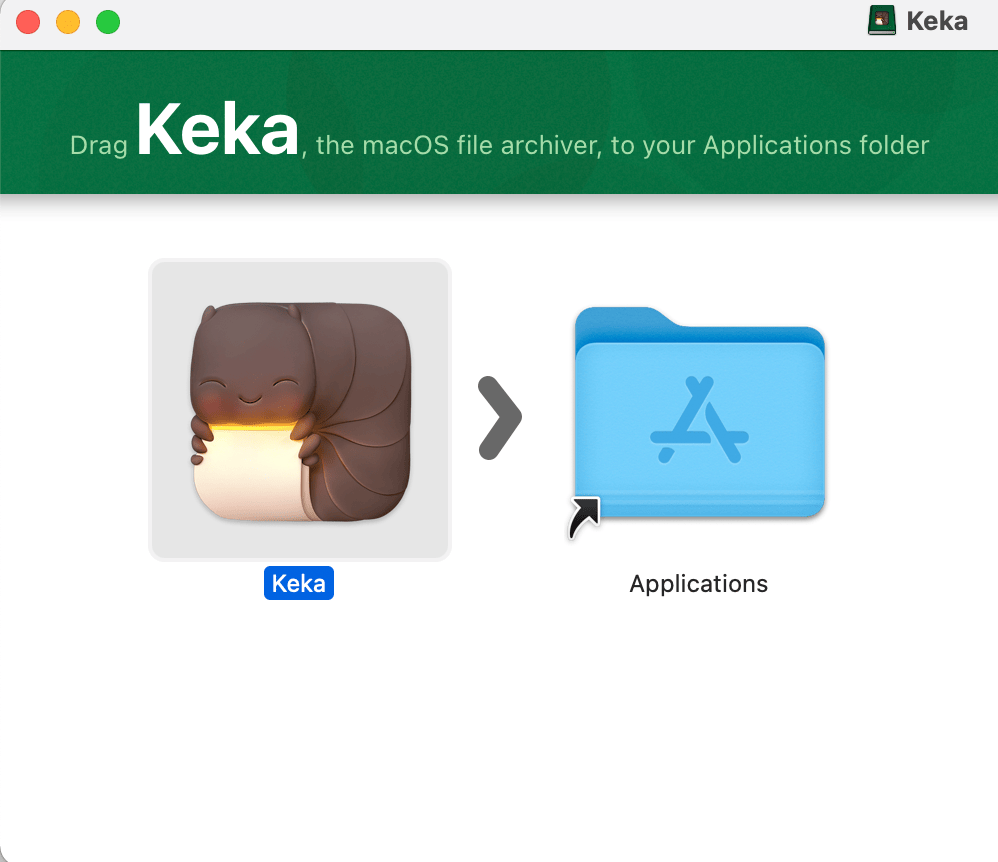
- Install Keka: Once the download is complete, open the downloaded file and drag the Keka icon to your Applications folder. It’s like stashing a banana for later!
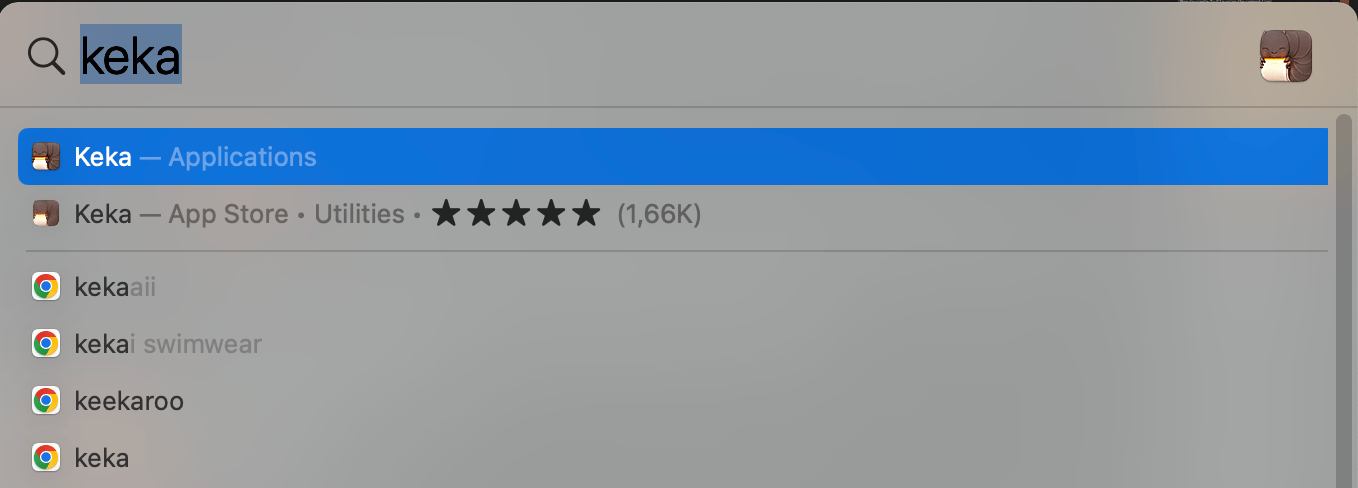
- Open Keka: Find Keka in your Applications folder and open it. It’s like swinging into a new part of the jungle. Another way is to search in Spotlight for Keka like so.
- Choose 7z Format: In the Keka window, click on the ‘7z’ button. It’s like picking the tastiest banana from the bunch.
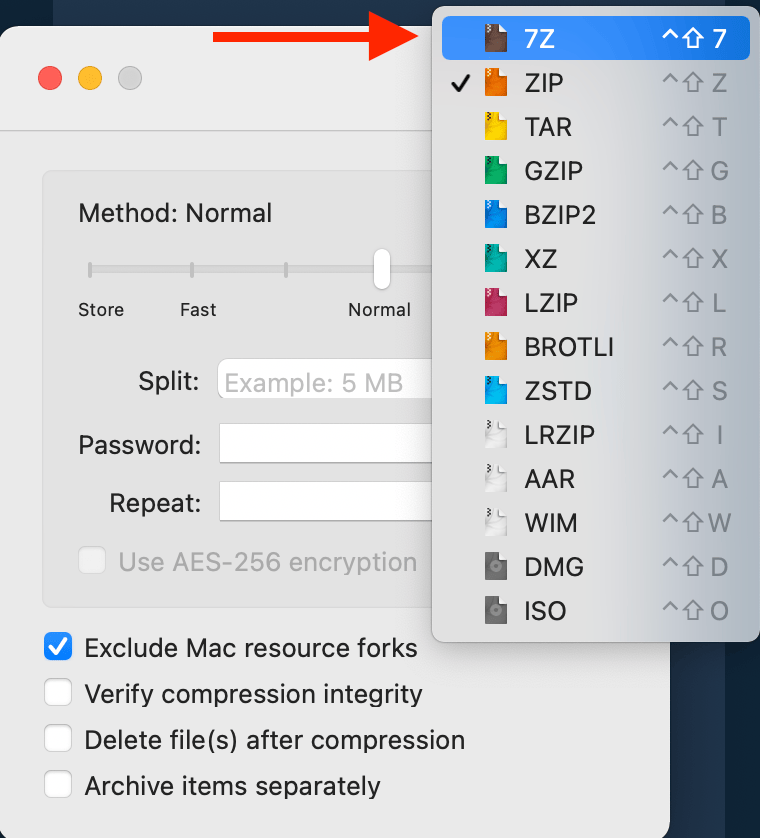
- Add Password: Select 7z as the format, enter a password, and confirm it.
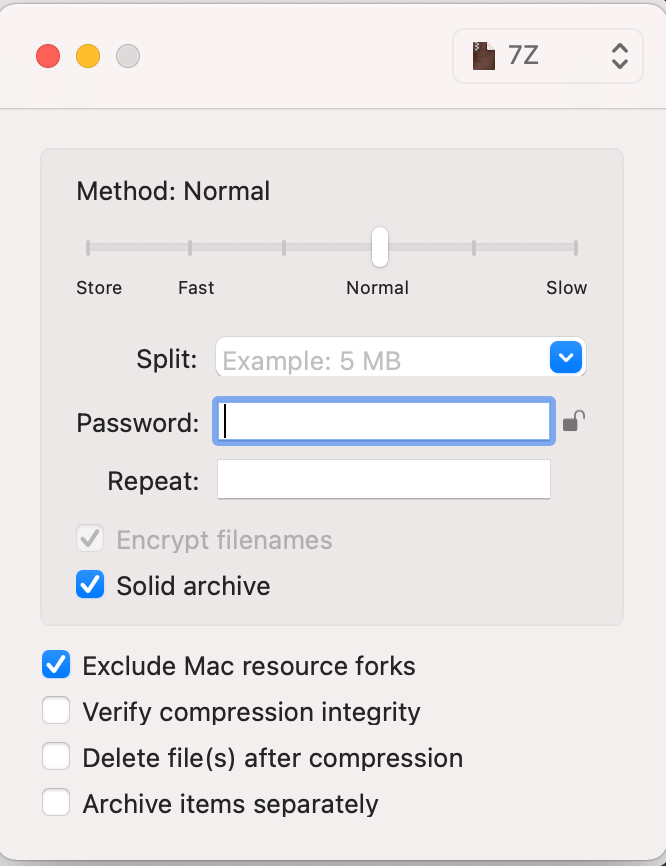
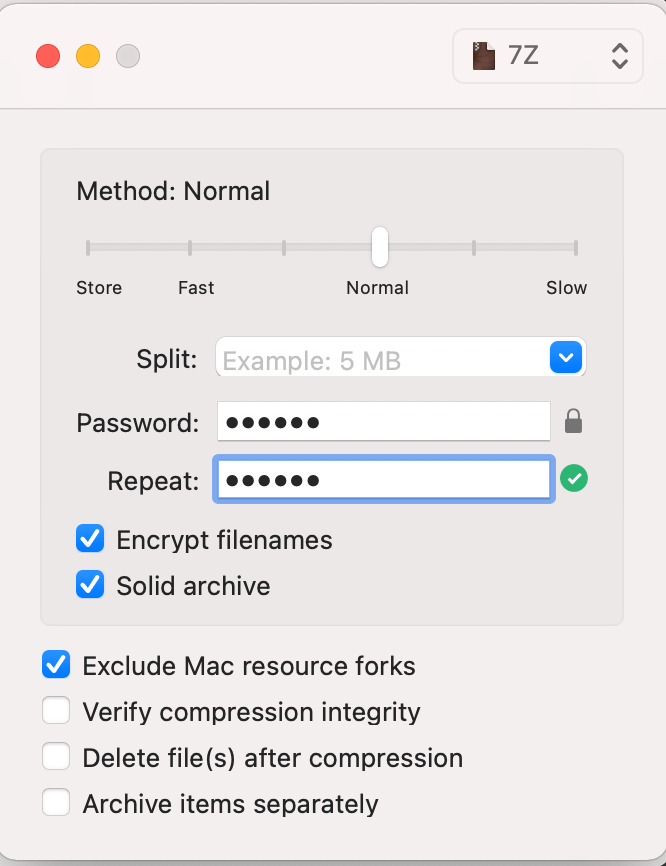
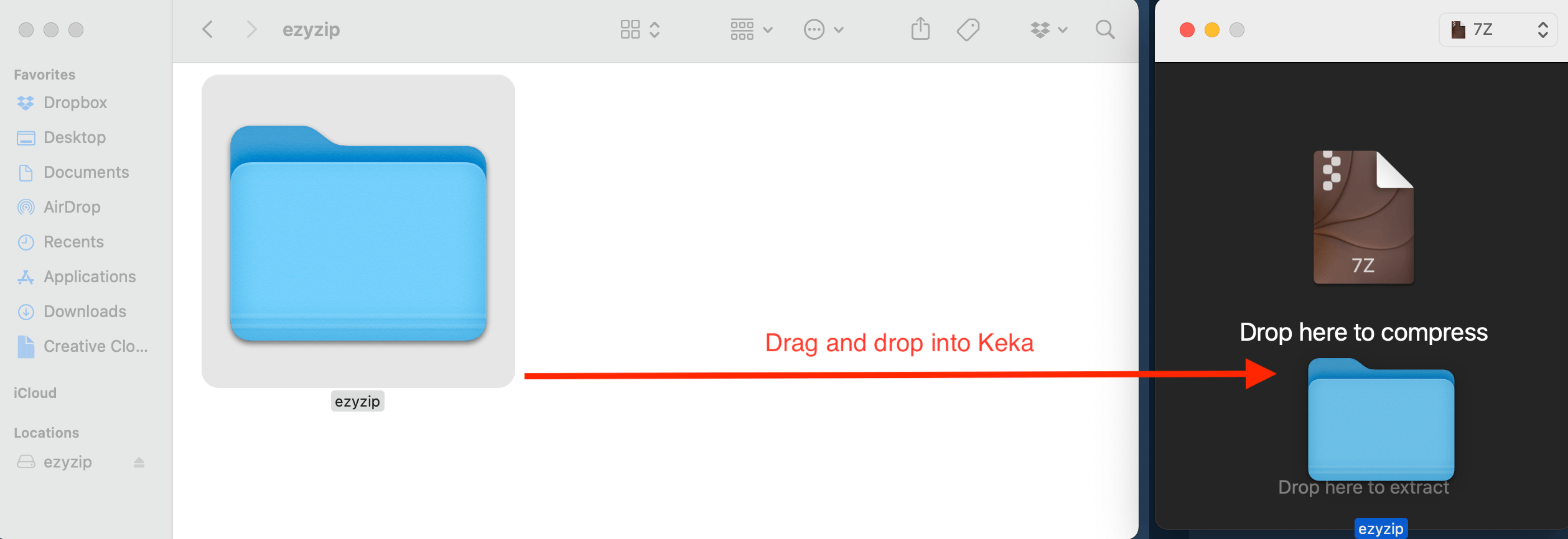
- Drag and Drop Files: Find the files you want to compress and drag them into the Keka window. It’s like gathering bananas to take back to your tree.
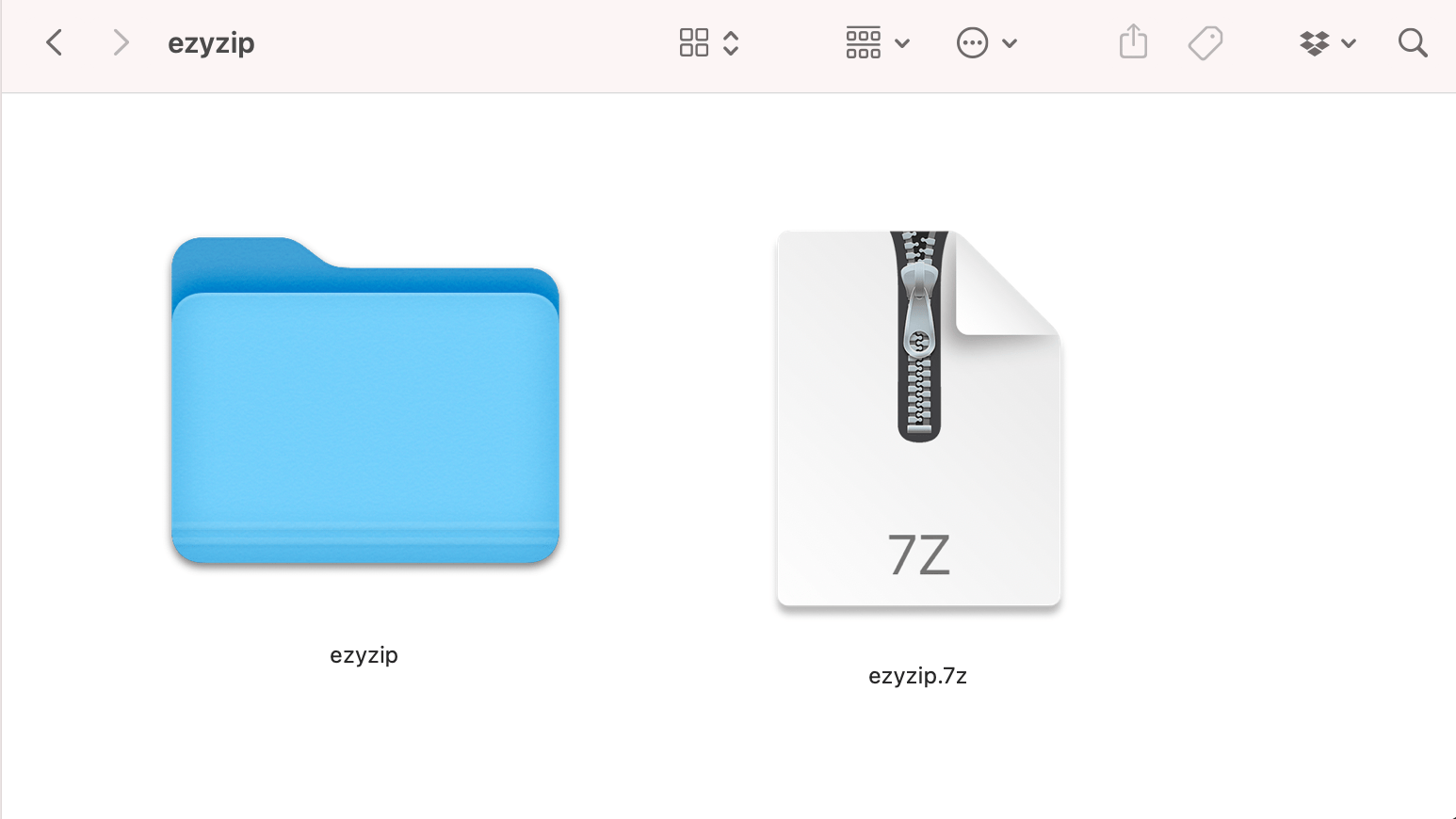
- Locate Your Encrypted File: Your encrypted 7z file will be ready in the same folder.
Encrypting 7z Files on Linux Using p7zip
Linux, the wild side of our tech-jungle, has p7zip as its trusty tool.
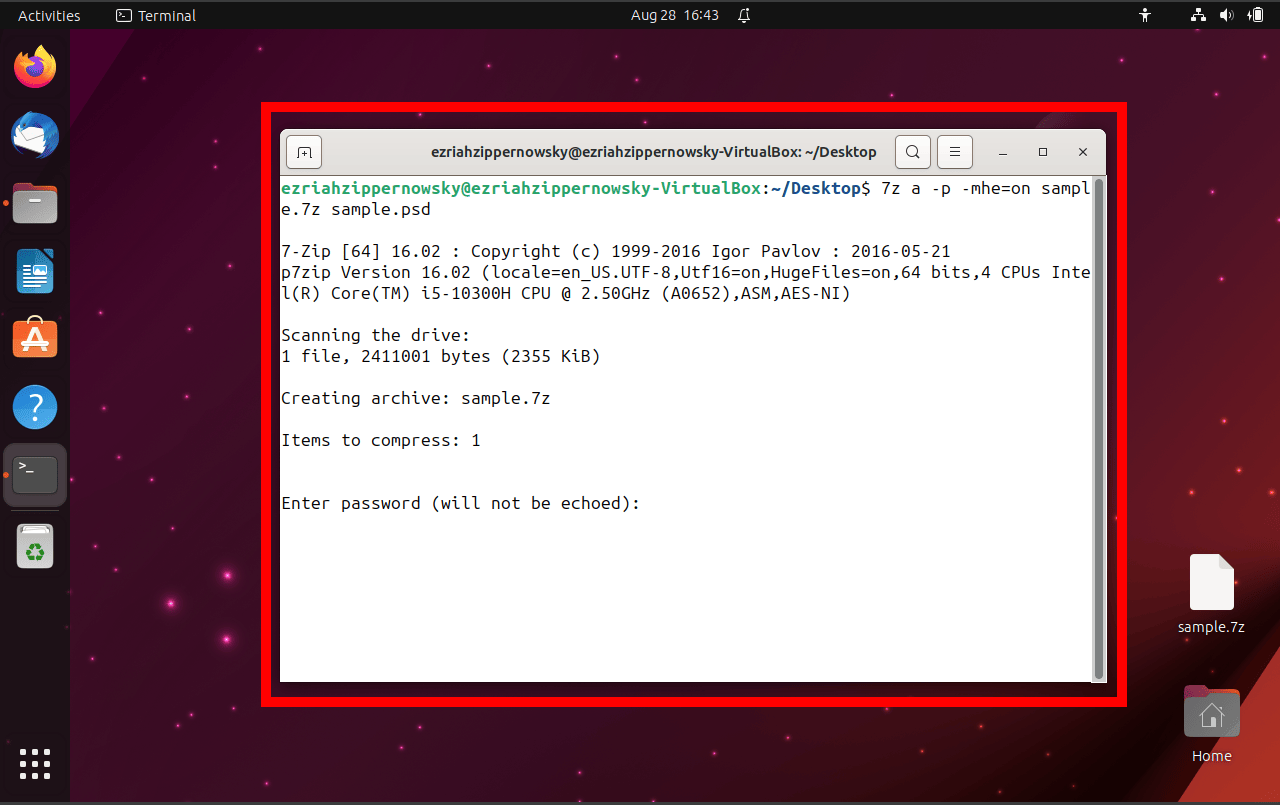
- Open Terminal: Access the terminal. It’s our jungle communication device.
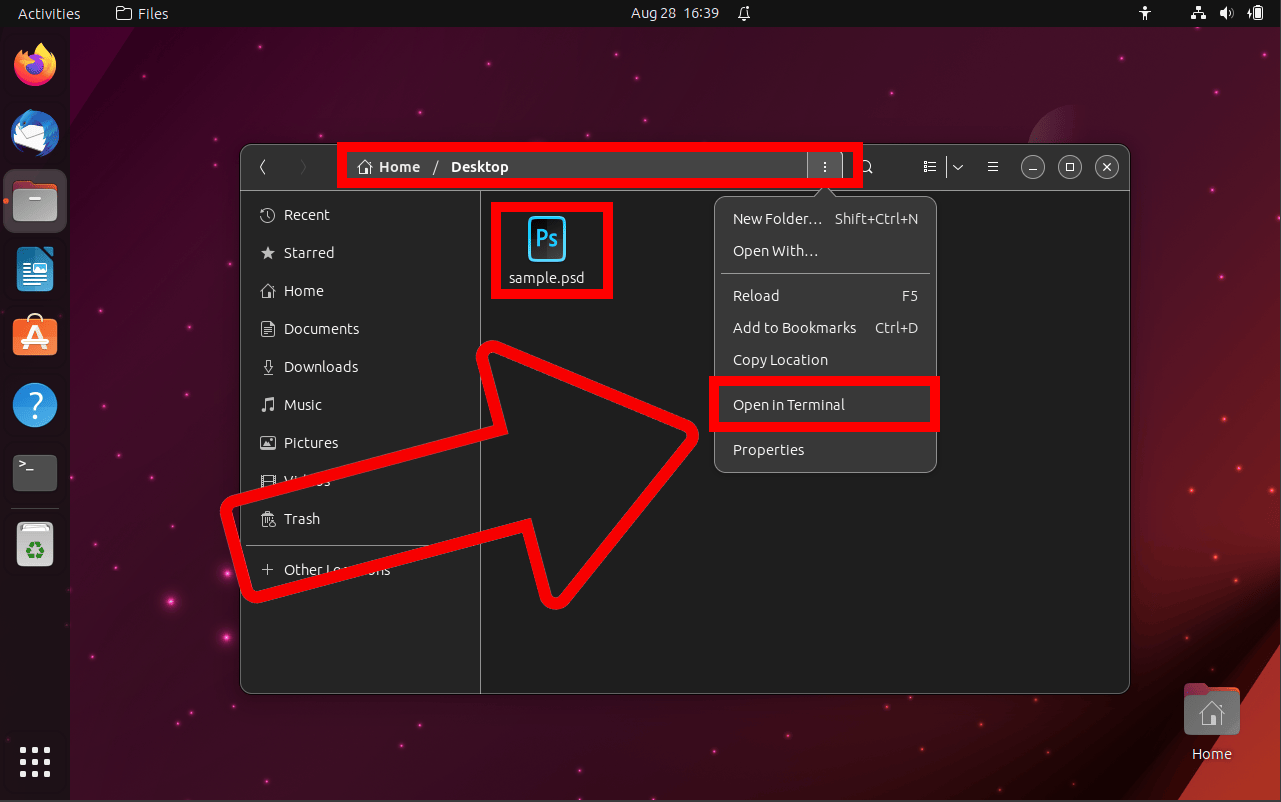
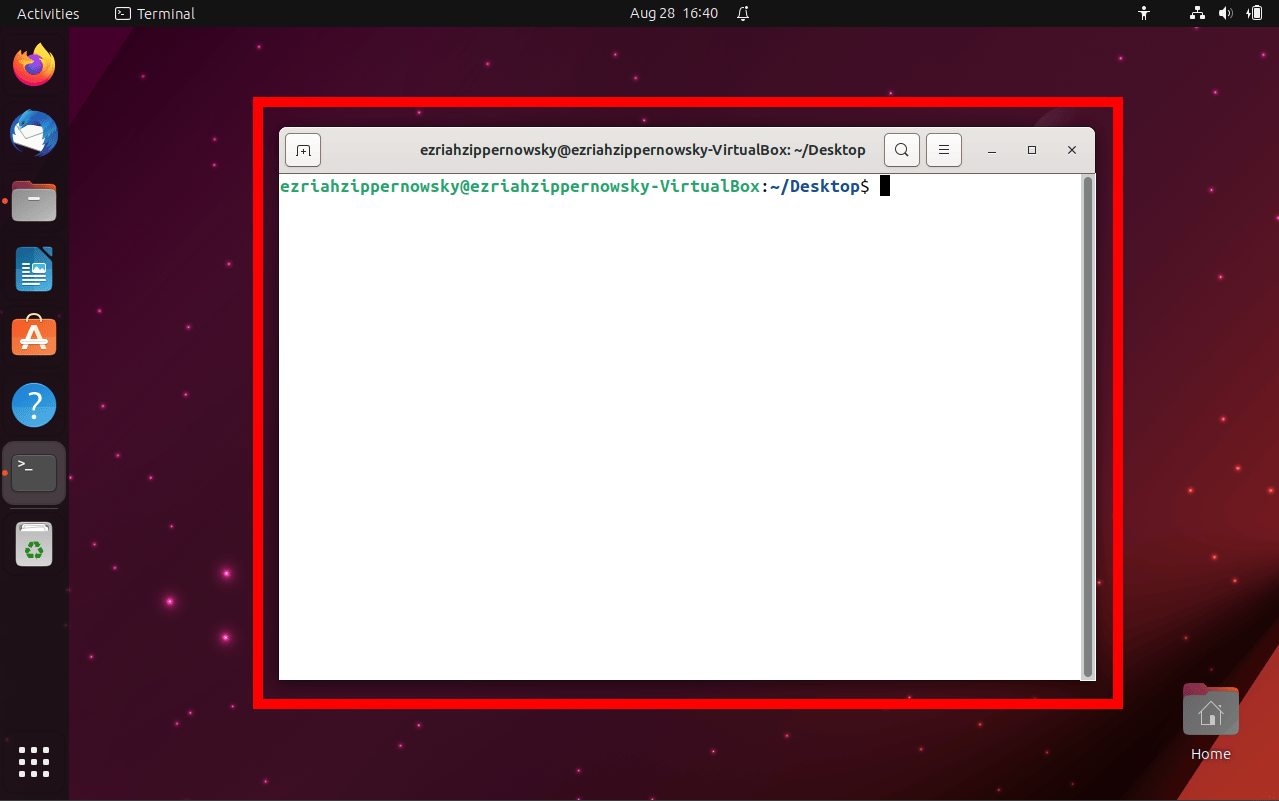
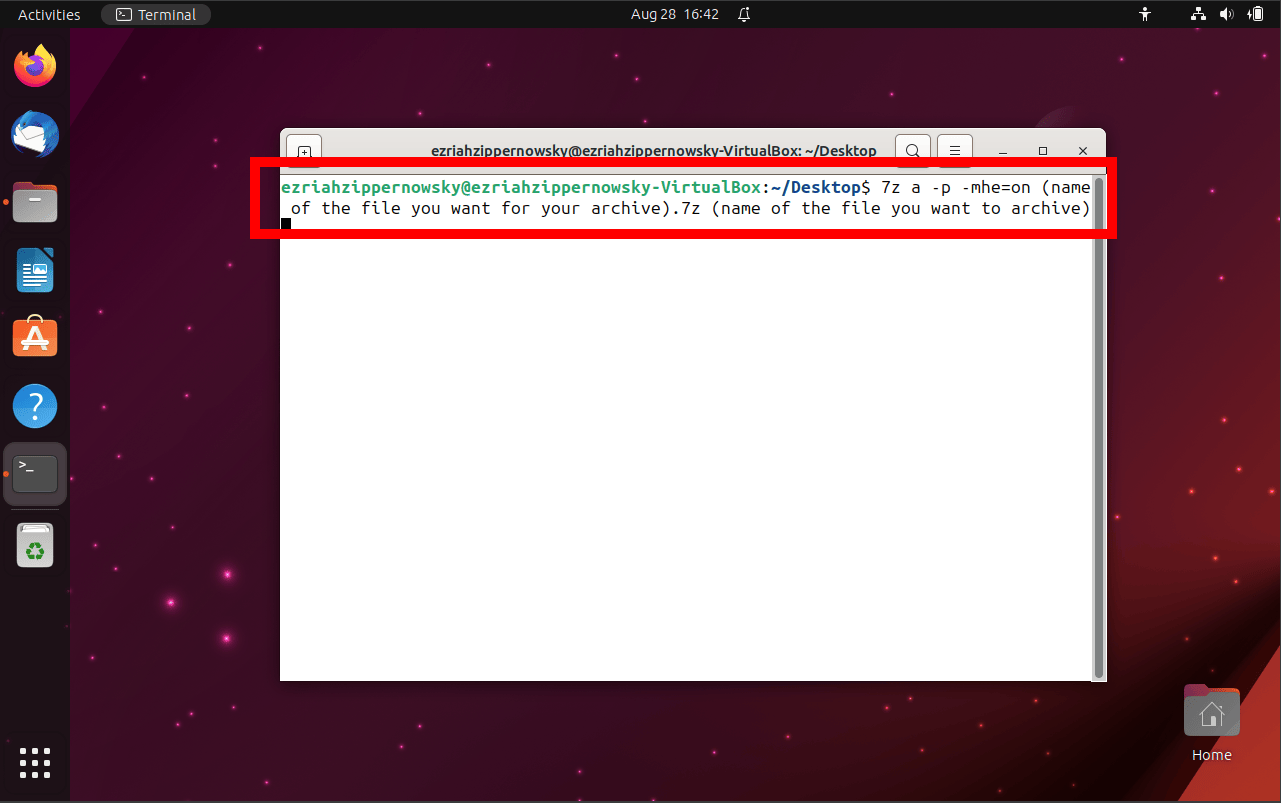
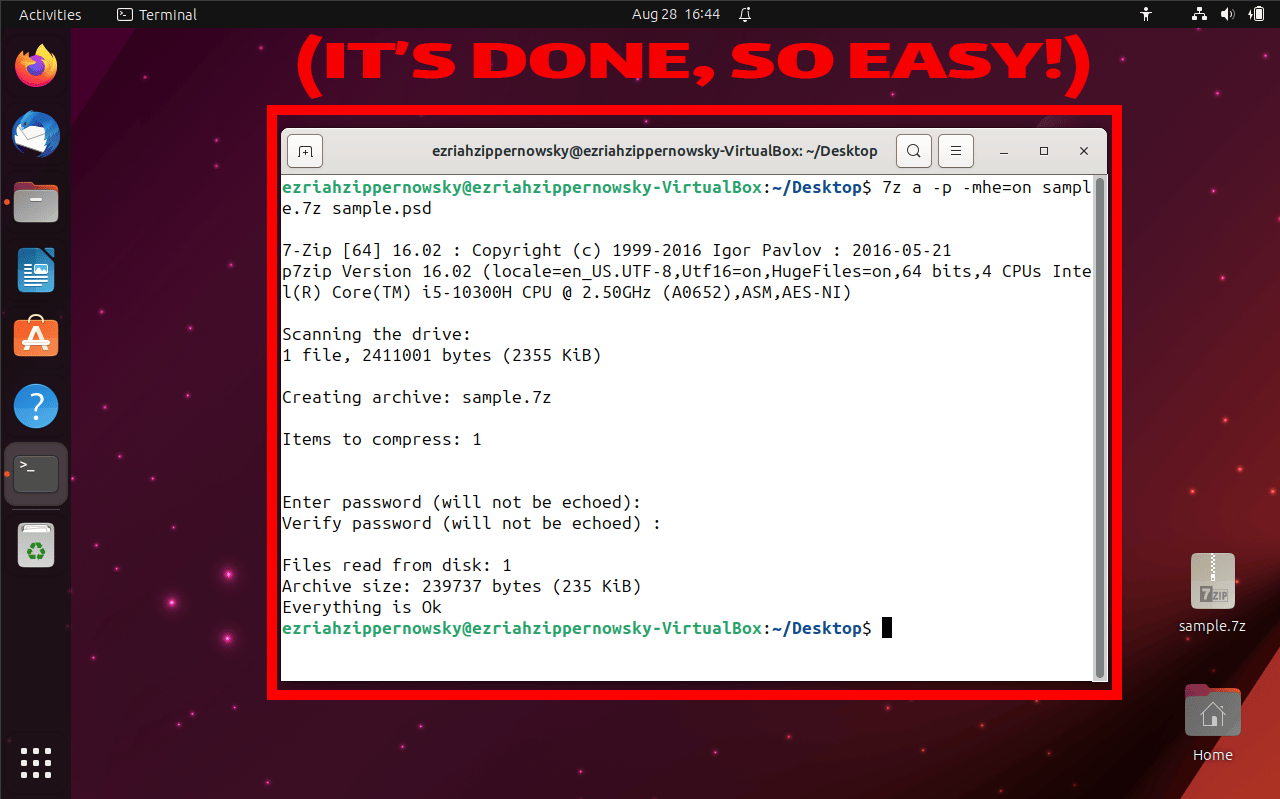
- Use p7zip: Type 7z a -p -mhe=on yourarchive.7z yourfile replacing yourarchive with the desired archive name and yourfile with the file/folder name.
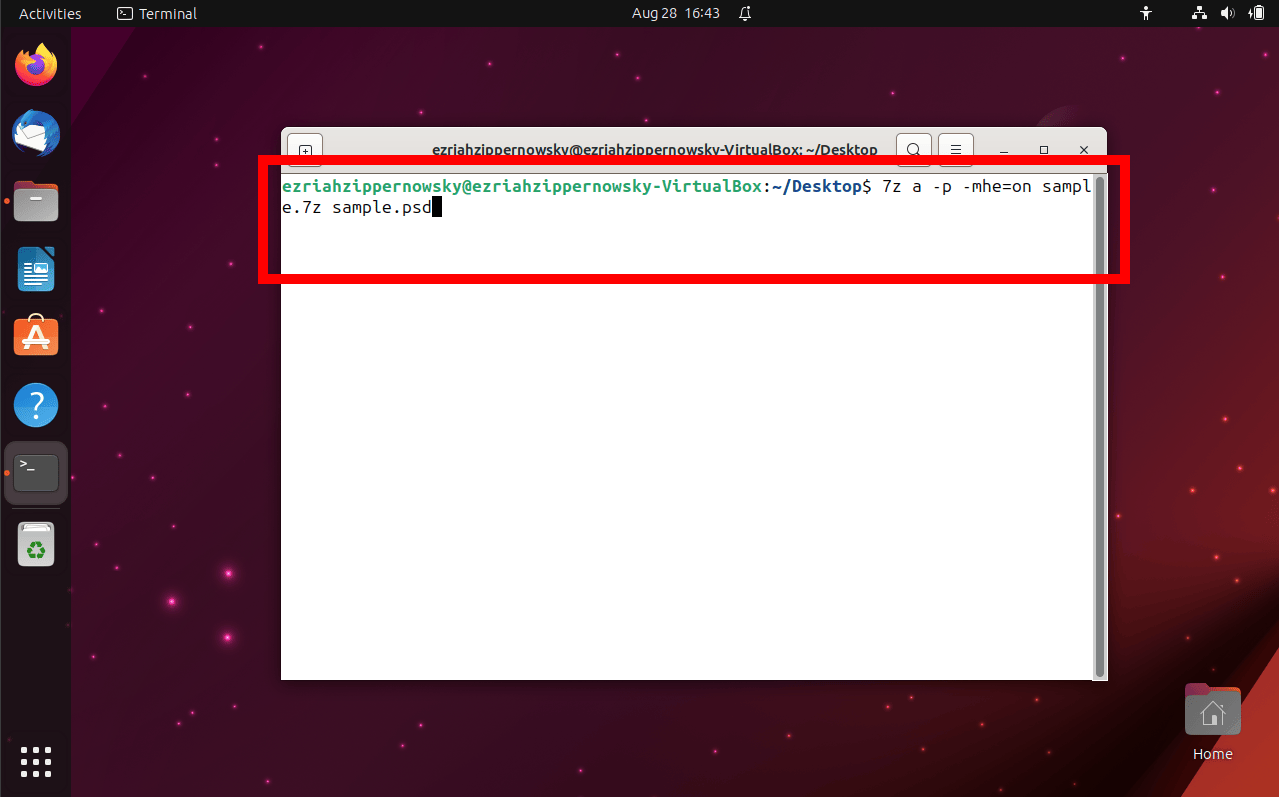
- Enter Password: When prompted, type in your chosen password.
Conclusion
And voilà! Whether you’re swinging from the Windows trees, the Mac vines, the Linux branches, or the online clouds, you’re now equipped to protect your golden banana (I mean, 7z file) from any sneaky critters. Keep exploring and encrypting, jungle techies! 🍌🔐🐒