


Hey there, jungle friends! Has a big .zip file got you swinging from the trees in frustration? Well, hang in there! Your favorite tech-savvy monkey is here to show you how to unzip files using the command line. It’s as easy as cracking open a nut, and much more fun than a barrel of monkeys. So, let’s get started and tame those wild files!
Table of contents
- Method 1: Unzip Files on Linux and macOS
- Method 2: Unzip to a Different Folder
- Method 3: List Contents Without Unzipping
- Method 4: Extract Only Specific Files
- Method 5: Unzip Split Zip Files
- Method 6: Unzip Password-Protected Zip Files
How To Unzip Files on Linux and macOS
In the wild world of Linux and macOS, it can sometimes feel like you’re lost in the undergrowth. But don’t worry, we’re here to guide you through. Here’s how you can unzip files using the command line:
- Open Terminal: Just like how we monkeys love to open coconuts, you’ll need to open your Terminal. You can find it in your Applications folder.
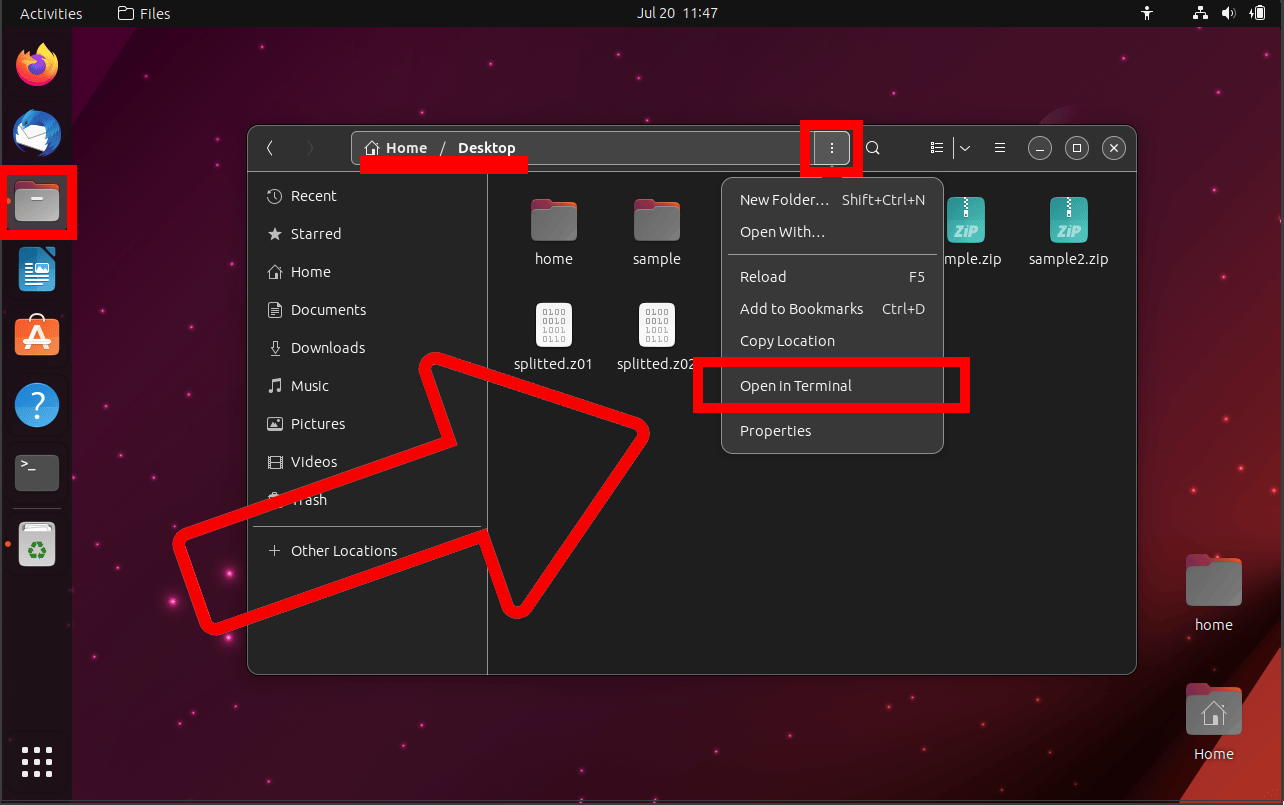
- Navigate to Directory: Now, you need to swing over to the directory where your .zip file is hanging out. Use the cd command to do this. For example, if your .zip file is in the Downloads folder, you would type cd Downloads.
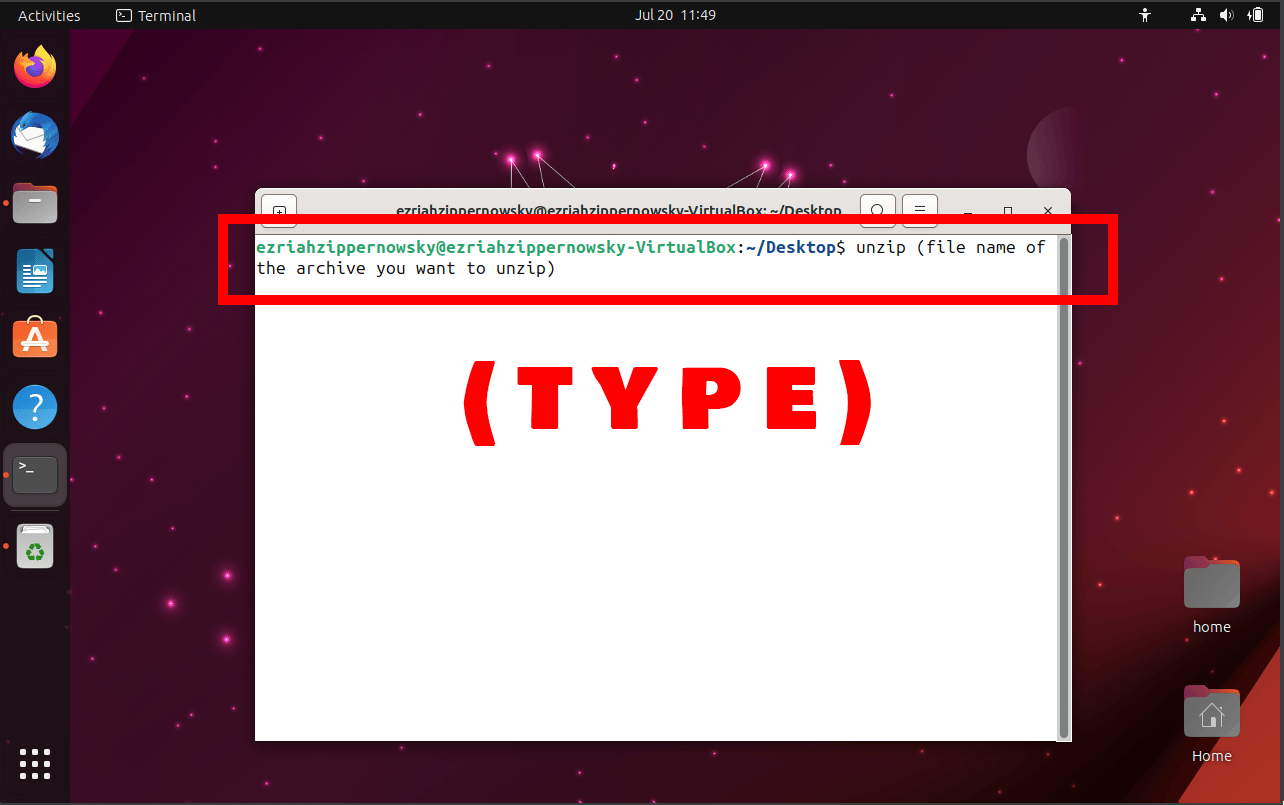
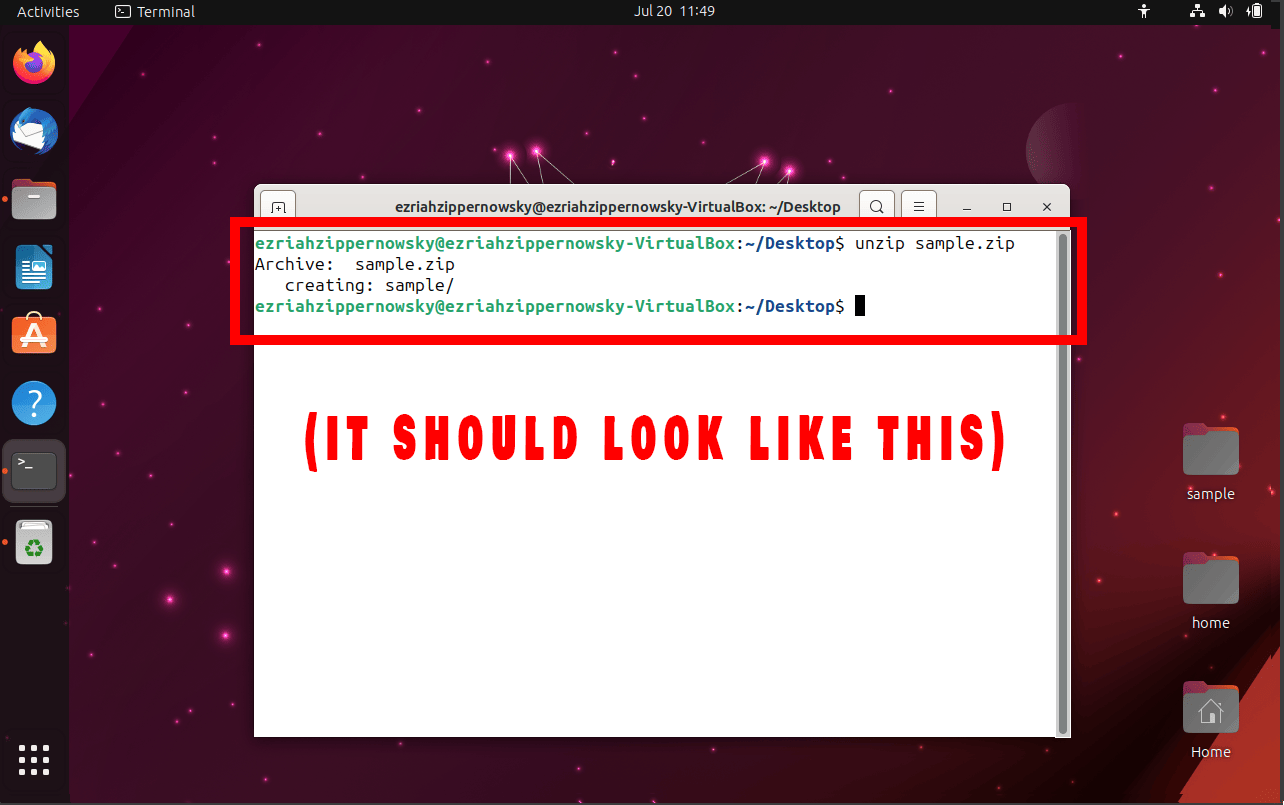
- Unzip the File: No more monkeying with file sizes! It’s time to unzip the file. Use the unzip command followed by the name of your .zip file. For example, if your .zip file is named file.zip, you would type unzip file.zip.
How To Unzip to a Different Folder
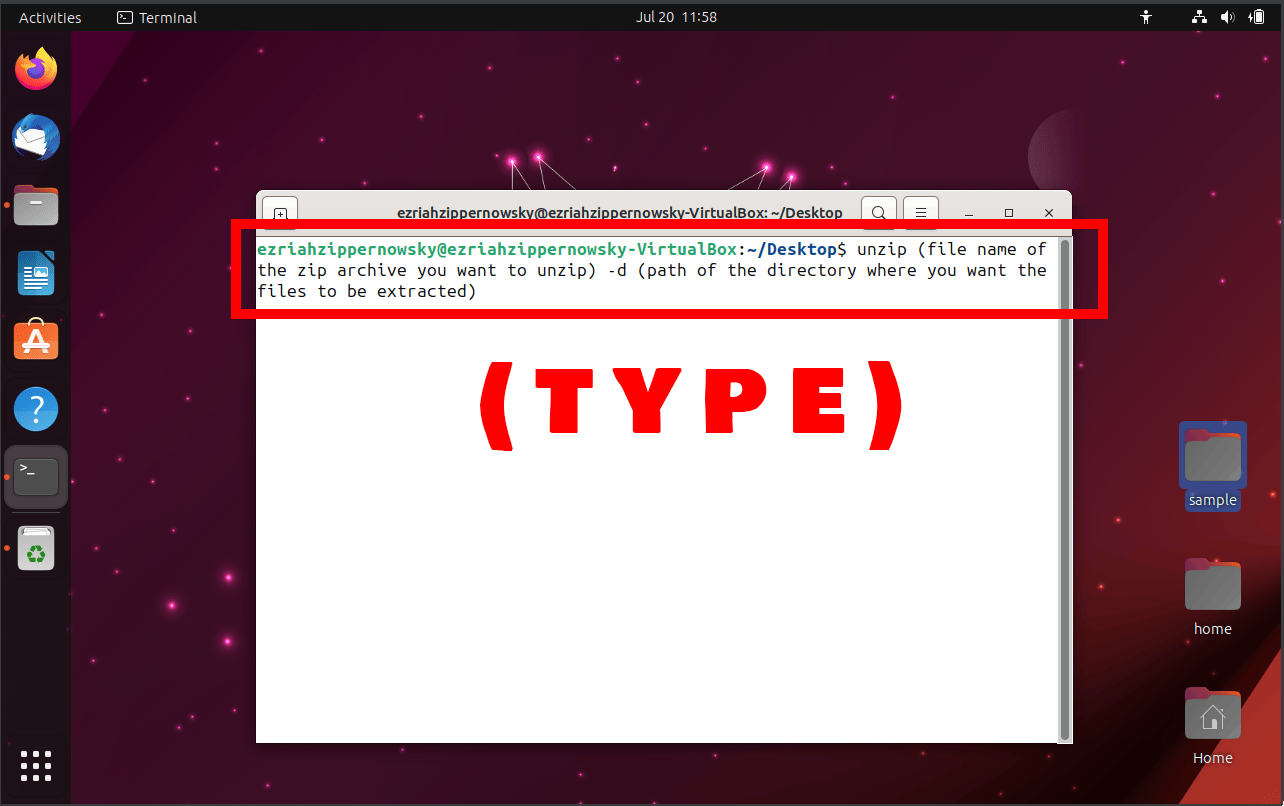
Want to unzip your files to a different tree… I mean, folder? Here’s how:
- Unzip to Specific Folder: Use the -d switch followed by the destination directory. For example, unzip file.zip -d /path/to/destination/folder.
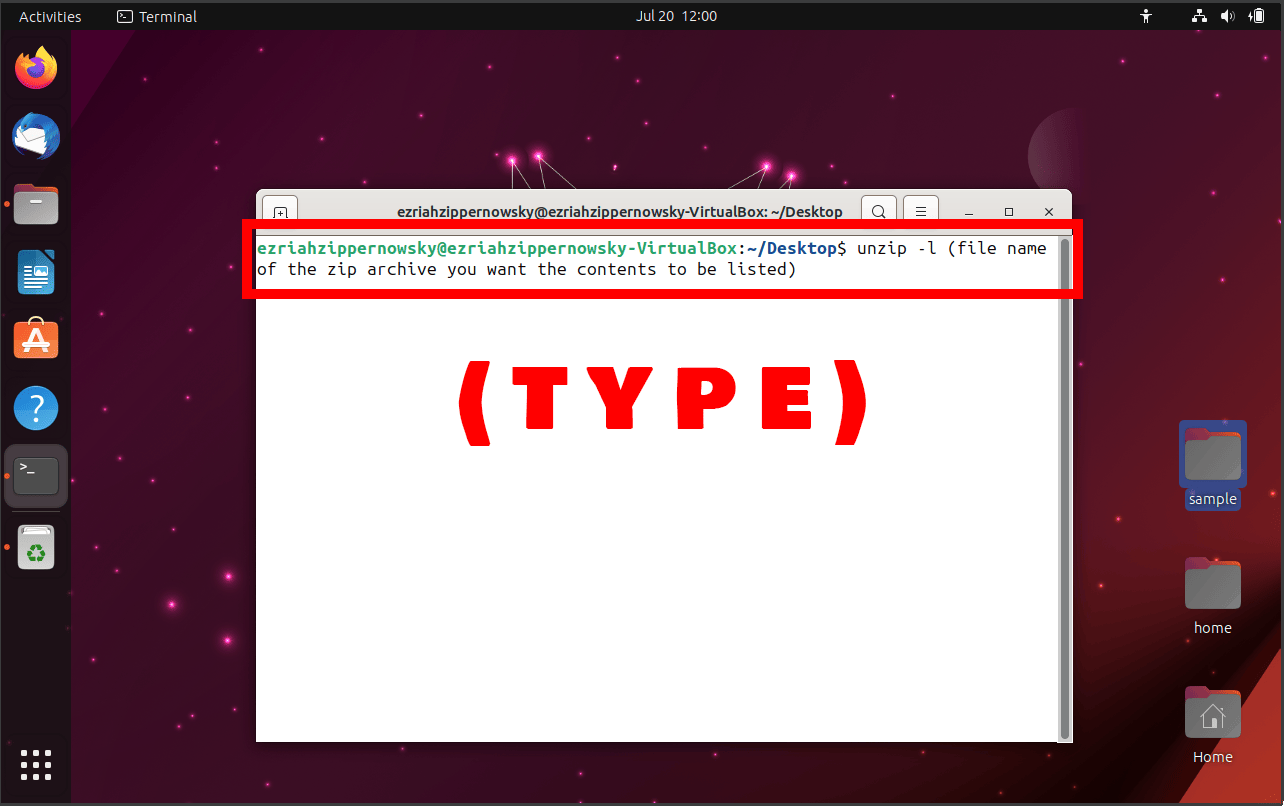
How To List Contents Without Unzipping
Curious to see what’s inside the .zip file without unzipping it? It’s like peeking inside a nut without cracking it open!
- List Contents: Use the -l switch. For example, unzip -l file.zip.
How To Extract Only Specific Files
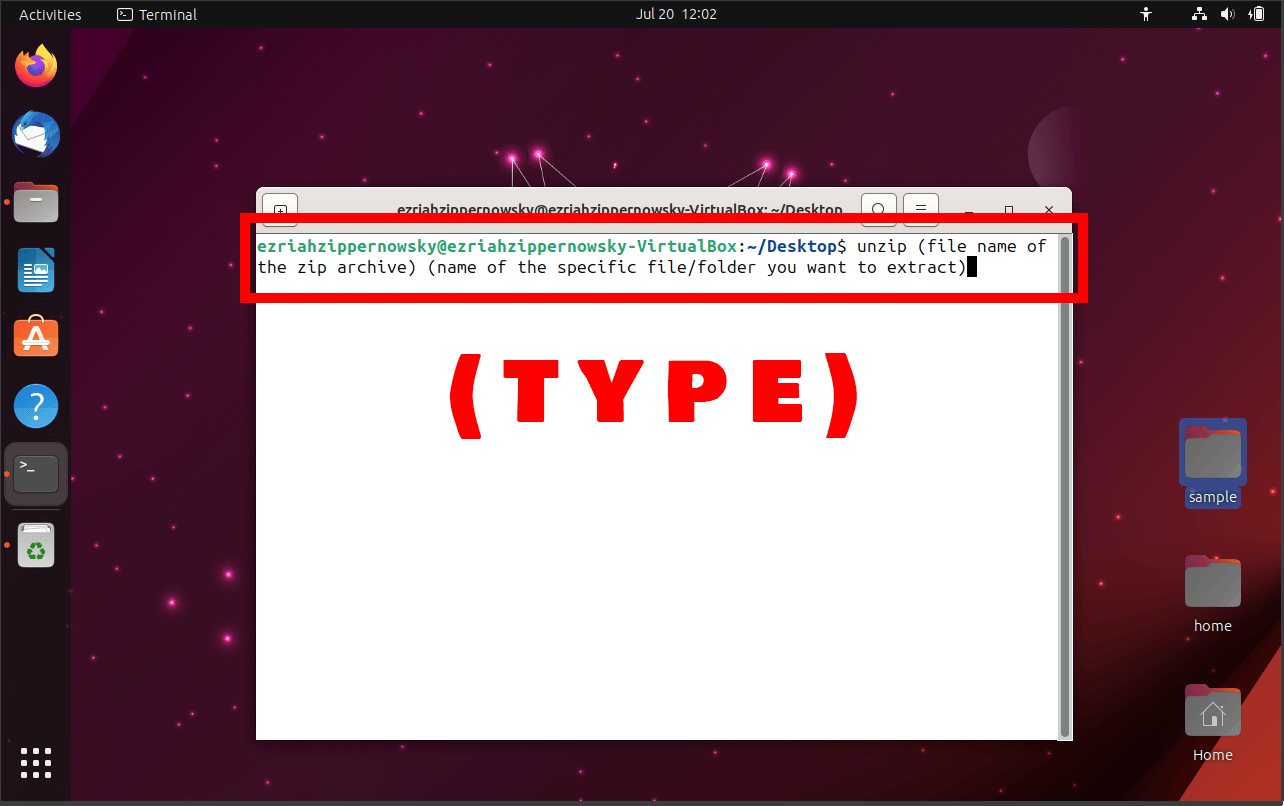
Want to extract only a specific file from the .zip file? It’s like picking your favorite fruit from the bunch!
- Extract Specific File: After the .zip file, add the name of the file you want to extract. For example, unzip file.zip file_to_extract.txt.
How To Unzip Split Zip Files
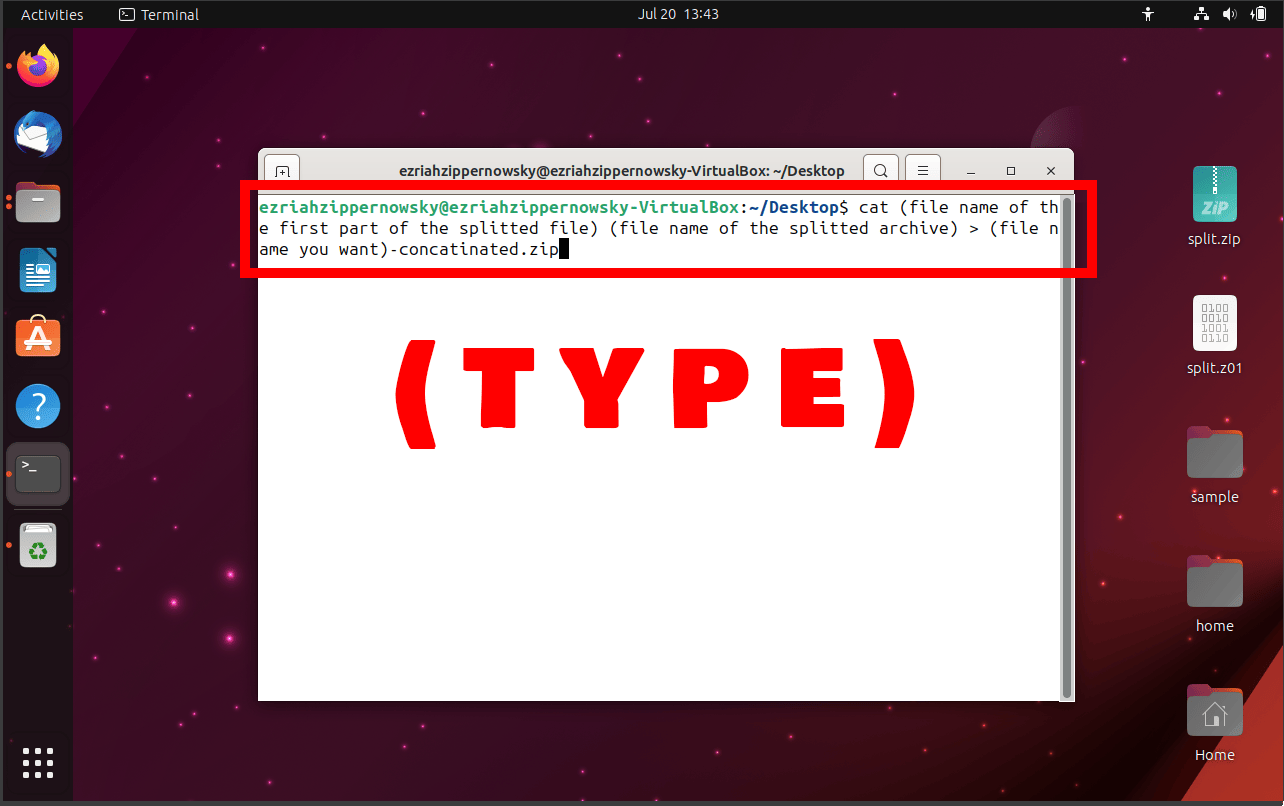
Got a .zip file that’s split into smaller parts? It’s like having a bunch of baby monkeys to take care of!
- Unzip Split Files: Just unzip the first part of the split .zip file (the one with .zip or .z01 extension), and the rest will follow. For example, unzip file.zip or unzip file.z01.
How To Unzip Password-Protected Zip Files
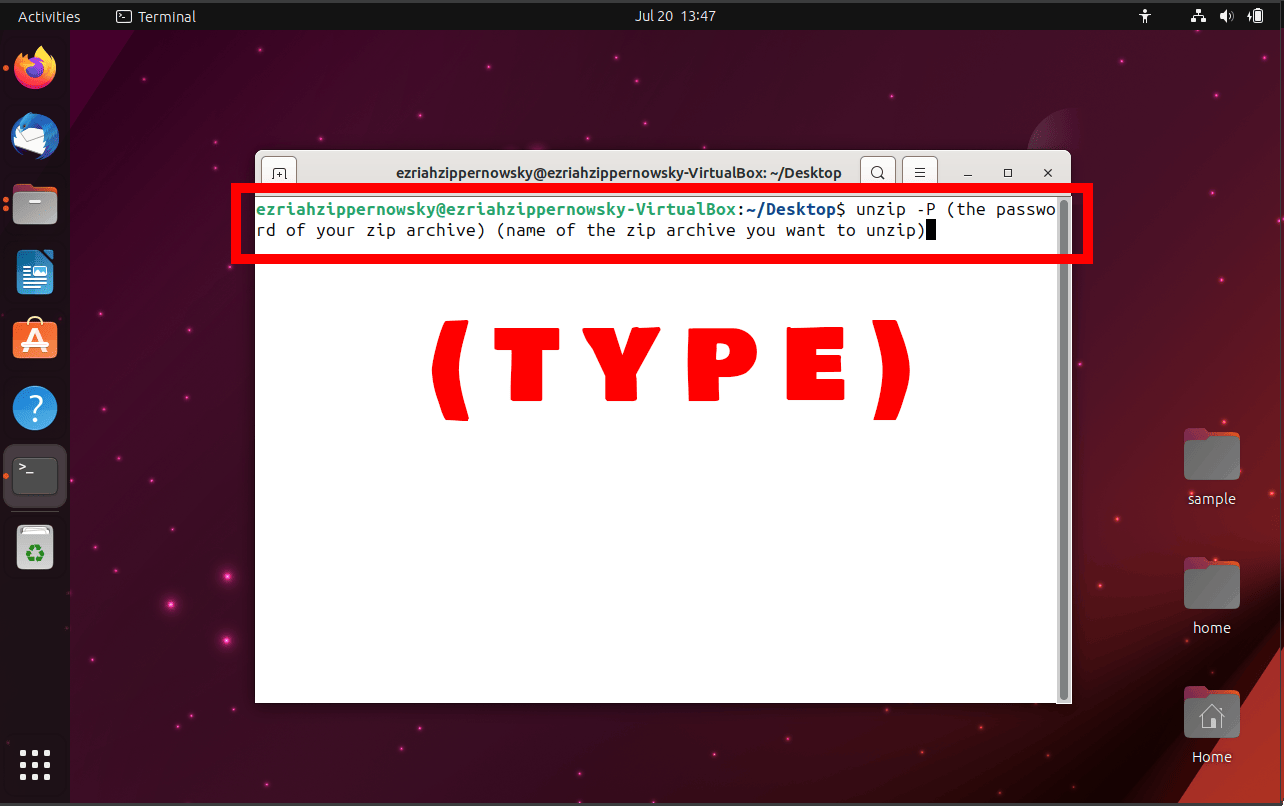
Got a .zip file that’s locked up tighter than a banana in a monkey’s fist? Don’t worry, we can crack it open!
- Unzip Password-Protected File: Use the -P switch followed by the password. For example, unzip -P password file.zip.
Remember, my fellow primates, practice makes perfect. So, keep cracking those .zip files until you become a pro! And remember, when it comes to archiving software, it’s a jungle out there, but you’re not alone. Your friendly neighborhood monkey is always here to help!