

Hey jungle explorer! 🐒 So you’ve decided to part ways with WinZip? Maybe you’re cleaning up your software backpack or you’ve found a new tool to unzip your digital bananas? Whatever the reason, we’re here to guide you through the uninstallation process. Say no more to monkeying around, let’s get straight to it!
Table of contents
Video guide showing how to remove WinZip from your Windows system.
How To Uninstall WinZip on Windows
For those swinging through the Windows trees, here’s your path to send WinZip on its merry way.
- Access Control Panel: Click on the Windows Start button and type “Control Panel”. Open it up!
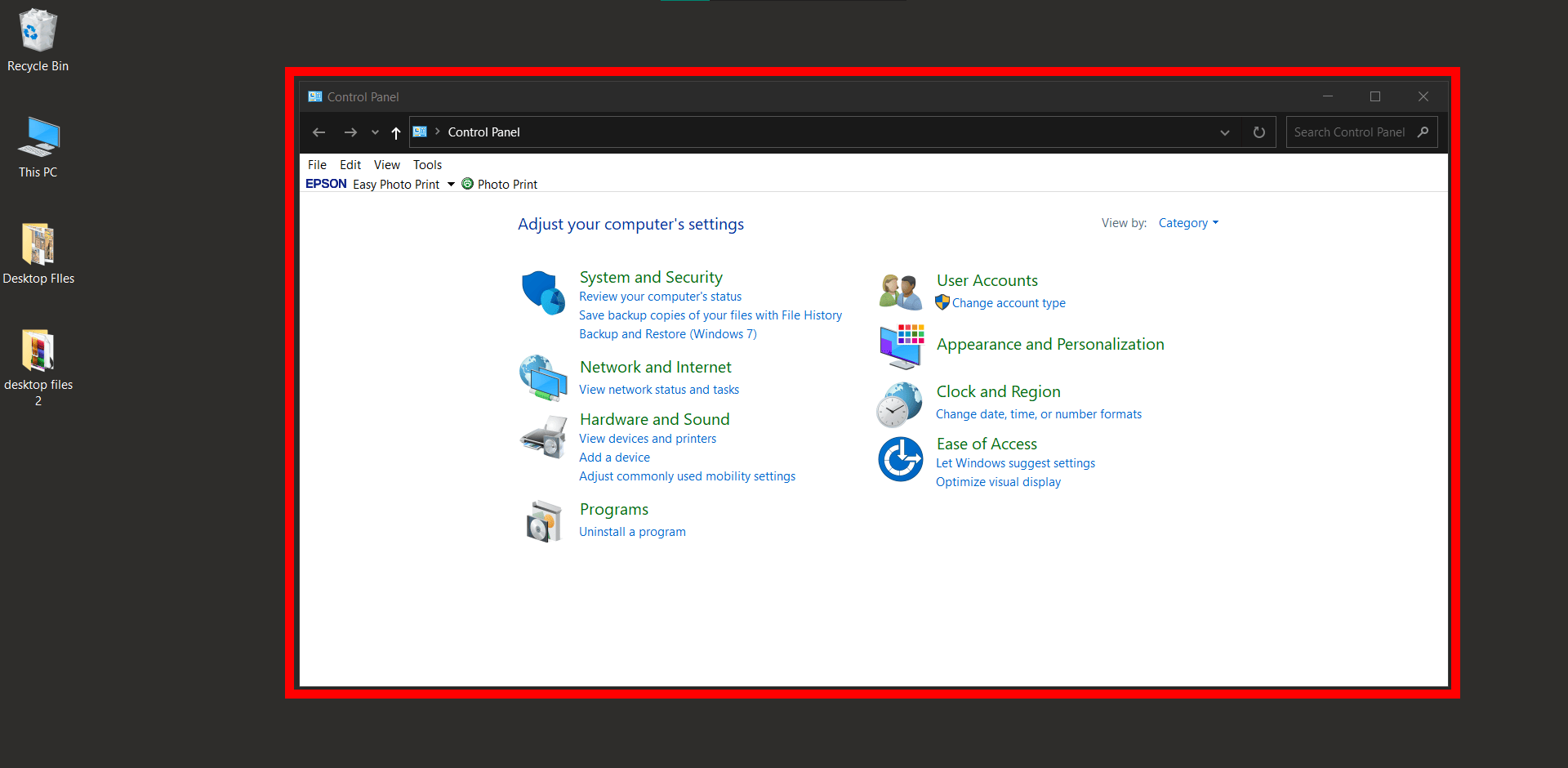
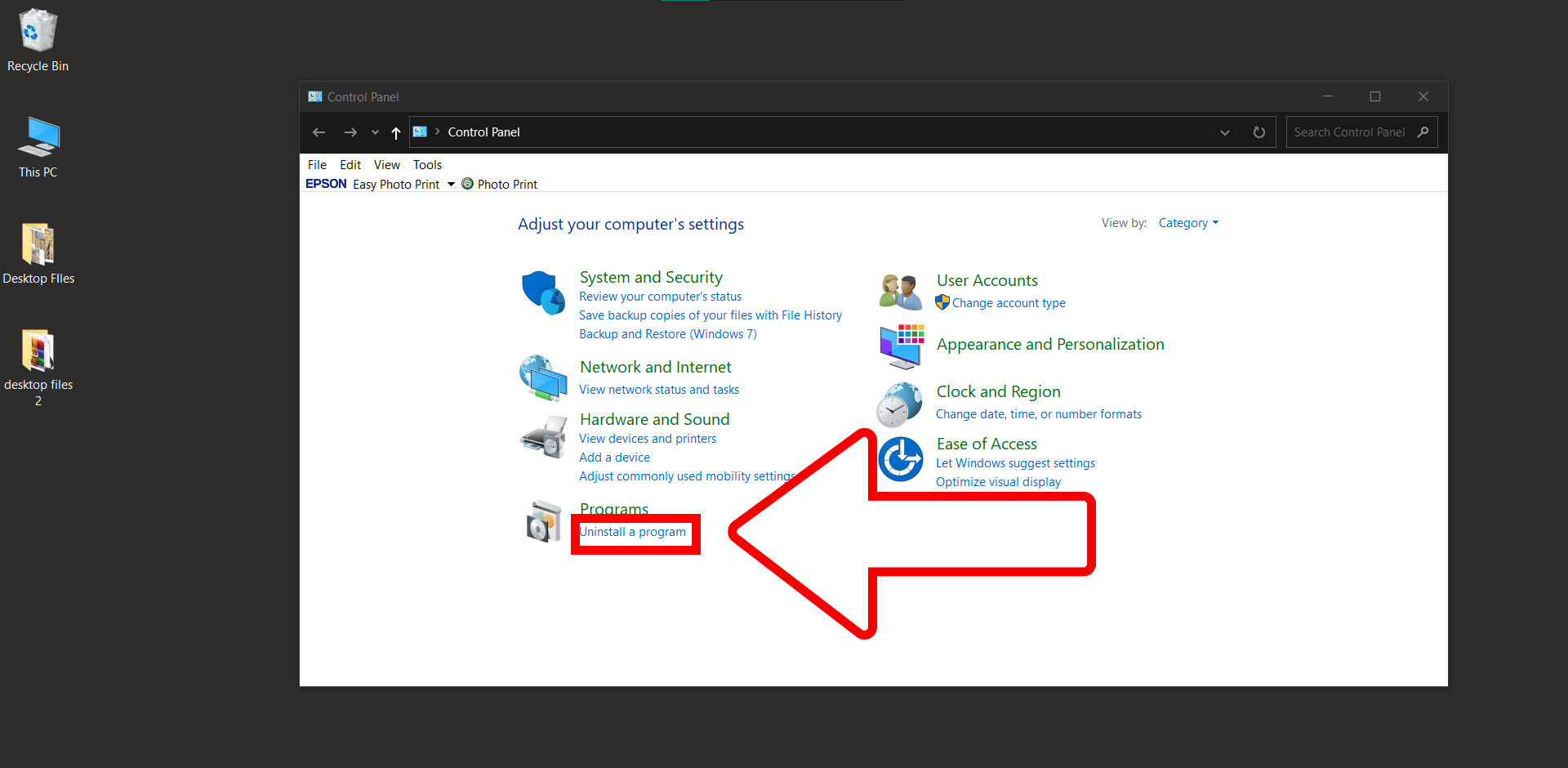
- Uninstall a Program: Inside the Control Panel, under Programs click on ”Uninstall a proram”. It’s like the tree where all software monkeys hang out.
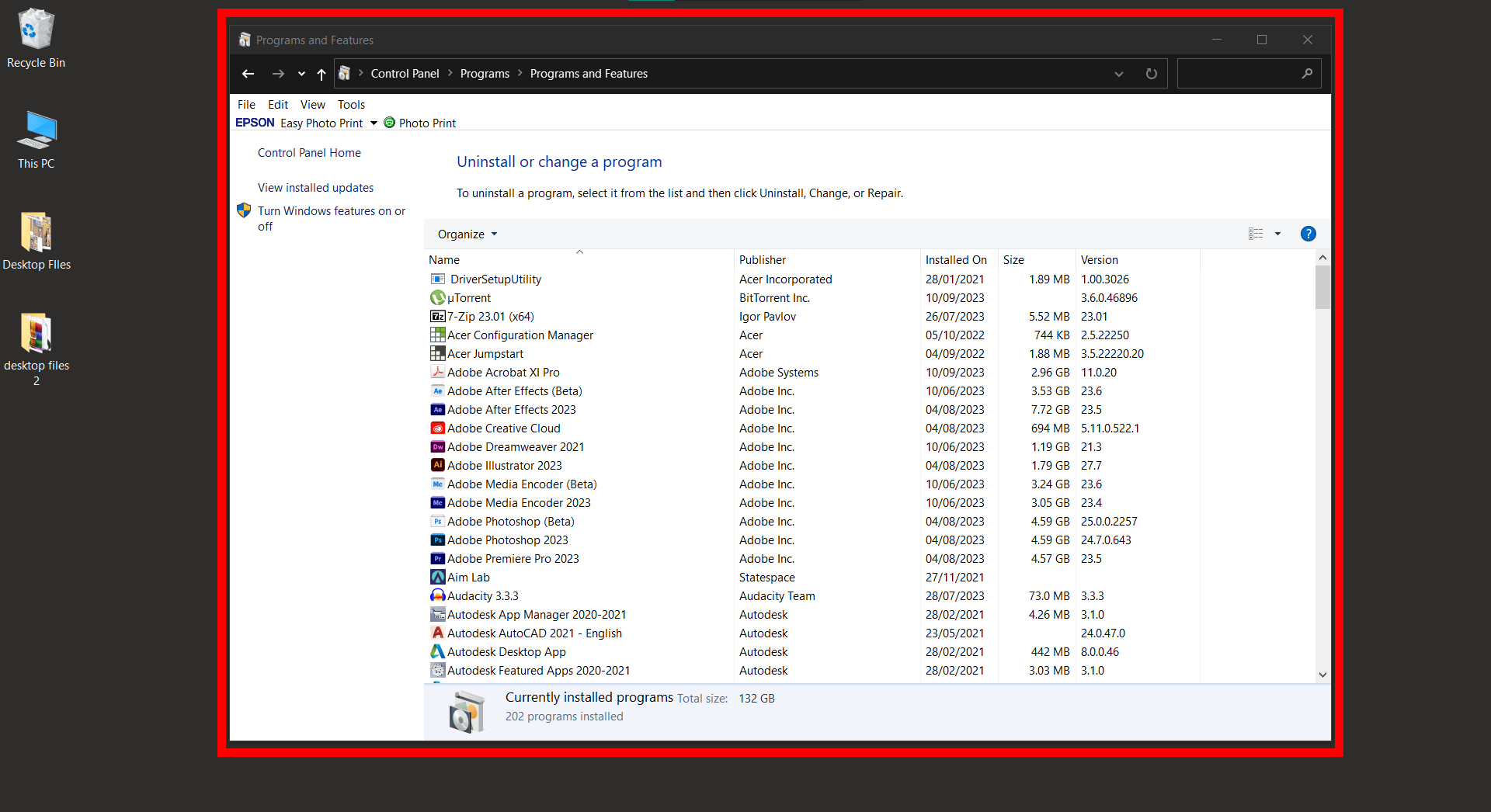
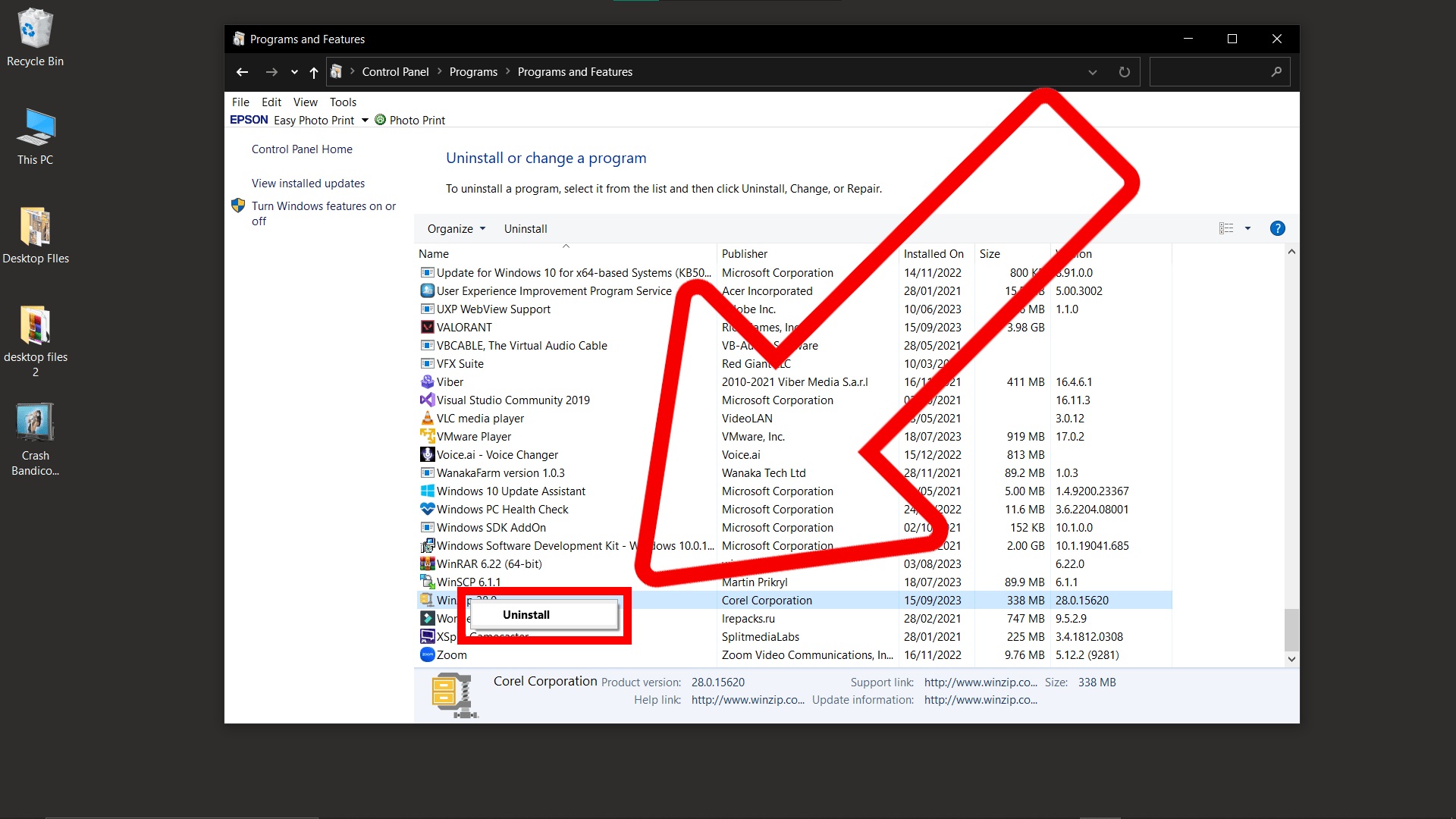
- Find WinZip: Scroll through the list until you spot WinZip. Click on it.
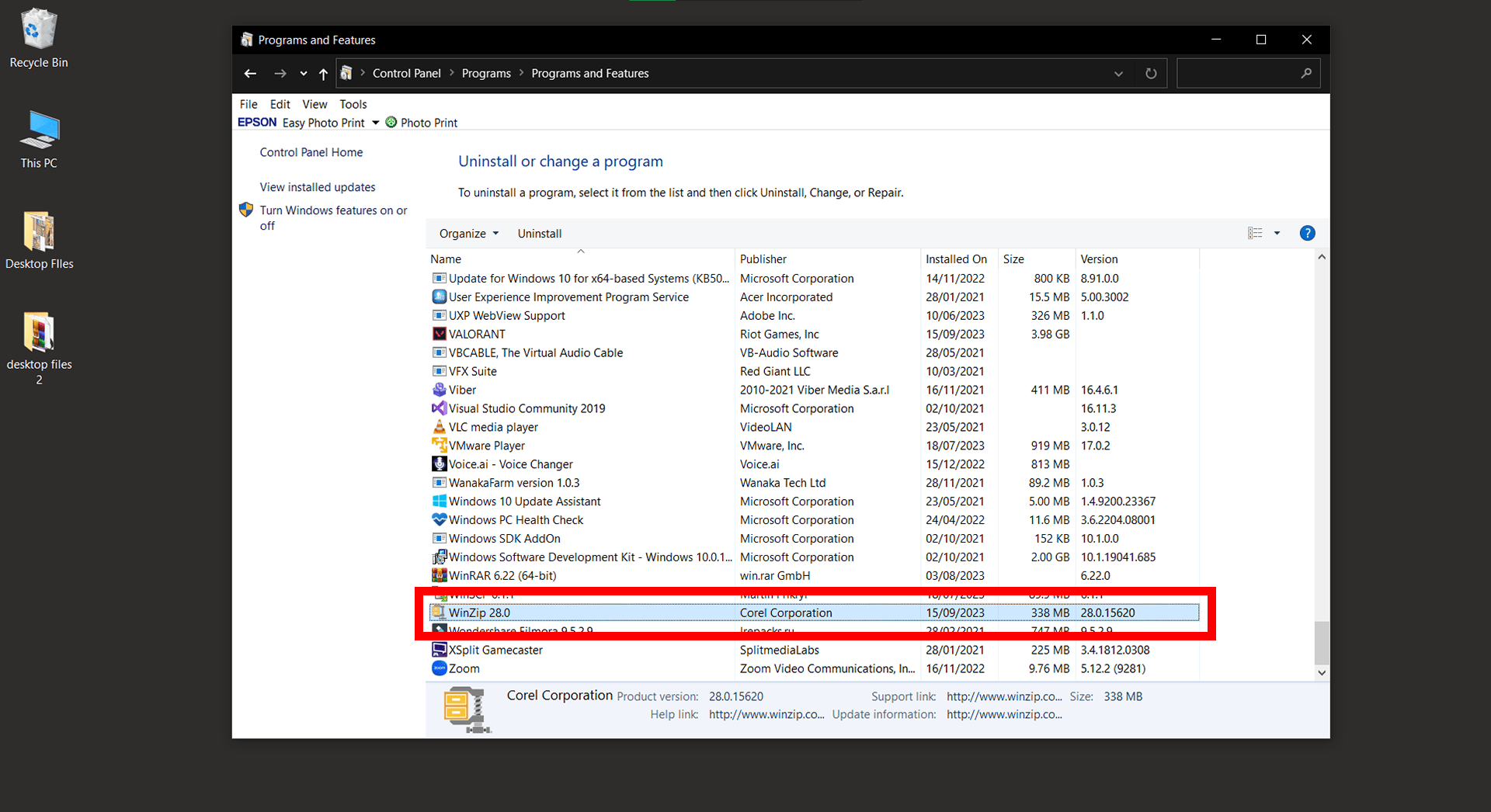
- Uninstall: With WinZip selected, right-click and hit “Uninstall” button. Follow the on-screen instructions and soon, WinZip will be a distant memory!

How To Uninstall WinZip on MacOS
For our Mac monkeys who love sleek branches and shiny apples, here’s how you say goodbye to WinZip.
- Open Finder: Click on the Finder icon from your dock.
- Go to Applications: On the left sidebar, click on “Applications”.
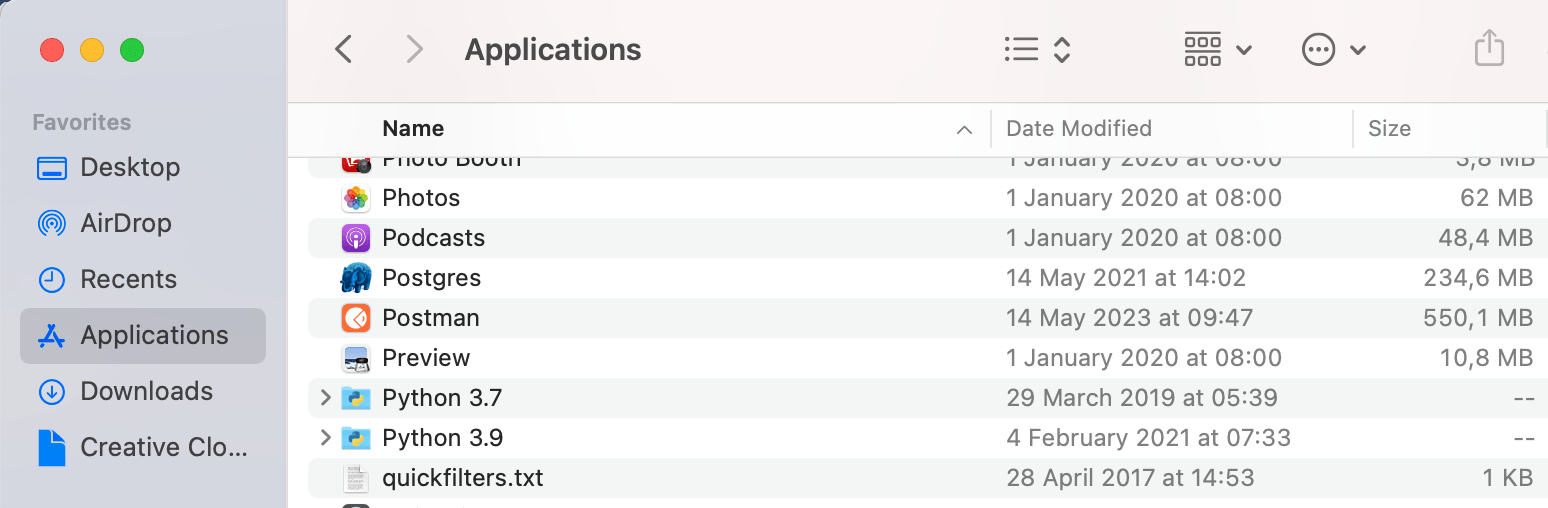
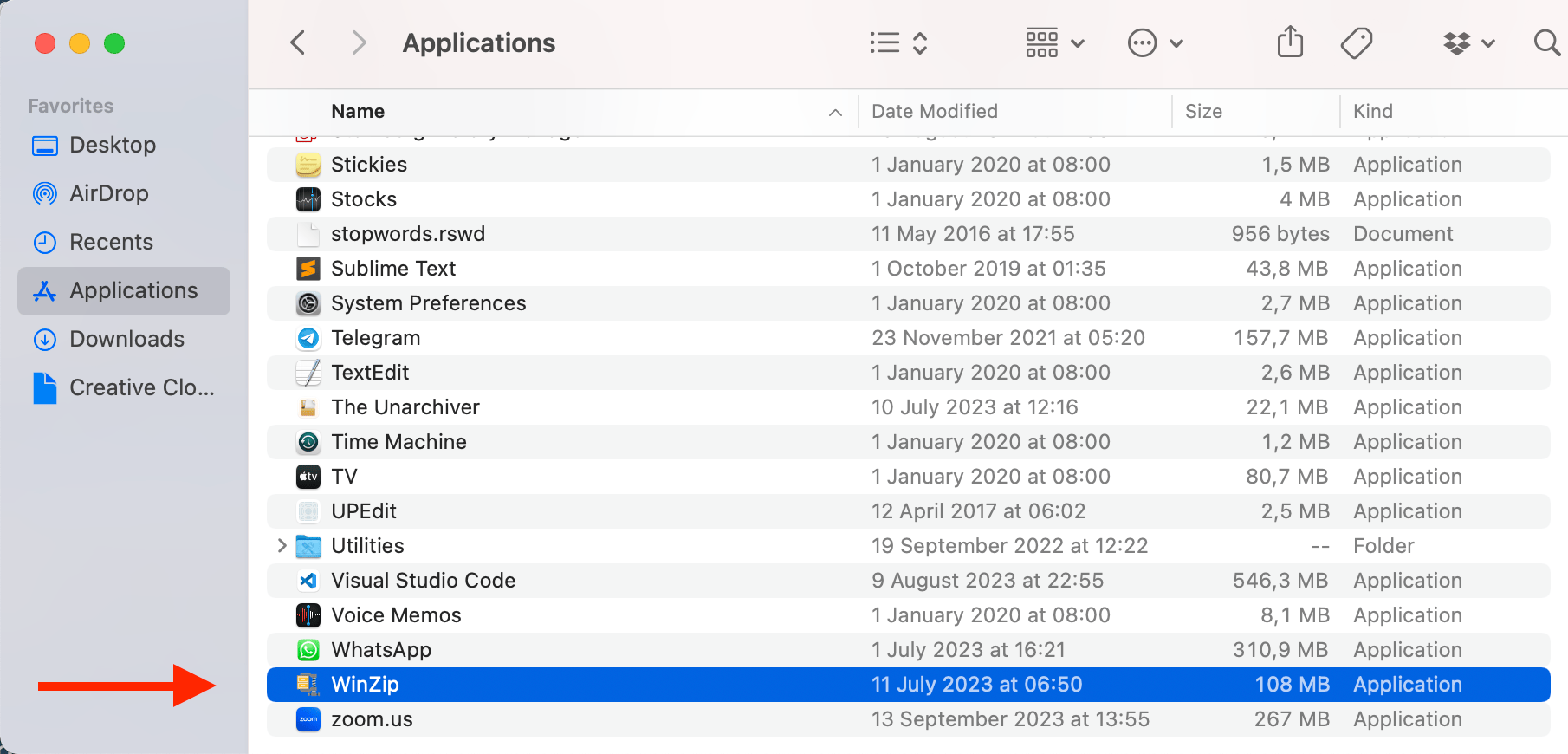
- Locate WinZip: Scroll or search until you find the WinZip application.
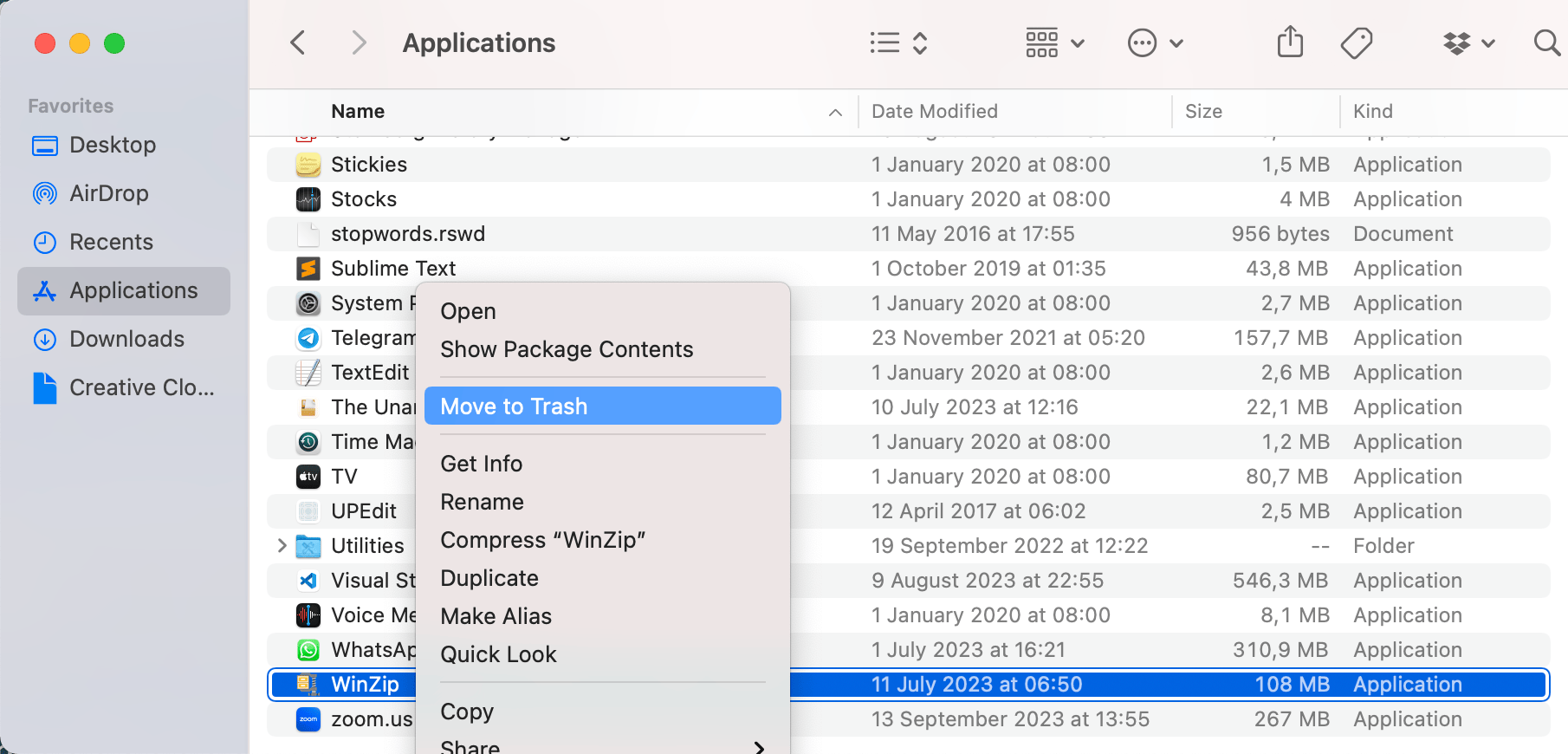
- Trash It: Drag the WinZip application to the Trash bin in your dock. And just like that, it’s gone! Remember to empty the trash if you want to permanently remove it.
Free Alternatives to WinZip
Why go banana-less when you can have alternatives? Here are some free tools to handle your zipping needs:
-
Online Tools: Platforms like ezyZip allow you to zip and unzip without downloading anything. Perfect for the monkeys who prefer hopping from one tree to another online!

-
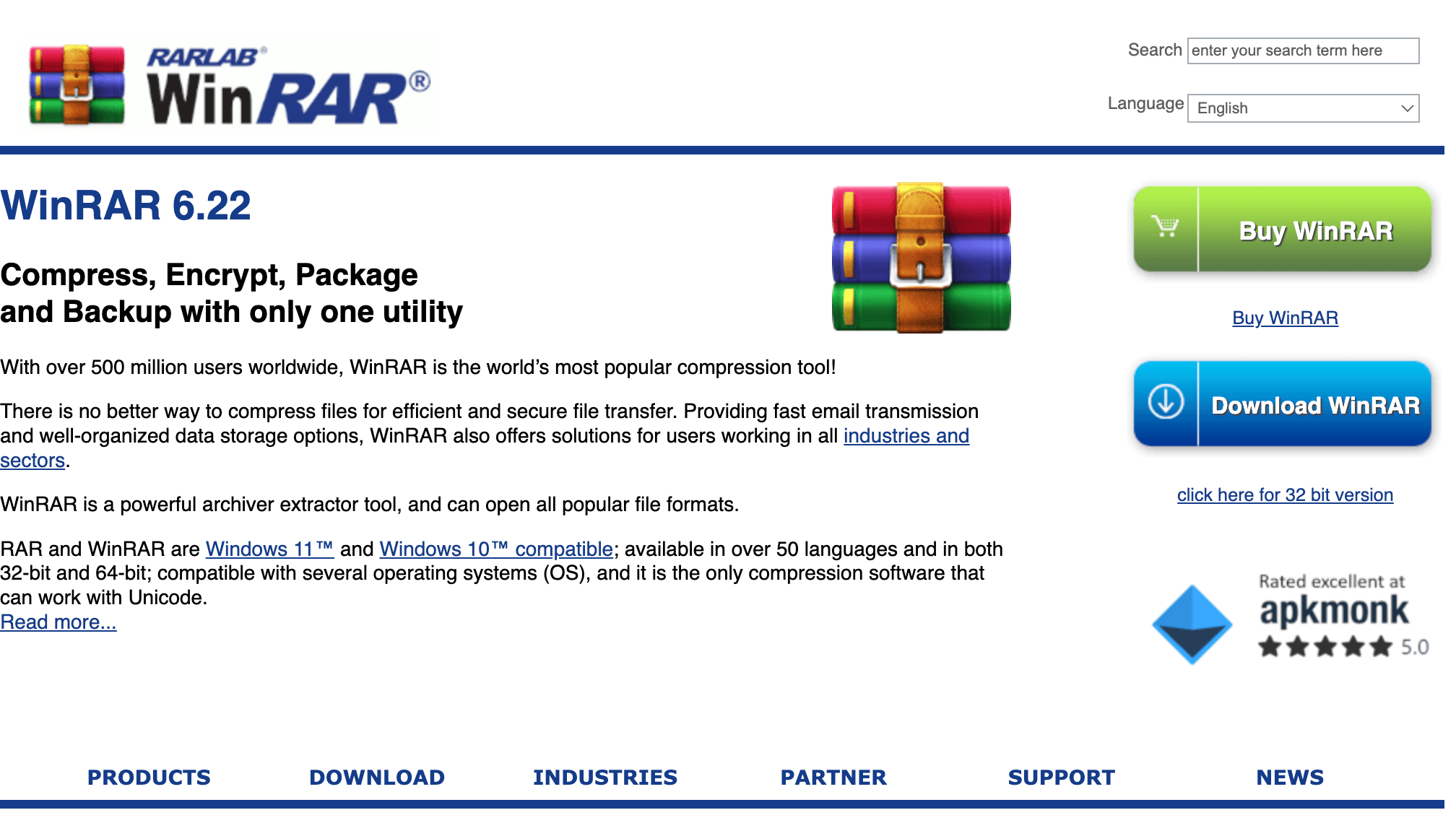
WinRAR: Developed by the creators of the RAR archive format, WinRAR is perfect for handling RAR files, but it’s adept with other formats too.
-
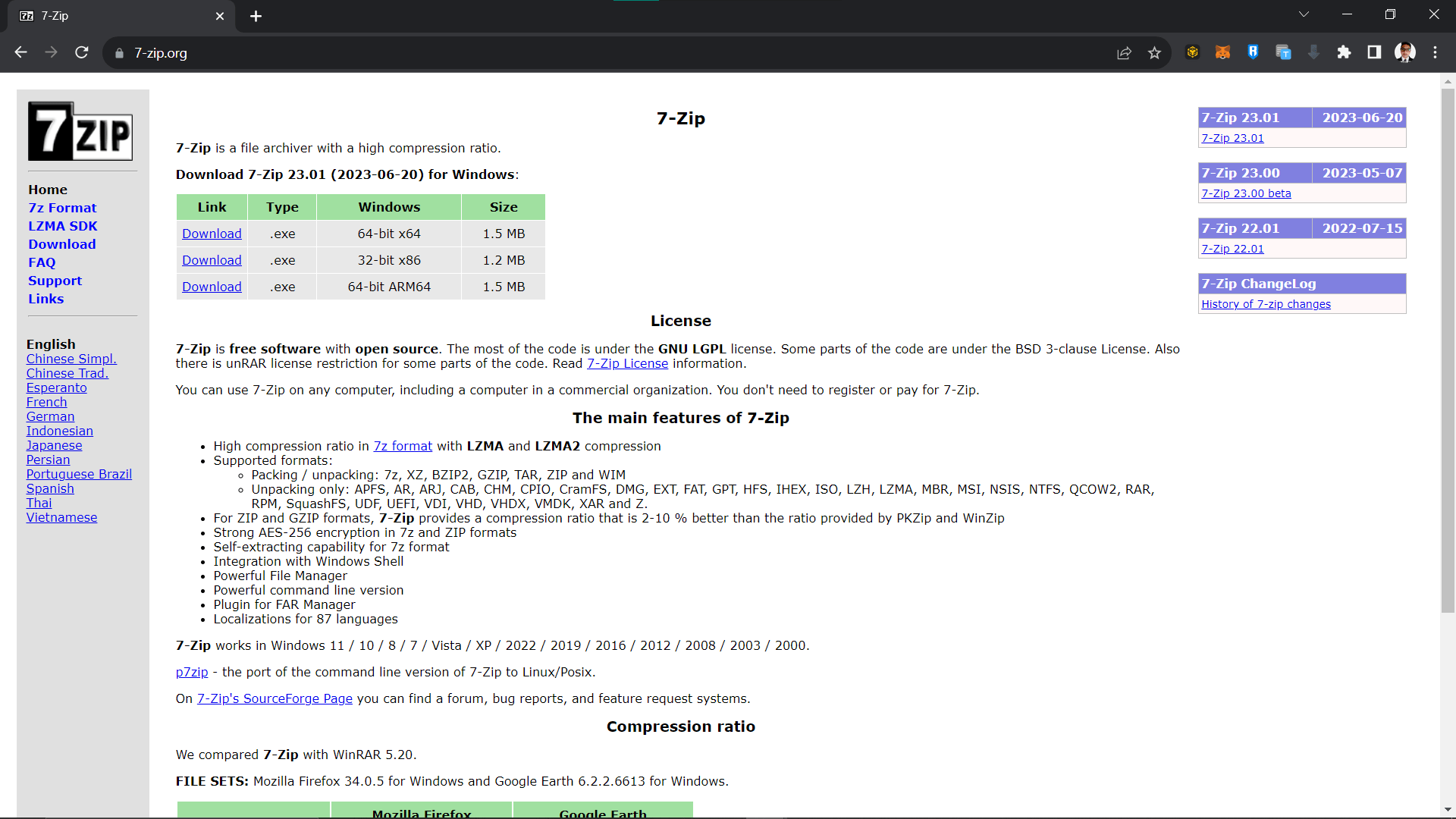
7-Zip: 7-Zip is fantastic and free software available for Windows. It’s like the friendly gorilla of the archive world, always ready to help!
-
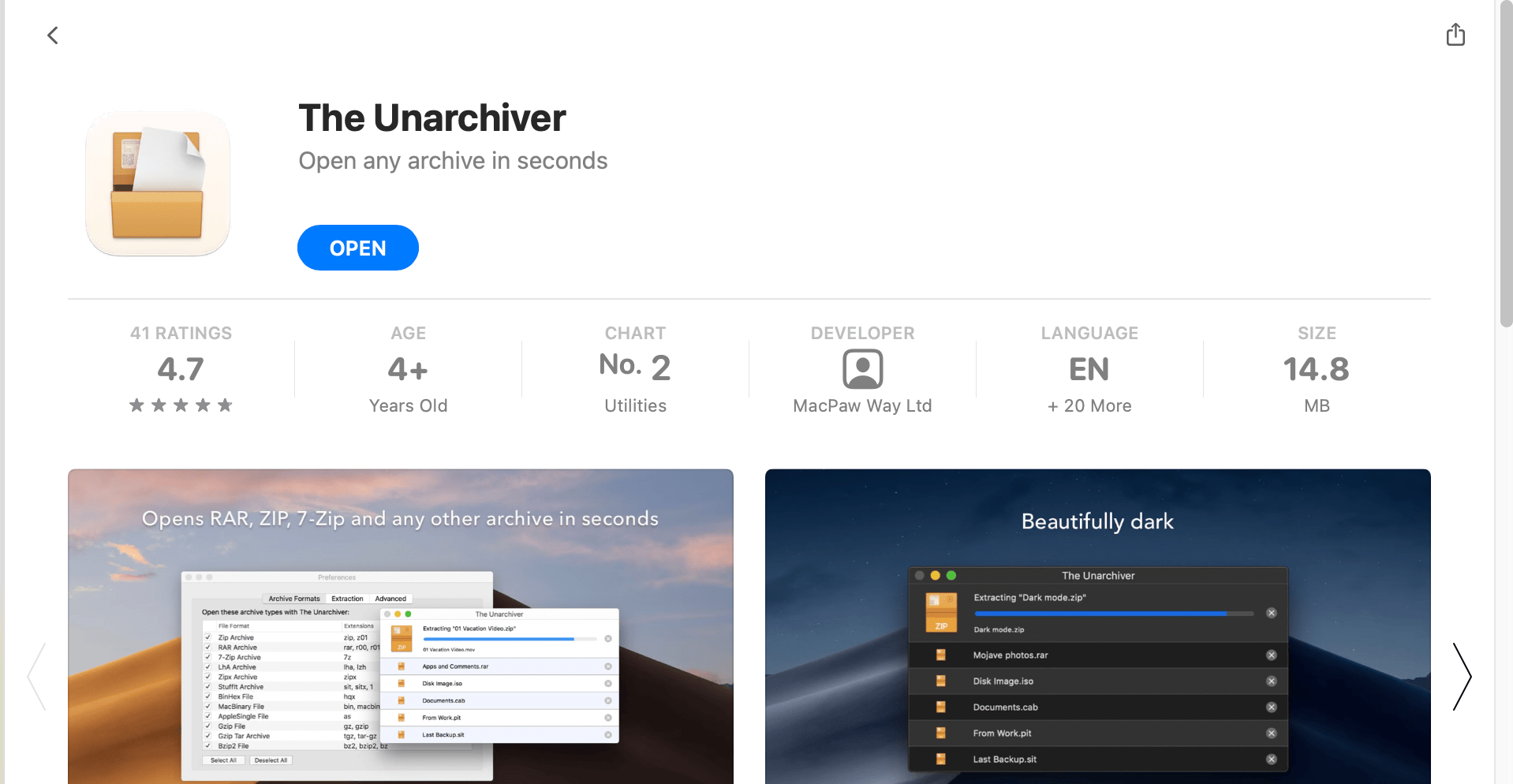
The Unarchiver: Tailored for the Mac users. The Unarchiver is simple, efficient, and handles more than just ZIP files. It’s like the Swiss Army knife of archivers… if that knife also peeled bananas.
FAQ
I’ve uninstalled WinZip, but I still see some leftover files. What should I do?
Sometimes, like a banana’s stubborn string, some remnants might linger. You can manually delete any leftover folders or use a cleaner tool to ensure all traces are gone.
Can I reinstall WinZip after uninstalling it?
Absolutely! If you ever miss having WinZip around, like missing a banana in your fruit bowl, you can always download and install it again.
Will uninstalling WinZip delete my archived files?
No worries! Uninstalling WinZip is like sending a monkey away from a banana party. The bananas (your files) will still be there, untouched and safe.
Why can’t I find WinZip in my Applications or Programs and Features?
It’s possible you might have already uninstalled it, or it was never installed properly in the first place. Sometimes, software can be as elusive as a monkey playing hide and seek!
Are there any risks involved in uninstalling WinZip?
Generally, uninstalling WinZip is safe and straightforward. Just ensure you’re not deleting any important files by mistake. Always double-check before you swing!
Conclusion
And there you have it! Whether you’re zipping, unzipping, installing, or uninstalling, remember that in the digital jungle, knowledge is your trusty vine. Swing high, explore more, and stay zippy! 🍌🌴📂