


WhatsApp caps video files at 16MB. That’s not much, especially for longer clips. Here are five ways to shrink your videos so they’ll actually send.
Table of contents
- Method 1: Compress Videos for WhatsApp Online
- Method 2: Compress Videos For WhatsApp Using ezyZip Media Converter
- Method 3: Use WhatsApp’s Built-in Feature
- Method 4: Use Mobile Apps
- Method 5: Use FreeConvert
- FAQ: Compressing and Sharing Videos on WhatsApp
Video guide showing how to compress MP4 videos for WhatsApp using ezyZip.
How To Compress Videos for WhatsApp Online
No install needed. ezyZip’s online compressor runs in your browser and works on any device.
-
Go to ezyZip: Open the video compression page.
-
Upload your video: Click “Select video to compress” or drag and drop your file into the upload area.

-
Compress and download: Hit the “Compress video” button. Once it’s done, download the smaller file.
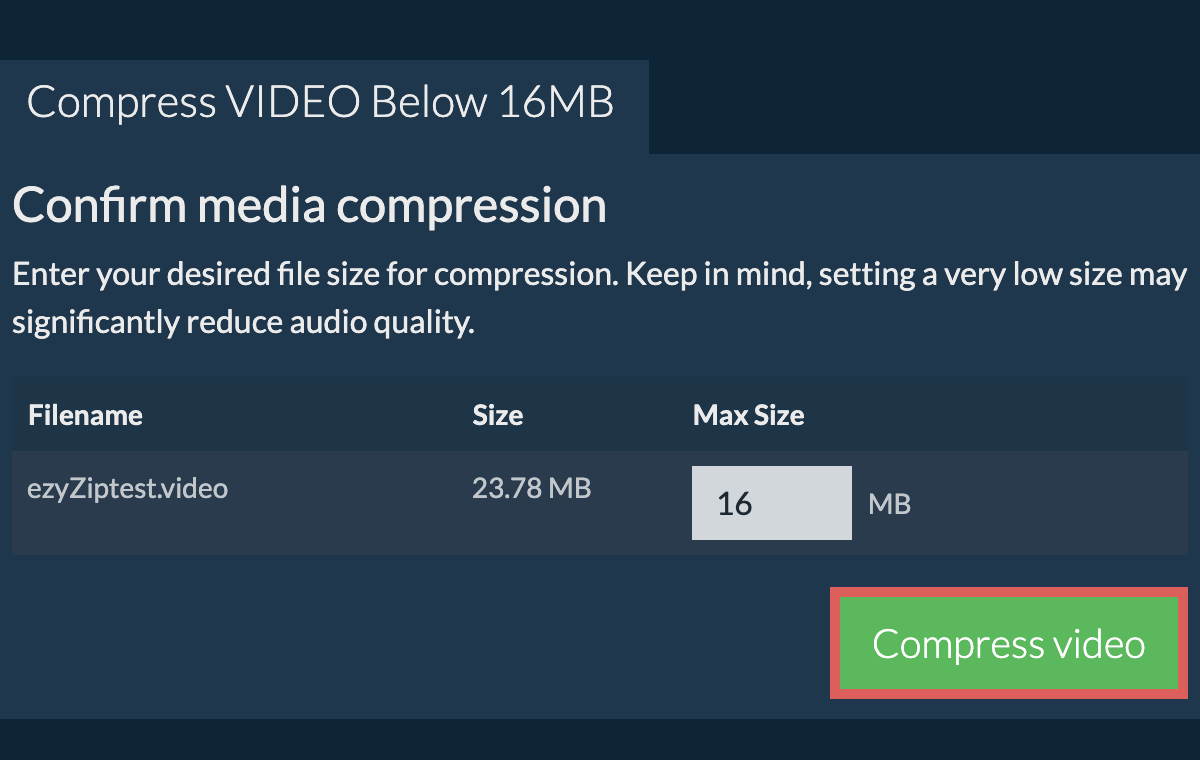
-
Share on WhatsApp: Open WhatsApp and send the compressed video. Done.
How To Compress Videos For WhatsApp Using ezyZip Media Converter
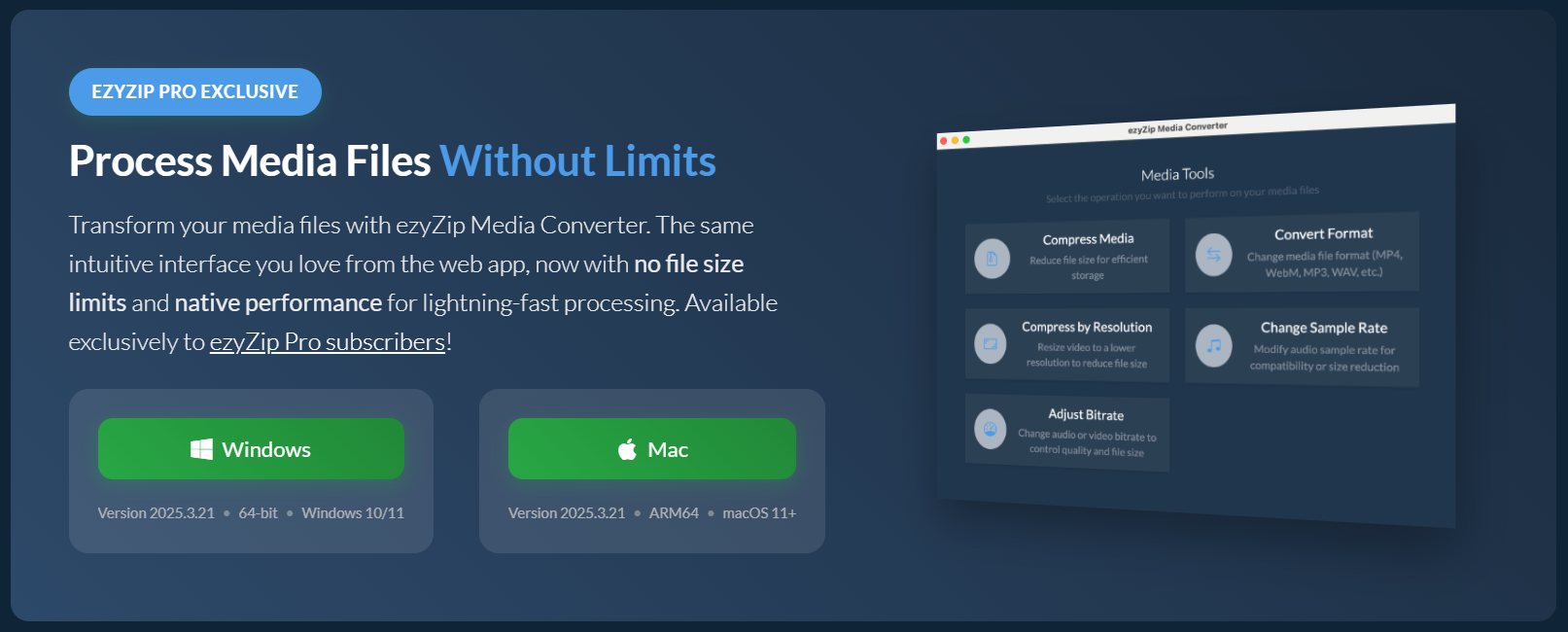
This is a desktop app that gives you full control over the output file size. Great if you compress videos regularly.
- Download and install ezyZip Media Converter.
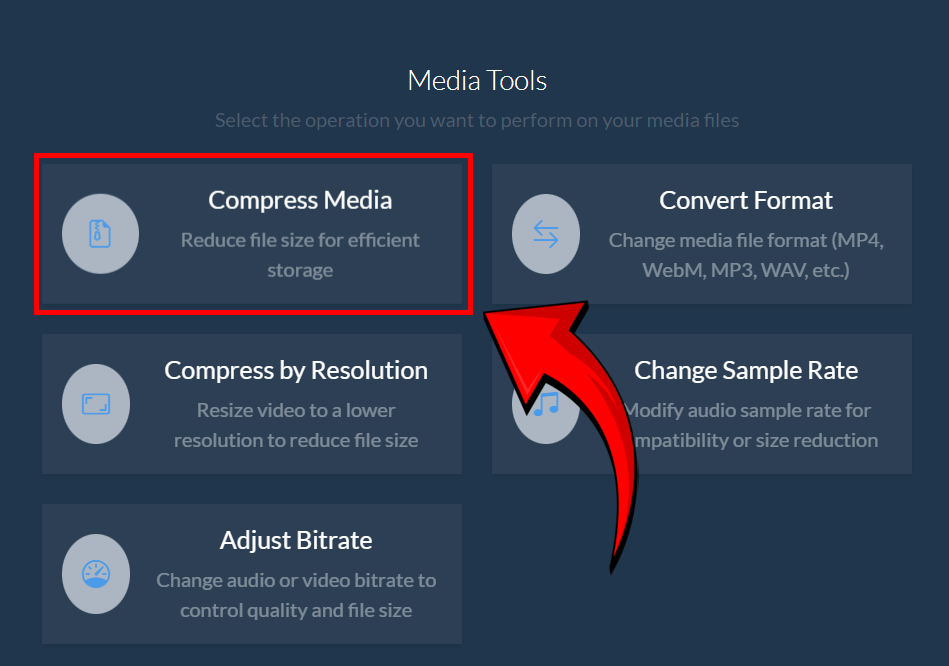
- Open ezyZip and click “Compress Media”.
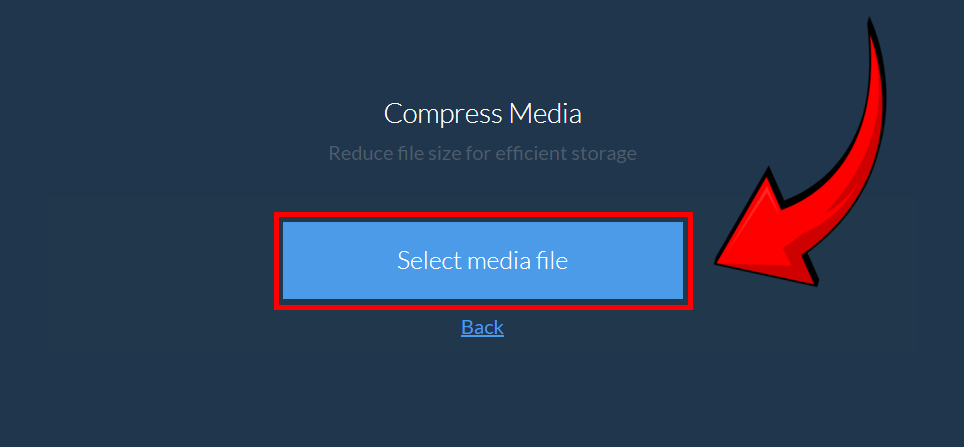
- Click “Select Media File” and pick the video you want to compress.

- Set your maximum file size (keep it under 16MB for WhatsApp), then click “Compress”.
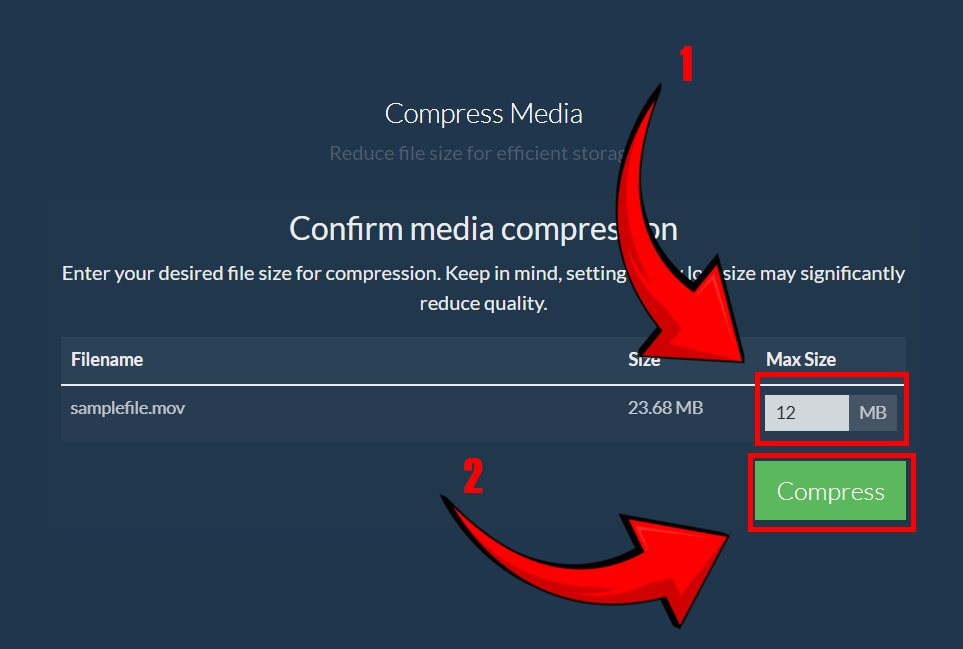
- Save the compressed file and send it through WhatsApp.
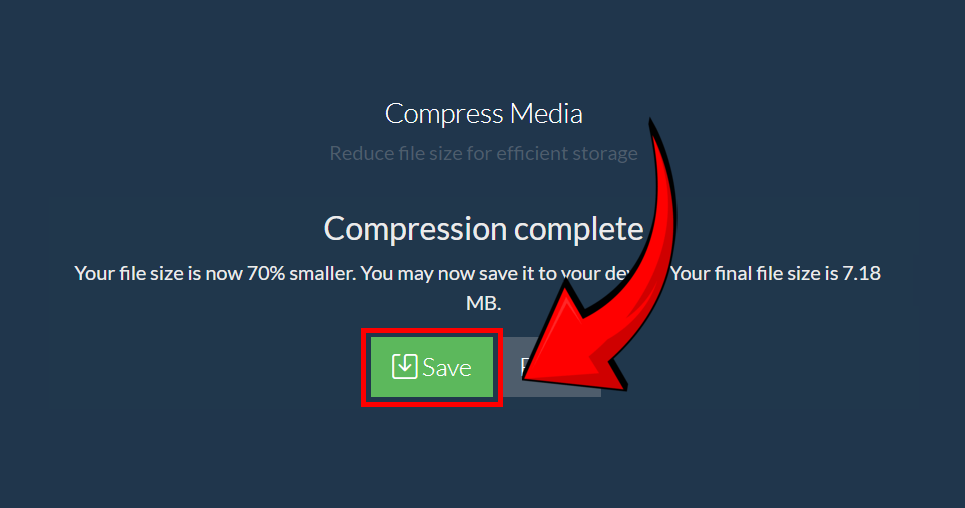
That’s it. Your video is now small enough for WhatsApp.
How To Use WhatsApp’s Built-in Feature
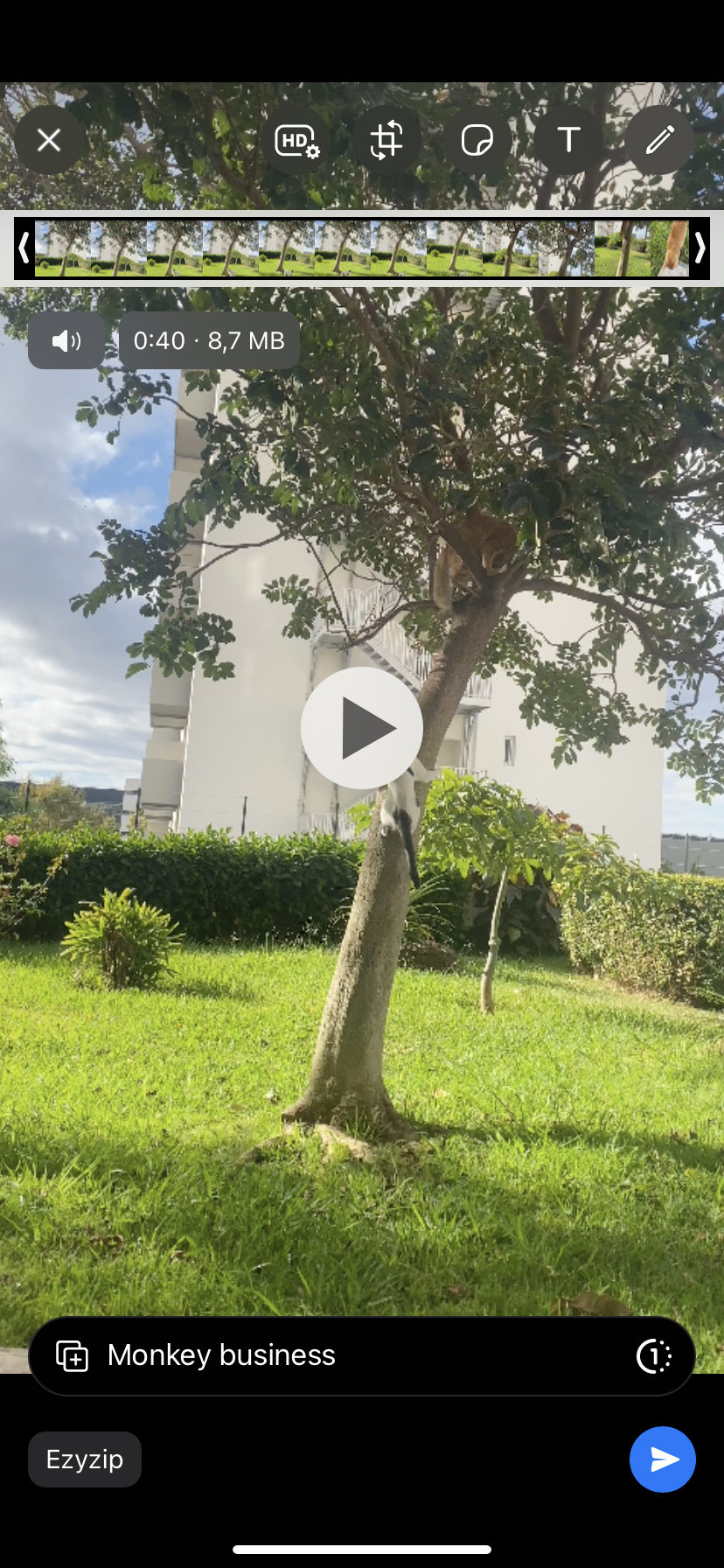
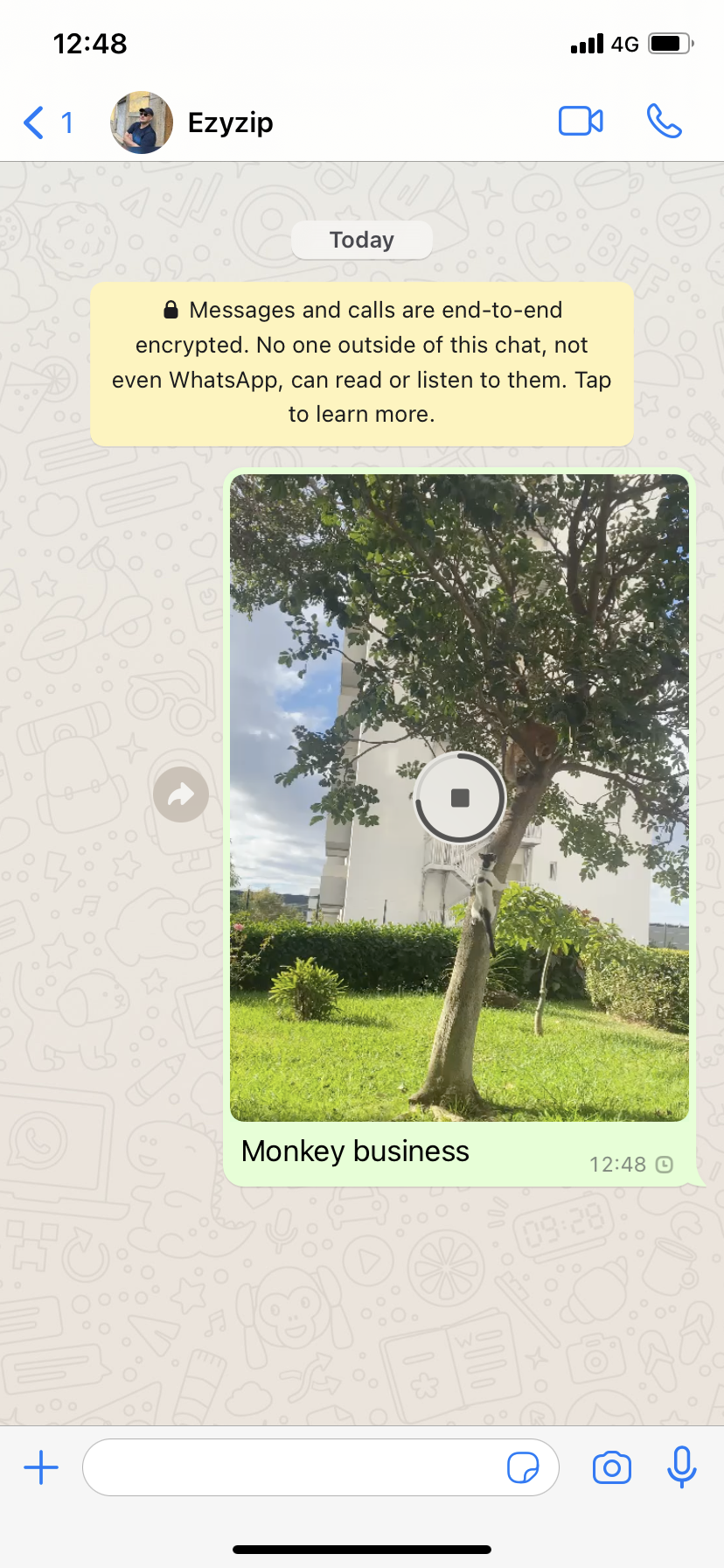
WhatsApp can compress videos for you automatically. It’s the easiest option, though you get less control over quality.
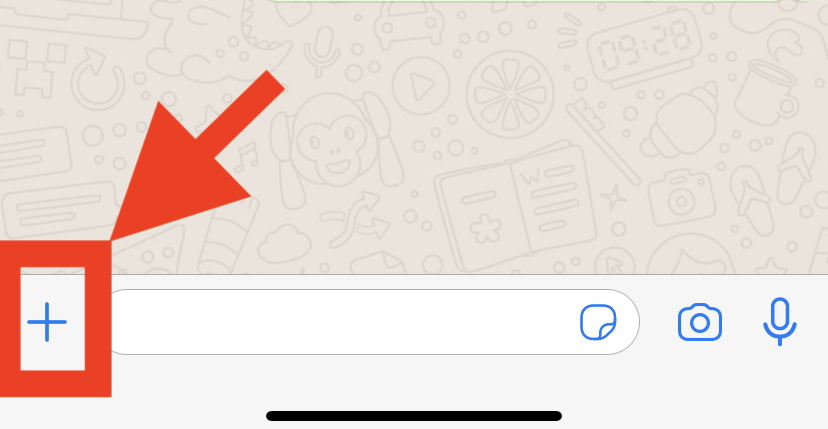
- Open your chat: Go to the conversation where you want to send the video. Tap the ”+” button.
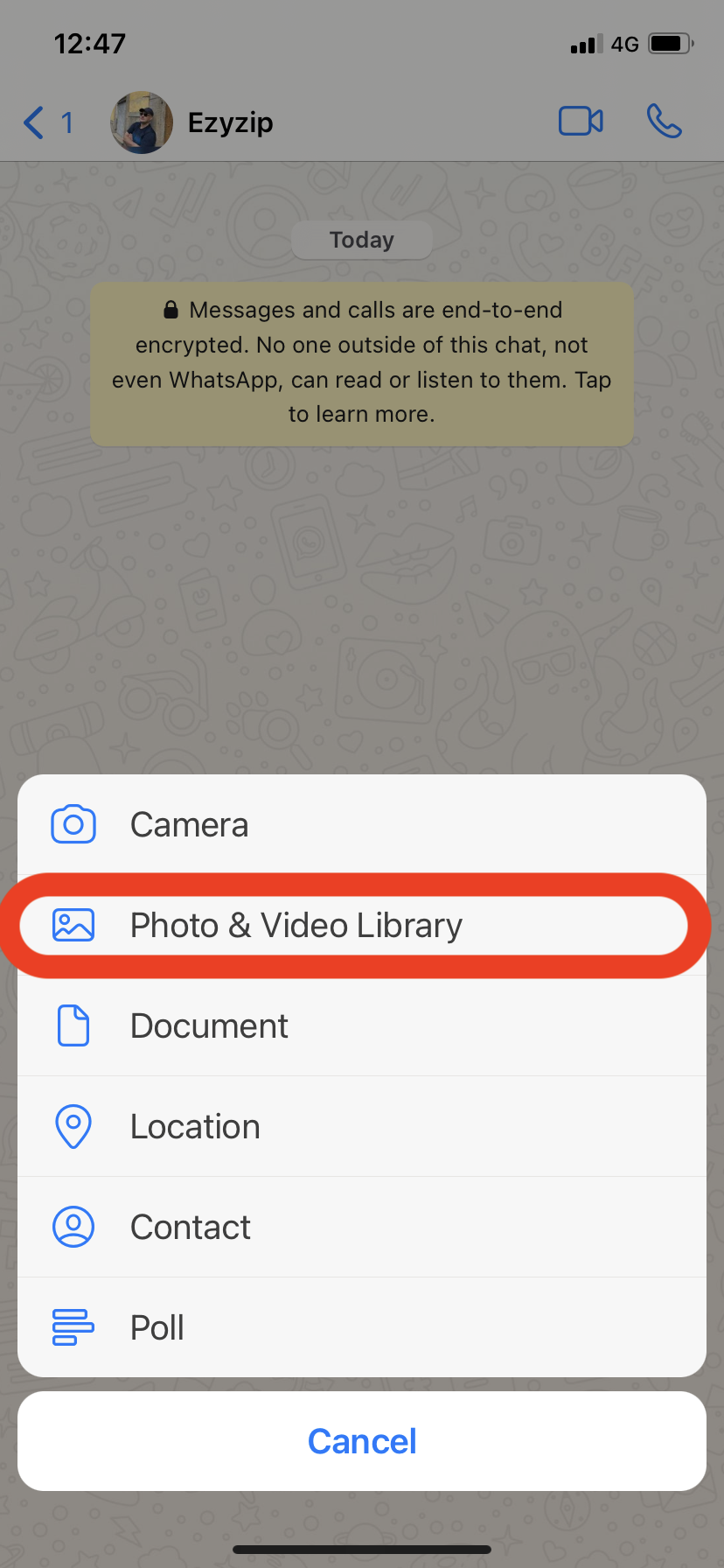
- Pick your video: Tap “Photo & Video Library” and select the video you want to send.
- Trim if needed and send: WhatsApp will offer to trim the video. Adjust the length if you want, then hit send. WhatsApp handles the compression automatically.
How To Use Mobile Apps To Compress Videos For WhatsApp
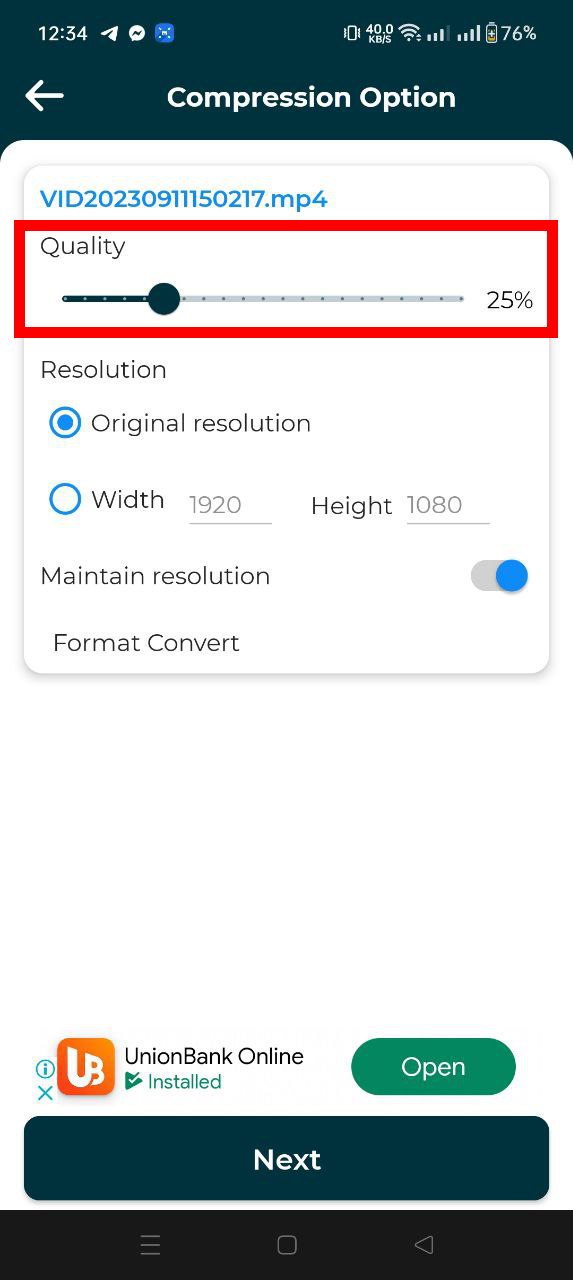
If you need more control than WhatsApp’s built-in compression but don’t want to use a computer, a mobile app is a good middle ground.
- Download an app: Search “video compressor” in your app store. Pick one with solid reviews.
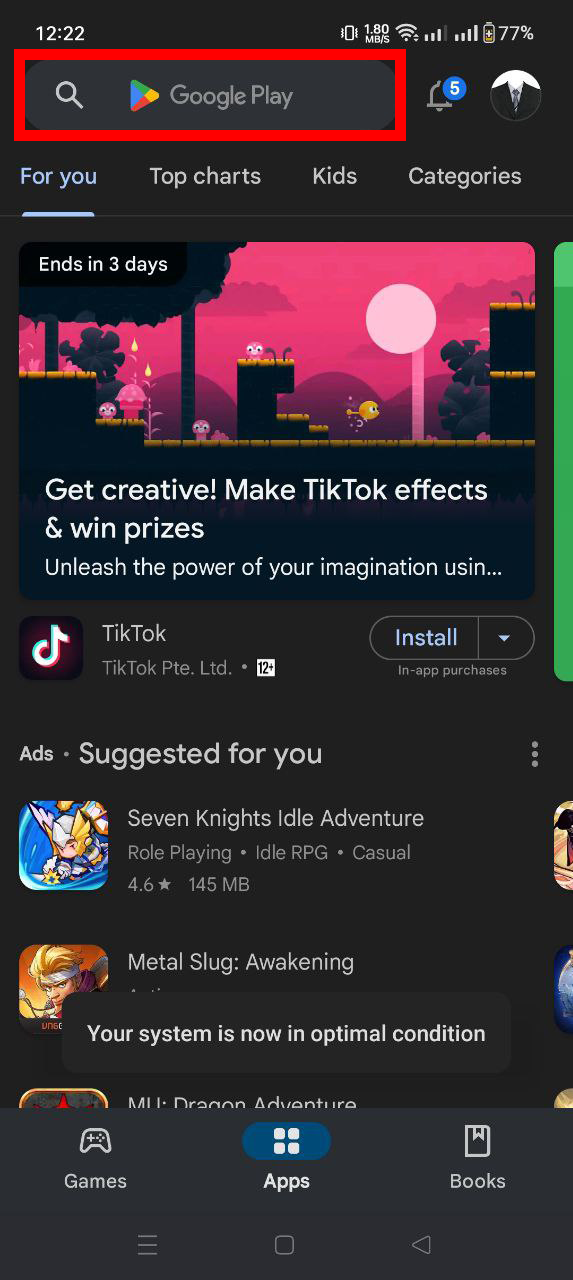
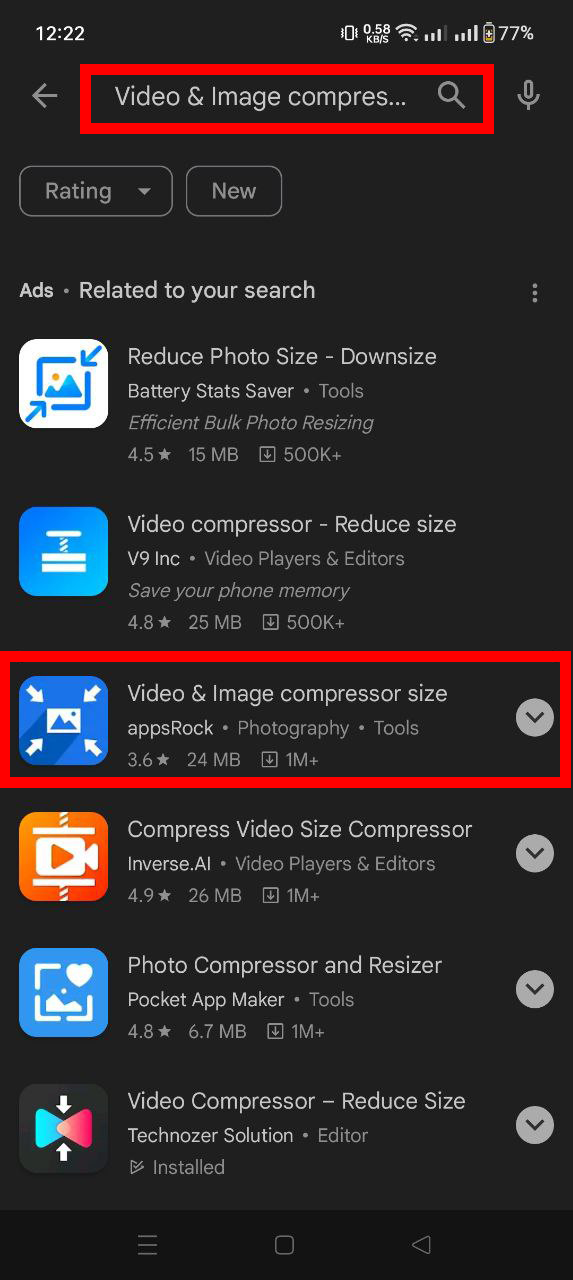
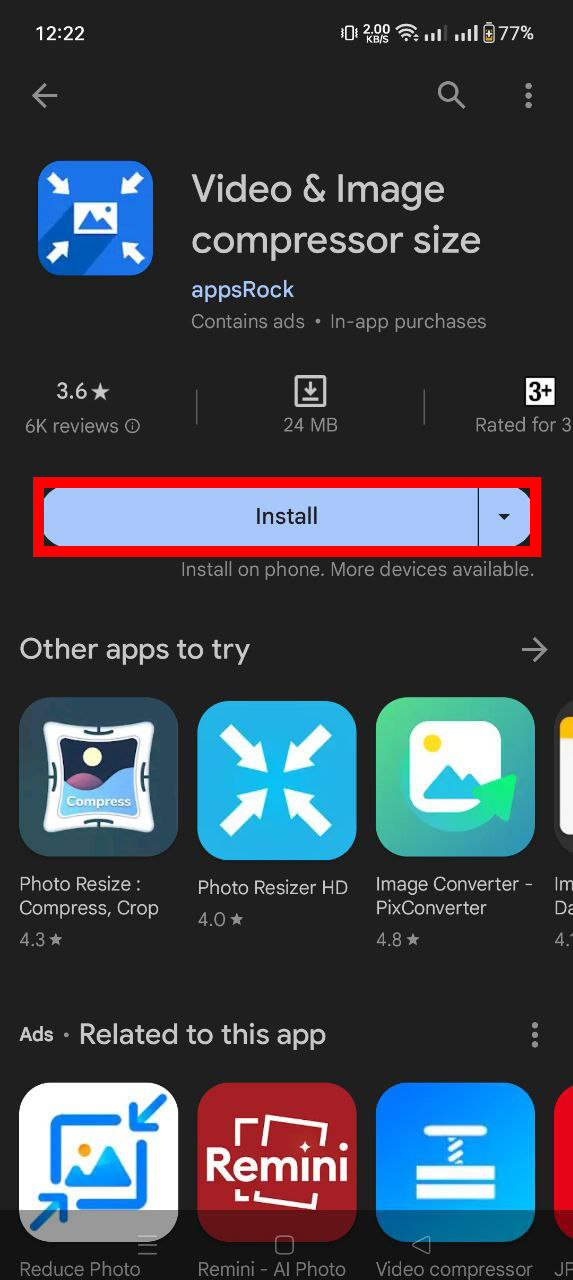
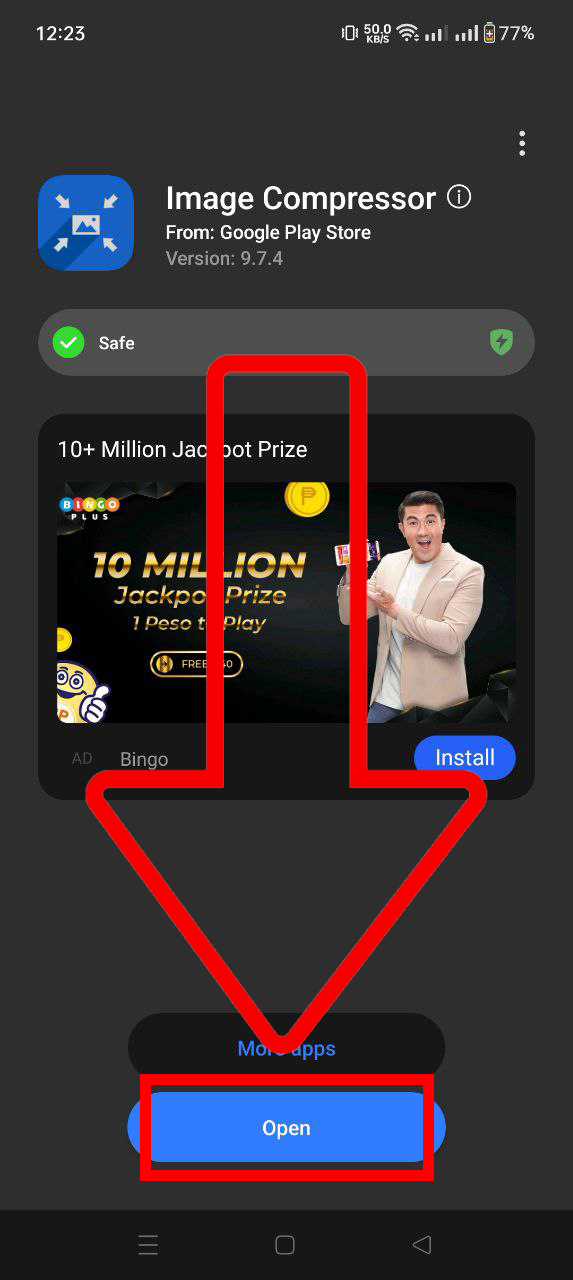
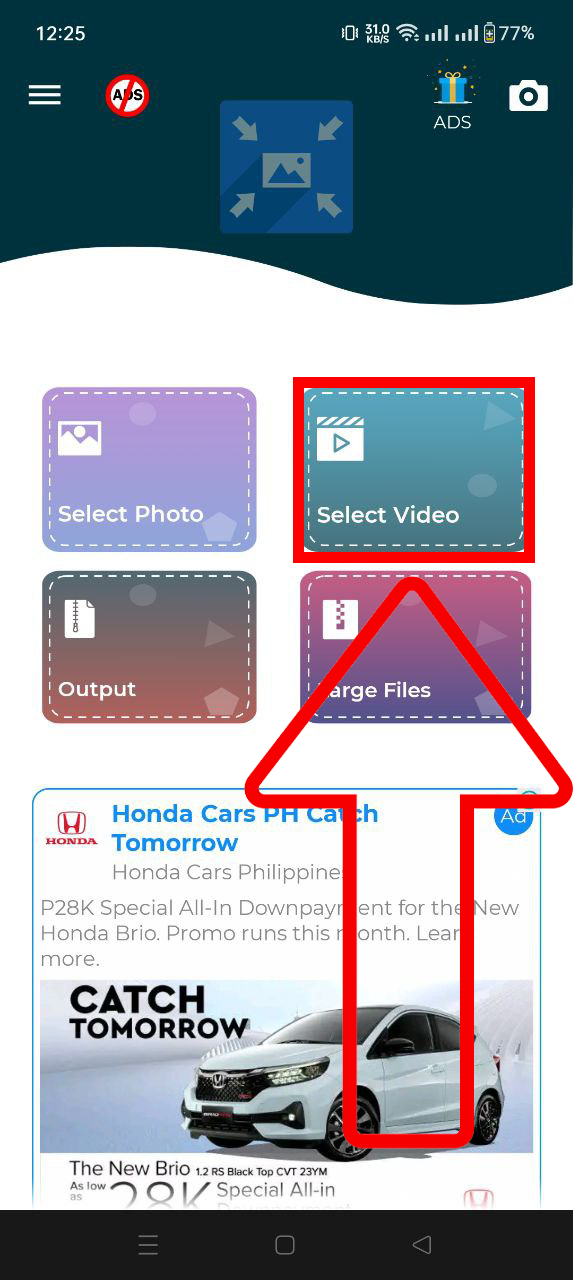
- Select your video: Open the app and choose the video you want to shrink.
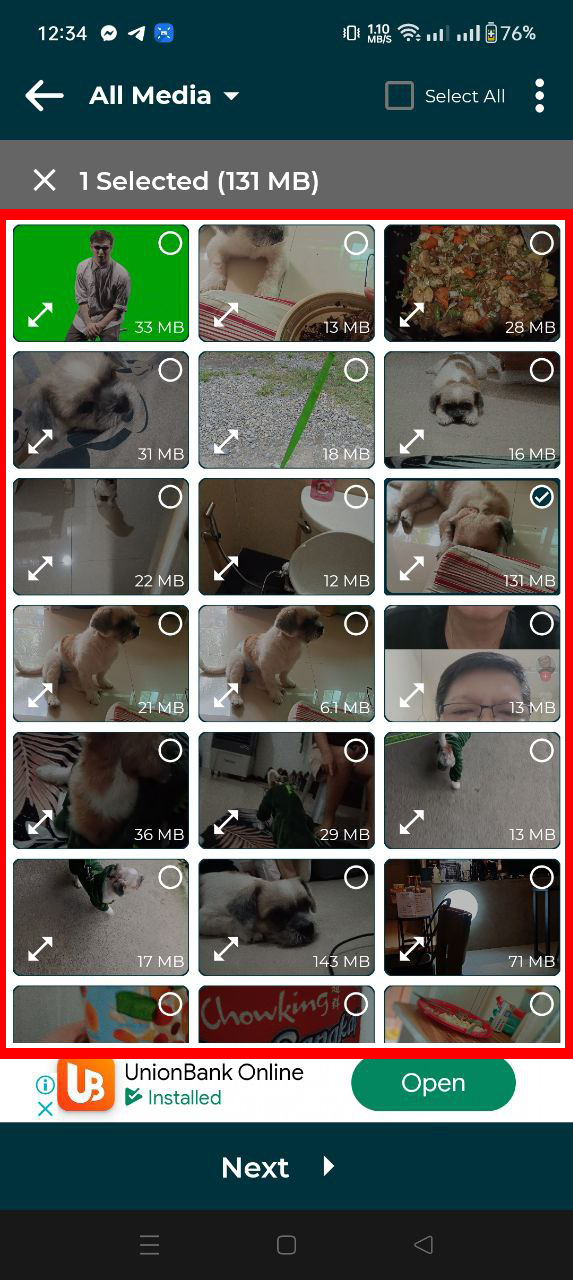
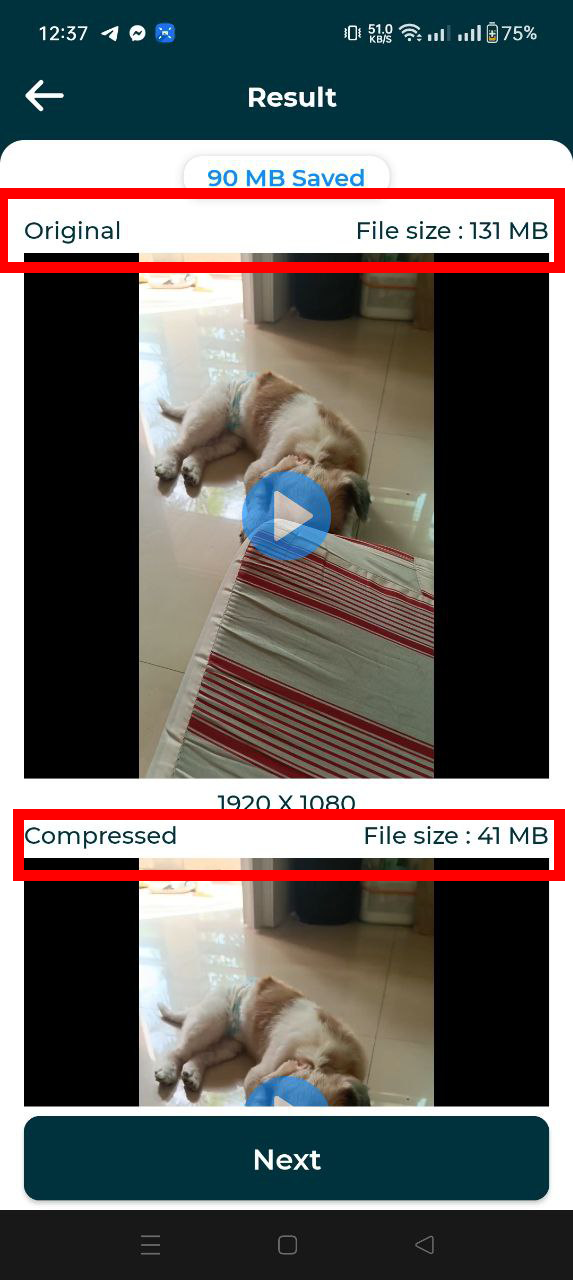
- Adjust settings and compress: Tweak the compression level if the app allows it, then hit compress.
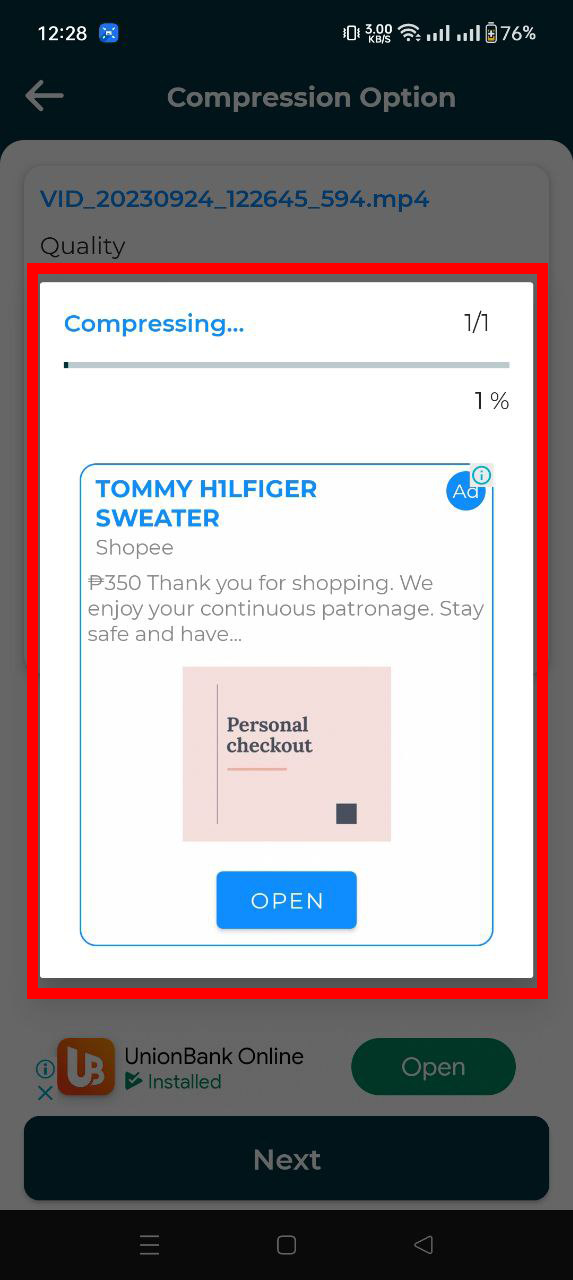
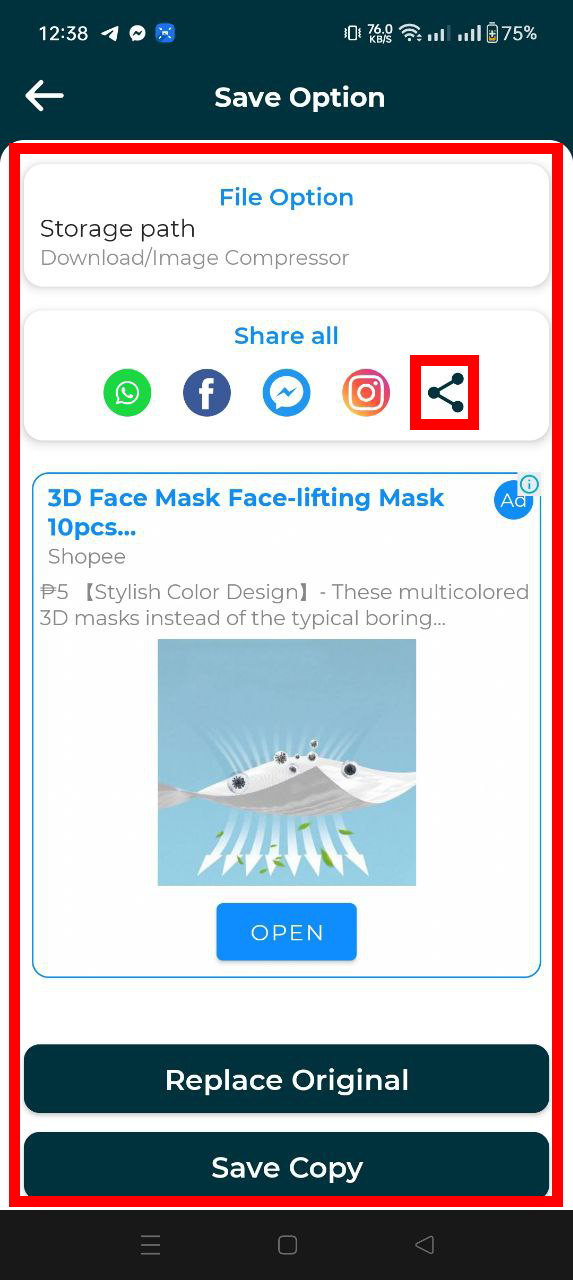
- Share on WhatsApp: Once compressed, share the video directly to WhatsApp from the app.
How To Use FreeConvert To Compress Videos For WhatsApp
FreeConvert is another solid online option. It lets you set an exact target file size, which is handy for hitting WhatsApp’s 16MB limit.
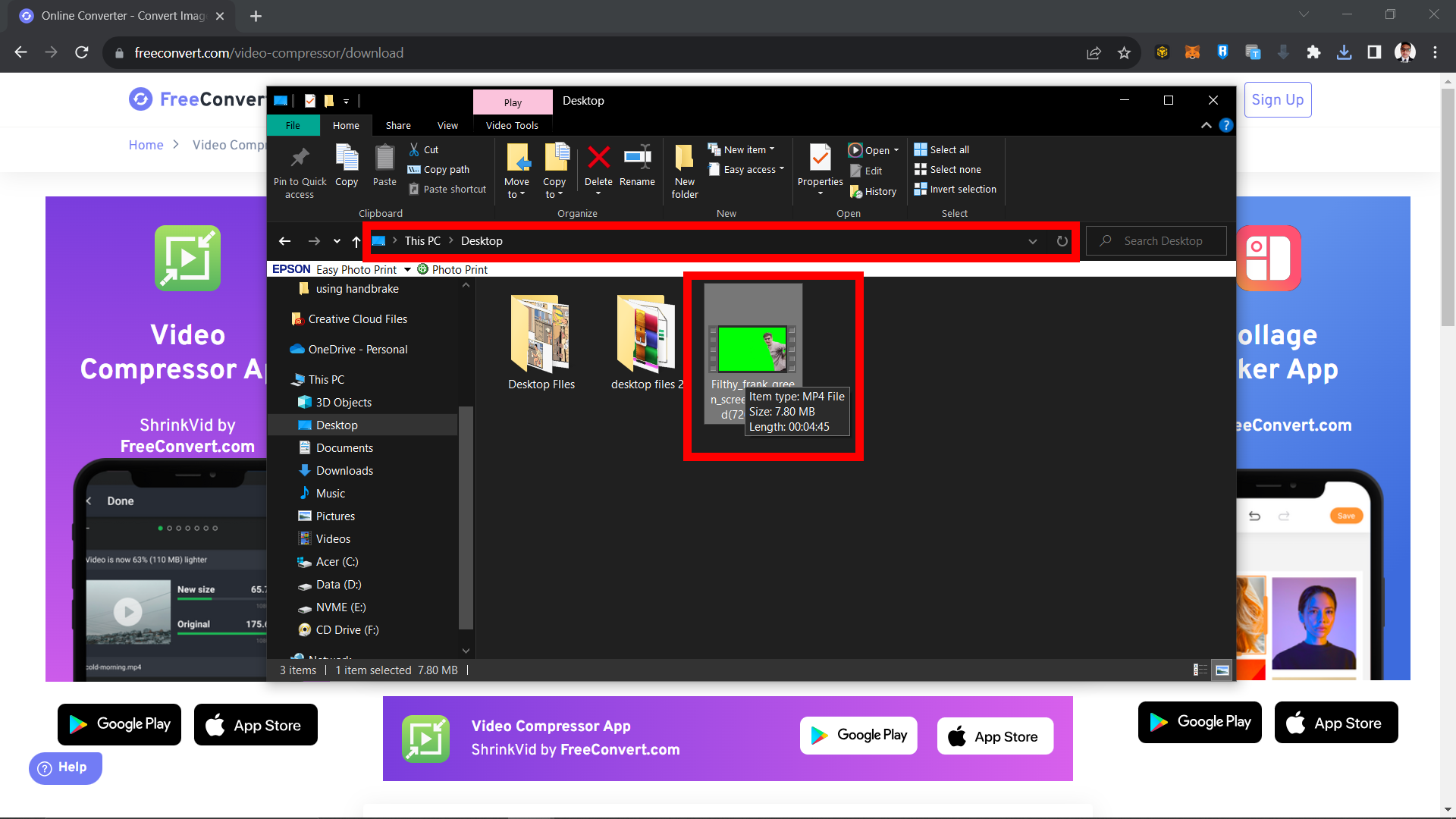
- Go to FreeConvert: Open FreeConvert’s Video Compressor.
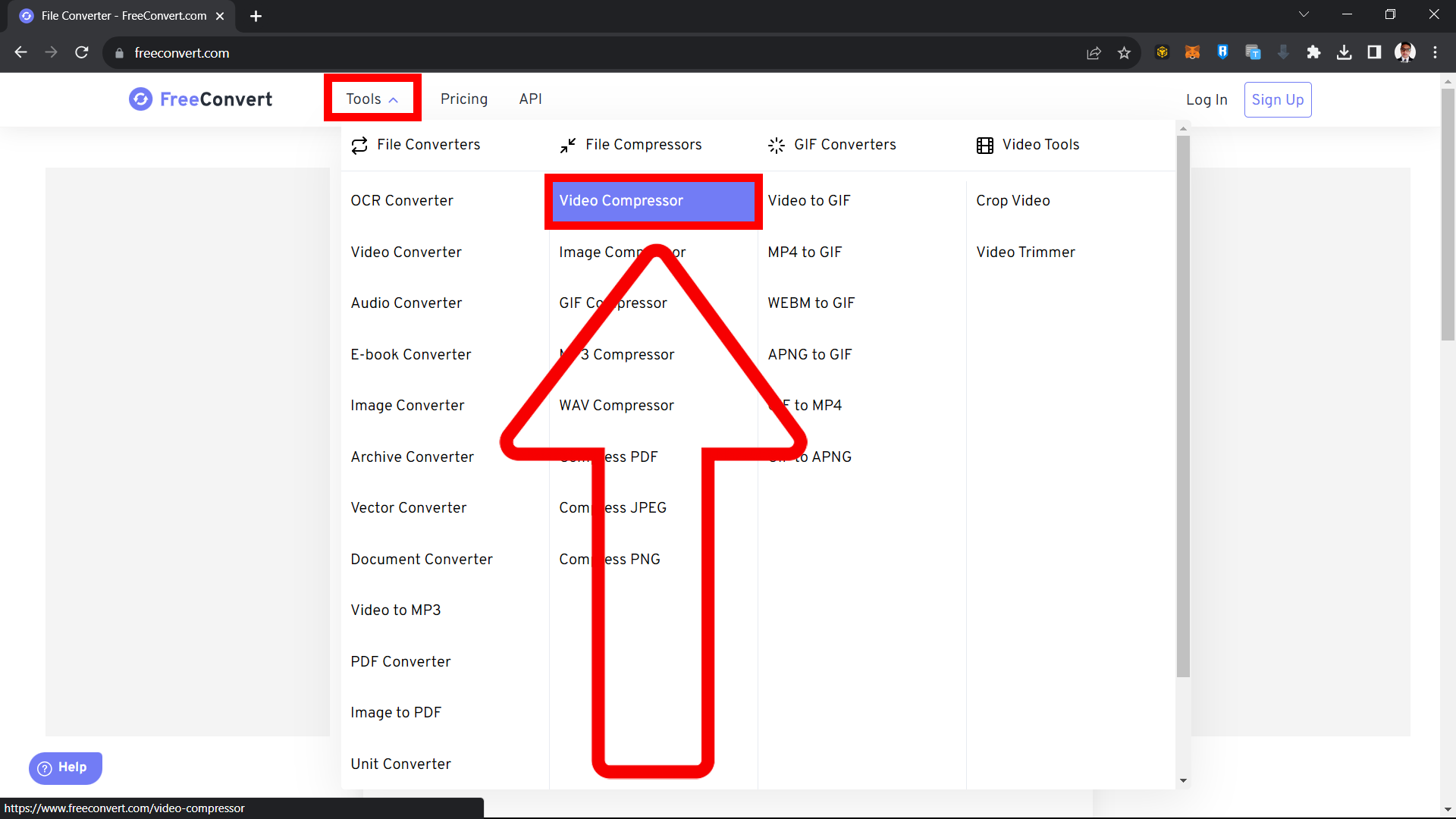
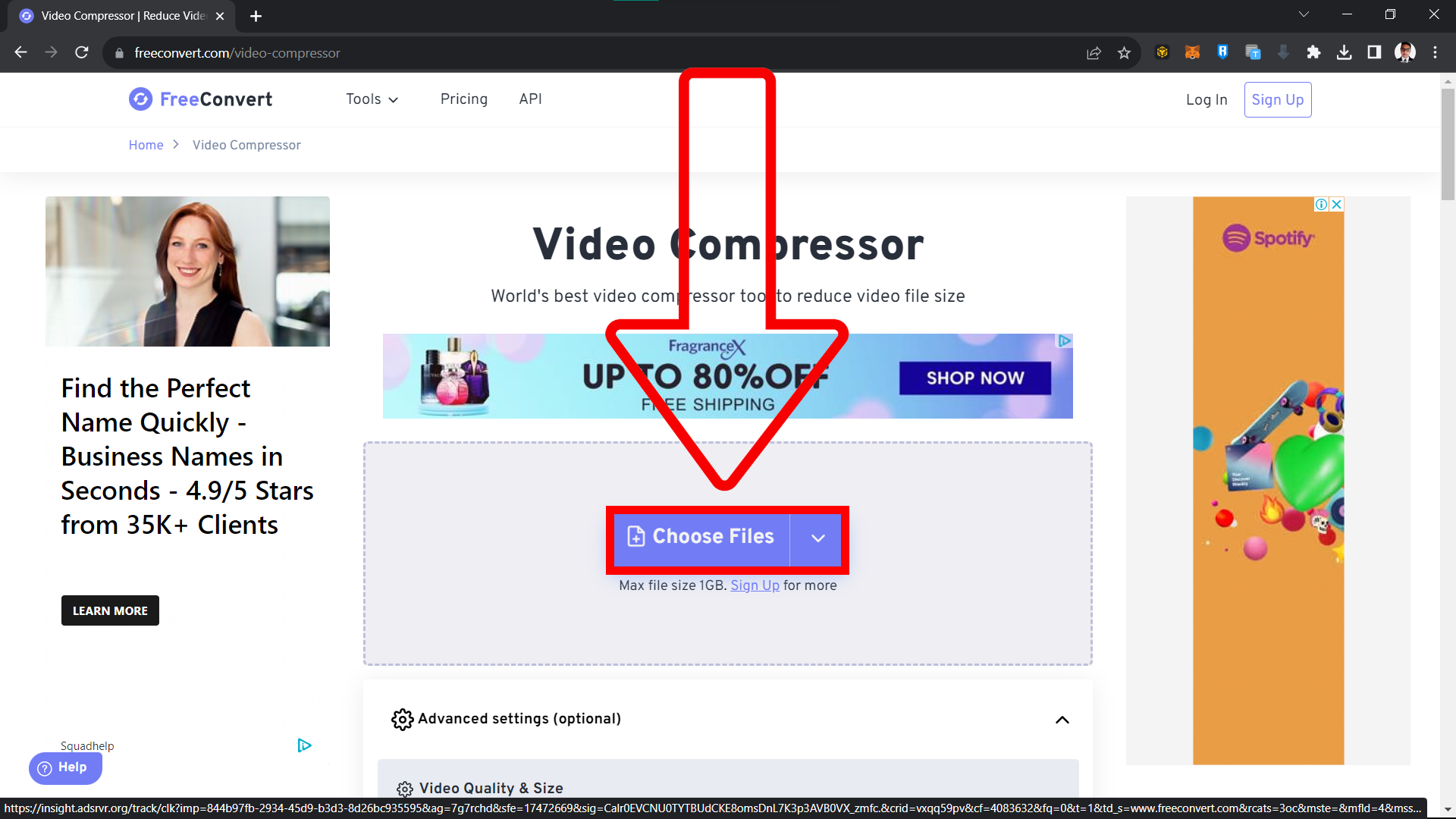
- Upload your video: Click “Choose Files” and select your video.
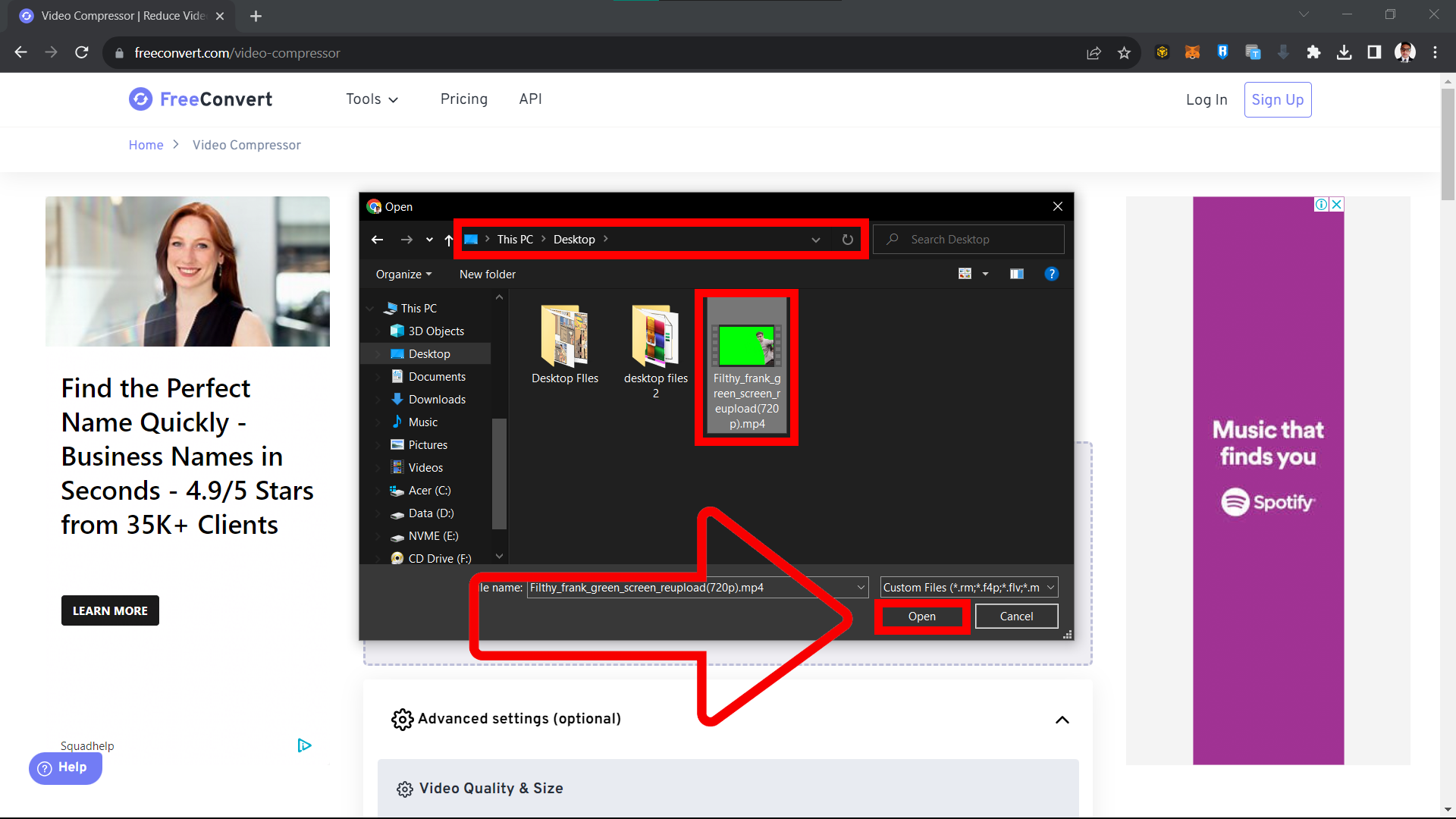
- Set the target size: Adjust the output size to stay under 16MB.
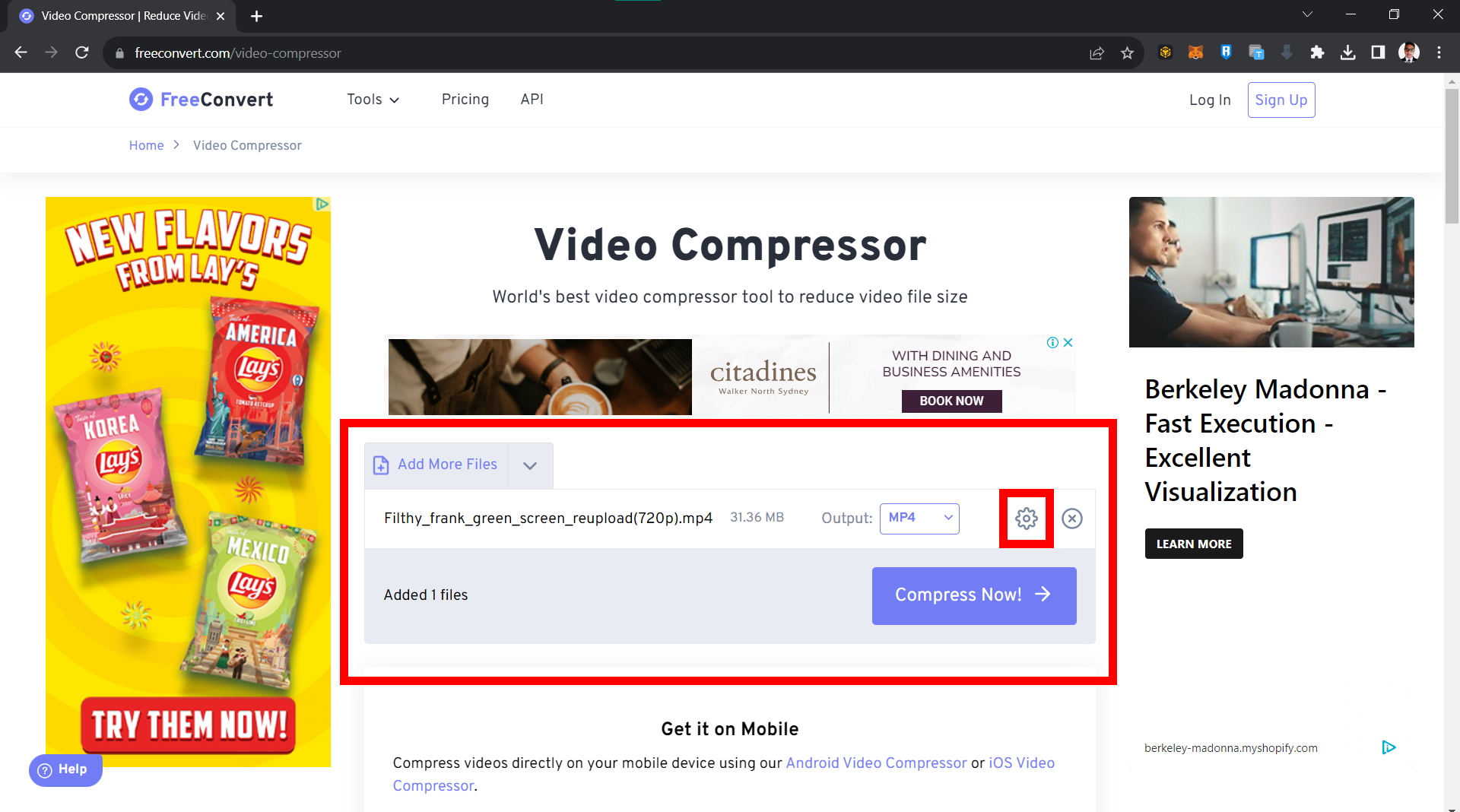
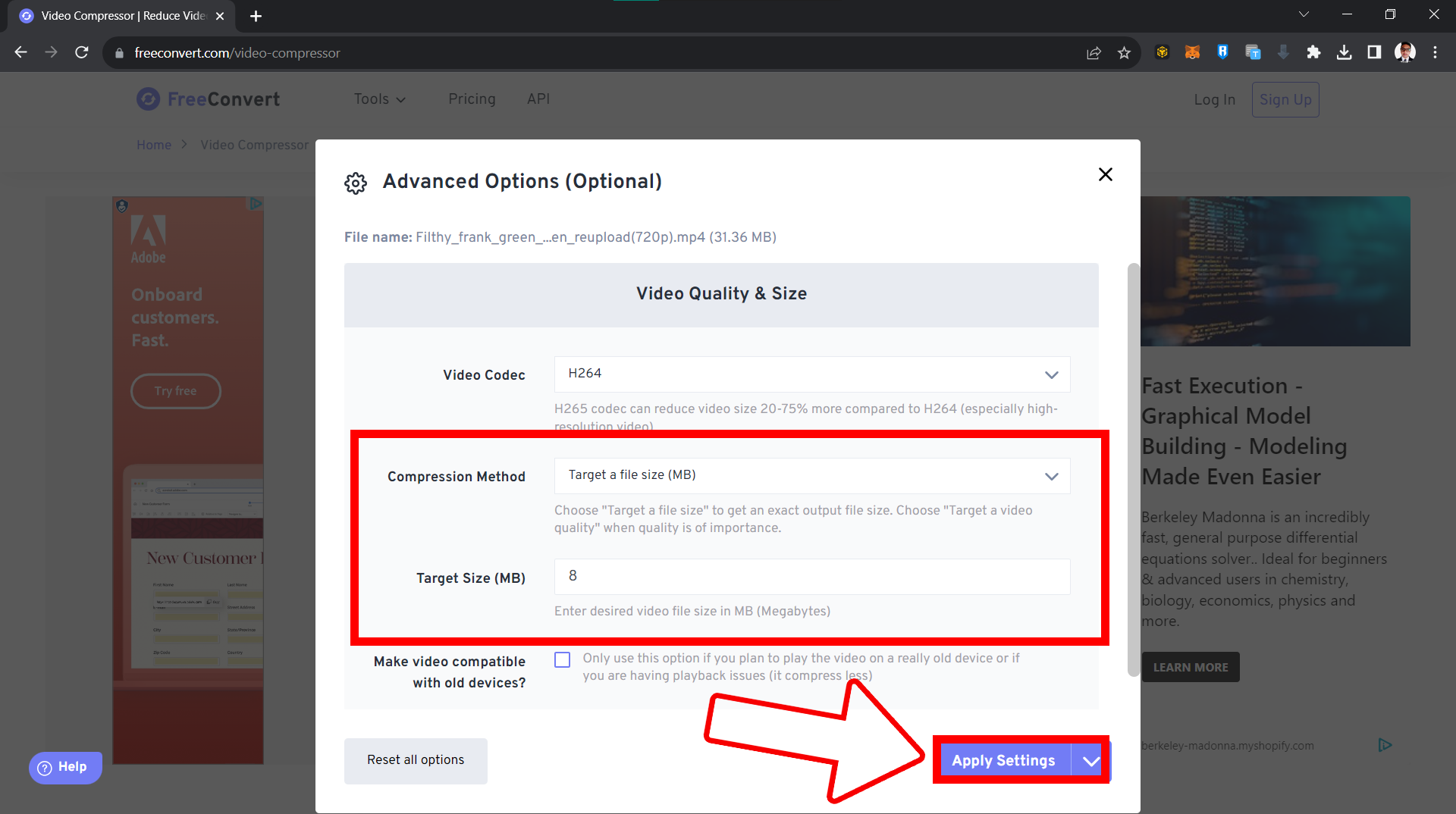
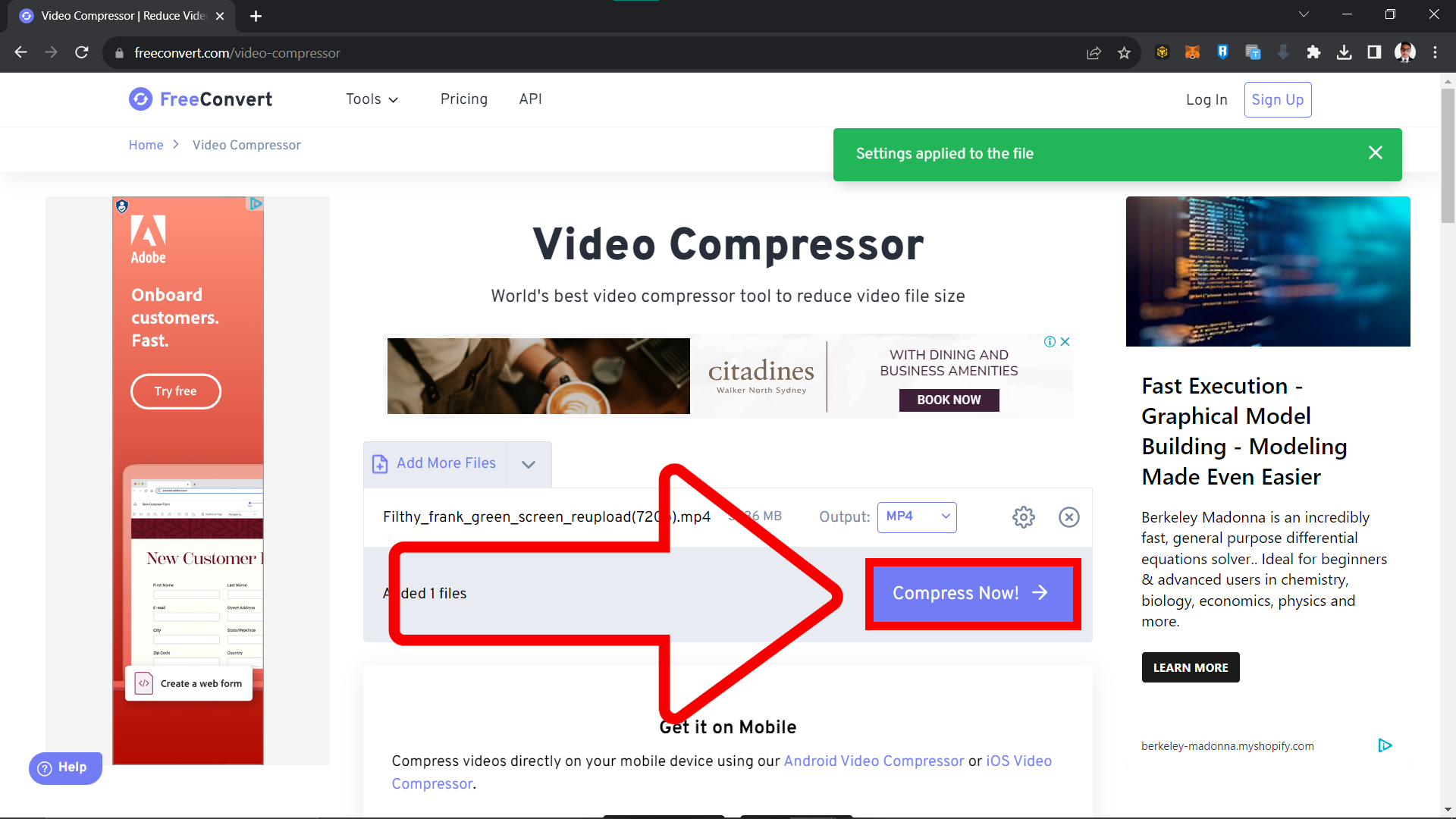
- Compress: Click “Compress Now” and wait for it to finish.
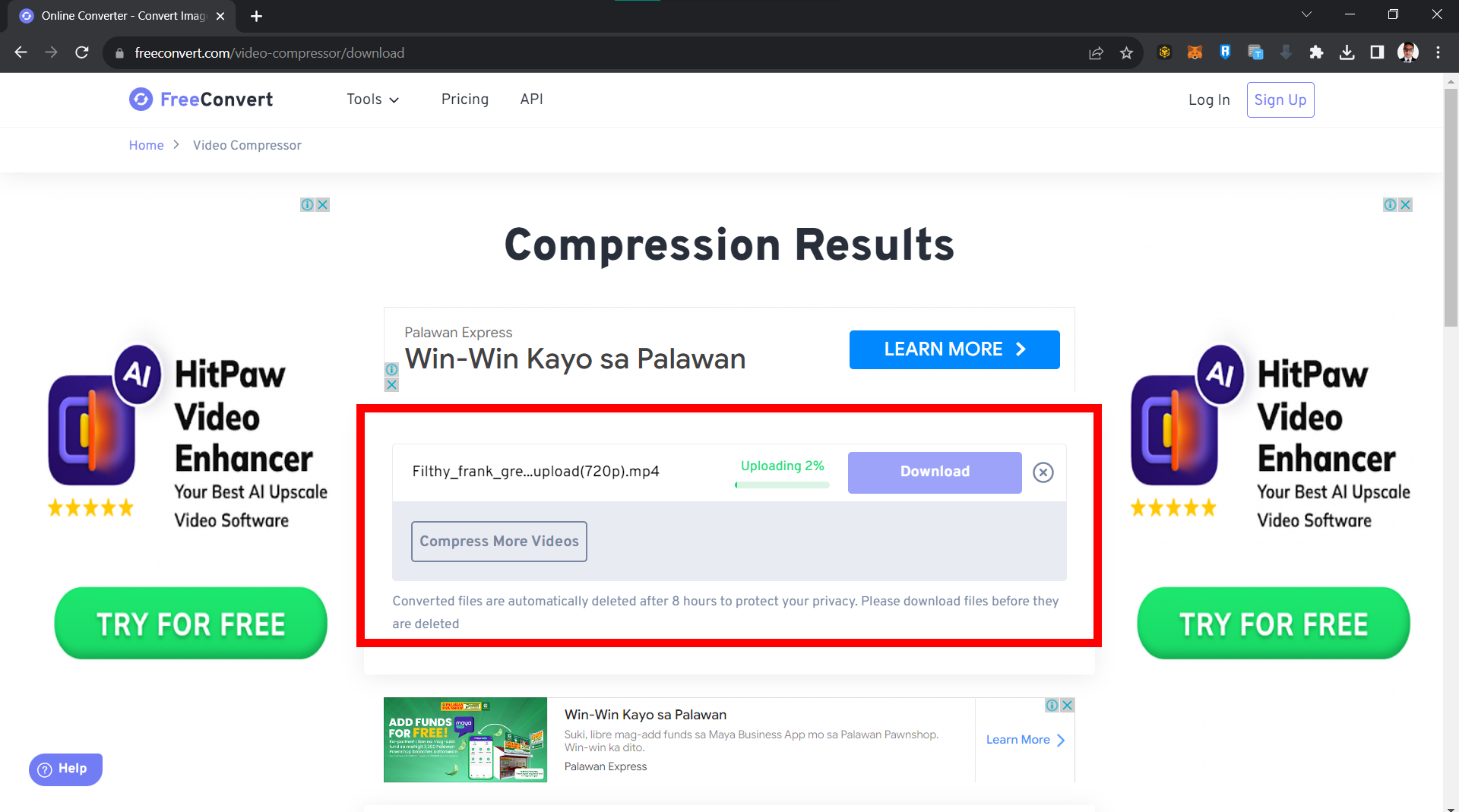
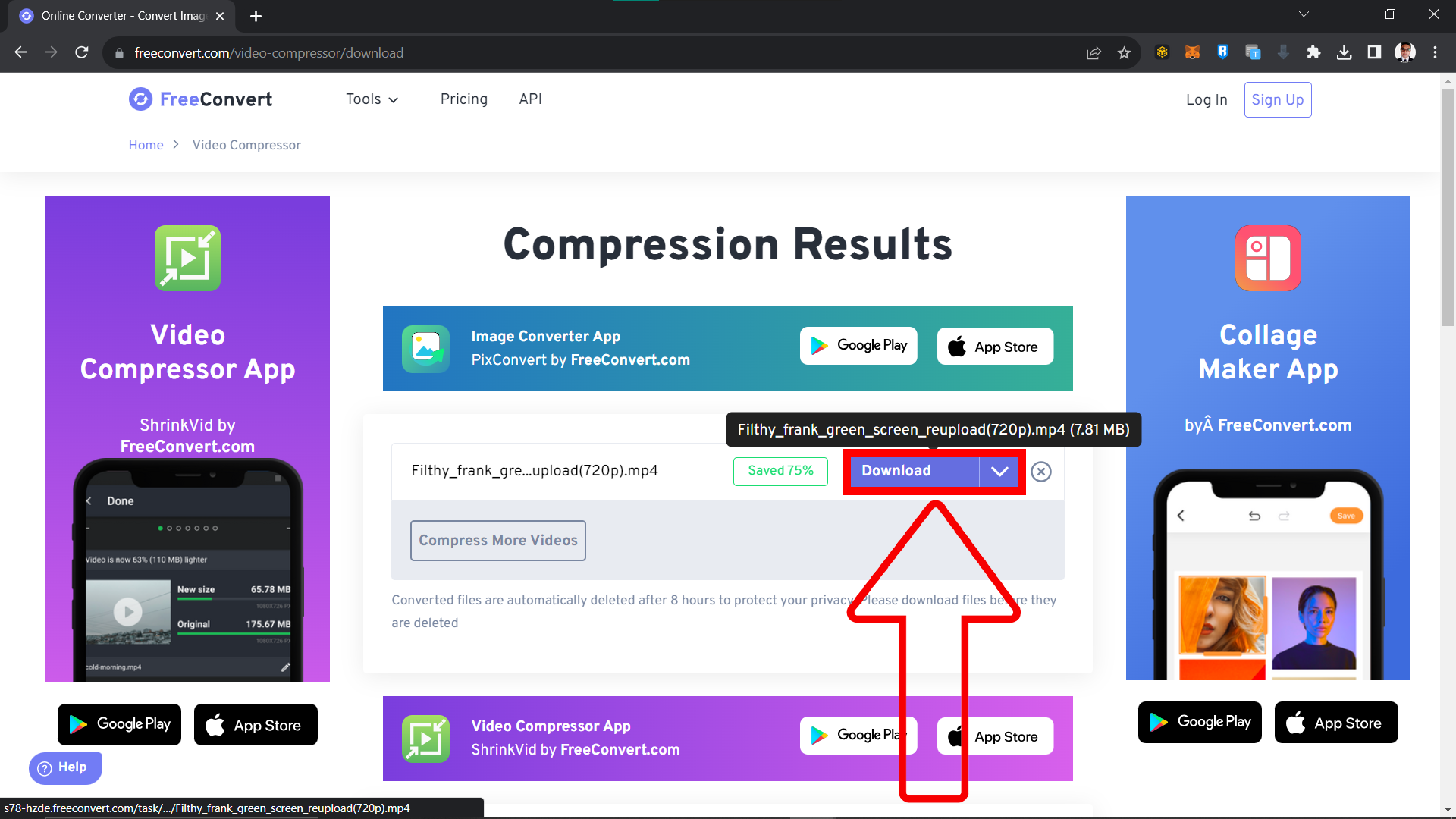
- Download and share: Download the compressed video and send it on WhatsApp.
FAQ: Compressing and Sharing Videos on WhatsApp
1. Why do I need to compress videos for WhatsApp?
WhatsApp has a 16MB file size limit. If your video is larger than that, it won’t send. Compressing shrinks it to fit. WhatsApp also has built-in compression that kicks in automatically when you attach a video.
2. Can I share videos without compressing them?
Yes. Upload the video to a cloud service like Dropbox, Google Drive, or OneDrive, then share the link in WhatsApp. Check out our guide on how to upload files online for details.
3. Will compressing videos reduce their quality?
It can. More compression means a smaller file but lower quality. Tools like ezyZip and FreeConvert let you choose the balance that works for you.
4. Can I compress videos on my phone?
Yes. There are plenty of free video compressor apps on both iOS and Android. Just search your app store.
5. Are these tools free?
ezyZip’s online compressor is free. FreeConvert and Dropbox both have free tiers with optional paid upgrades for more features and storage.
6. Can I use other cloud services instead of Dropbox?
Absolutely. Google Drive, OneDrive, or any service that generates a shareable link will work.
Conclusion
That covers all five methods. For the quickest option, try WhatsApp’s built-in compression. For more control over file size and quality, use ezyZip or FreeConvert. Pick the method that fits your situation and you’ll be sharing videos in no time.